
Pabau connects directly to Labcorp Link, Labcorp's online portal for providers. Once your Labcorp account is linked, Pabau signs in on your clinic's behalf to bring your Labcorp results into Pabau, and your team can open Labcorp Link from any client's card to place an order.
NOTE: Labcorp is available for clinics in the United States. You'll need the email and password your clinic uses to sign in to Labcorp Link, the key from the authenticator app set up for that login, and access to Setup in Pabau.
Step 1: Find Labcorp in Labs Setup
- Go to Setup and open Labs (under Integrations).
- Under Available integrations, which lists the labs for your clinic's region, type Labcorp in the search box (or choose the Direct integration filter).
- Click Configure now on the Labcorp card.
Setup runs in two short steps, shown down the left of the window: Link your lab and Map your tests.
Step 2: Link Your Labcorp Account
- Enter your Username: the email you use to sign in to Labcorp Link.
- Enter your Password. It's stored encrypted and used only to connect to Labcorp.
- Enter the Authenticator secret. Labcorp requires a two-factor sign-in, so Pabau needs the same key your authenticator app uses. In your authenticator app's setup screen, choose enter a key manually, copy the secret key and paste it here. Pabau can then sign in without a phone.
- Click Check connection.
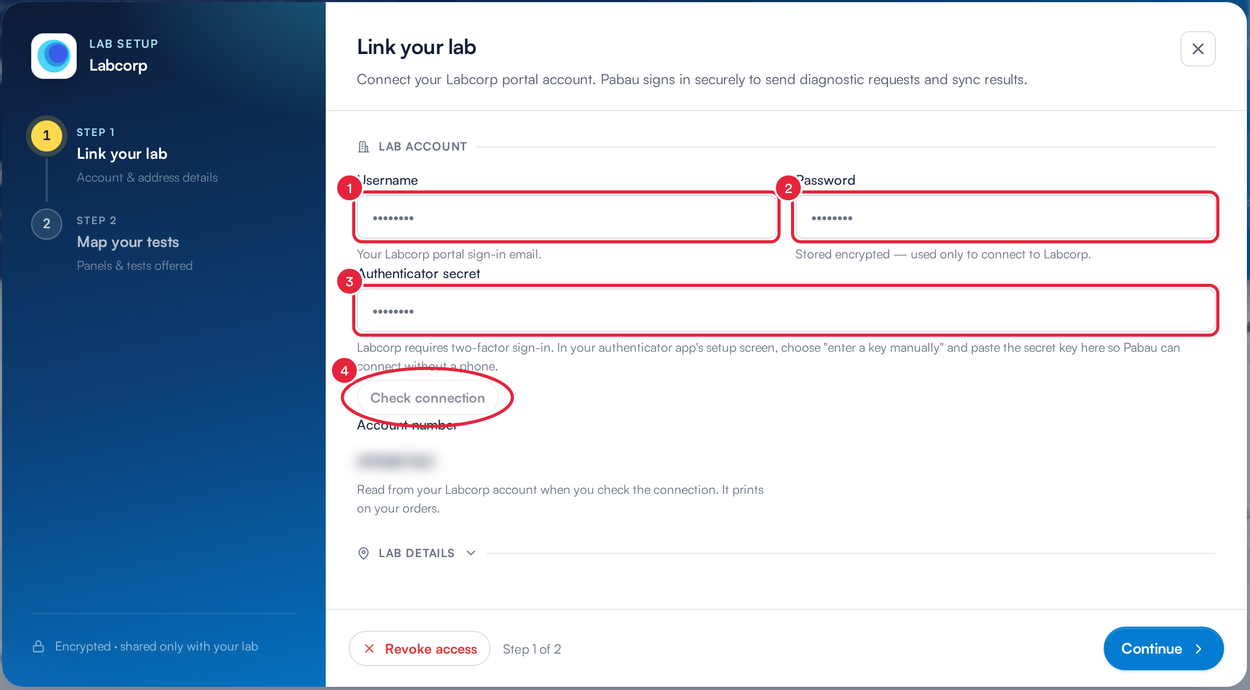
Link your Labcorp Link sign-in
Pabau signs in to Labcorp Link with the details you entered. Give it a few seconds. When it works you'll see Connection successful, and the Account number fills in from your Labcorp account. That number prints on your orders. If something is wrong you'll see "Could not connect — check your details."
IMPORTANT: Your sign-in is saved when you click Check connection. The password and authenticator secret are never shown back to you: once saved, the fields show dots. Keep the authenticator secret private, like a password.
Open Lab Details underneath to check the lab's contact details and address. Address line 1 is required before you can continue. Then click Continue.
Step 3: Map Your Tests
Map your tests lists the panels and tests Labcorp offers, synced from its catalogue, with each one's Labcorp code and health category. Mapping a test to a Pabau service keeps ordering and billing in line.
- Quick map creates a matching service at the price you set and maps it in one go.
- Map service lets you pick one of your existing services.
- Link all creates a service for every unmapped test in the current view, all at one price. You can change the prices later in Services.
- Click Finish setup.
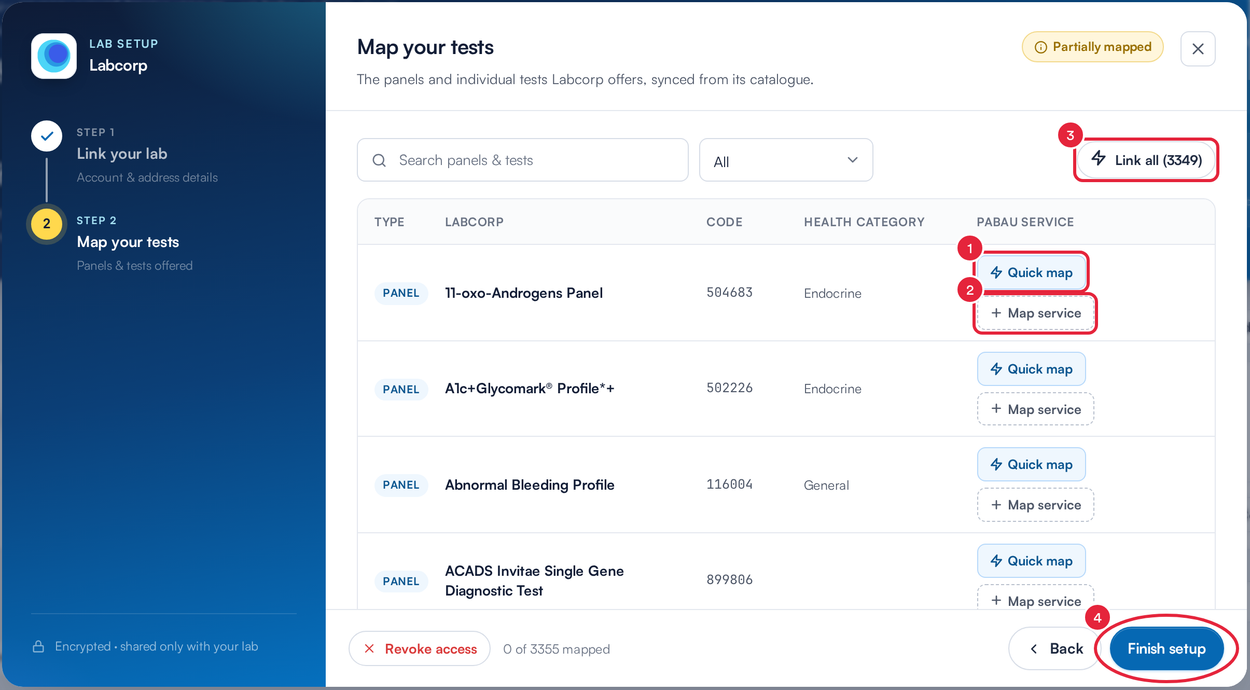
Map the Labcorp tests you order
TIP: Labcorp's catalogue runs to thousands of tests, so you don't need to map everything now. Use the search box and the filter to find the panels your clinic orders, map those and finish setup. Click Configure on the Labcorp card any time to map more.
Pabau confirms with "Labcorp connected." Labcorp now appears under Your labs with a Connected badge.
Step 4: Let Pabau Bring In New Results
From the time you connect, Pabau checks Labcorp for new results automatically, about every half hour, and files each one on the matching client's Lab Tests tab. It matches on the client's name and date of birth. If no client matches, Pabau creates the client from the lab's details. If a result could belong to a client you already have, Pabau holds it in the Lab Inbox on the Labs page for you to check. Pabau reads each report with its AI lab parser, which uses AI credits.
NOTE: The automatic sync picks up results that arrive after you connect. It doesn't import your older Labcorp history.
The Labcorp card shows when Pabau last synced (for example Last synced 8 minutes ago). If Labcorp stops accepting the saved sign-in, the card shows Action needed. Click Reconnect and enter your Labcorp details again.
Step 5: Look Through Your Labcorp Results
To see everything Labcorp holds for your account, including results from before you connected:
- Click Sync results on the Labcorp card.
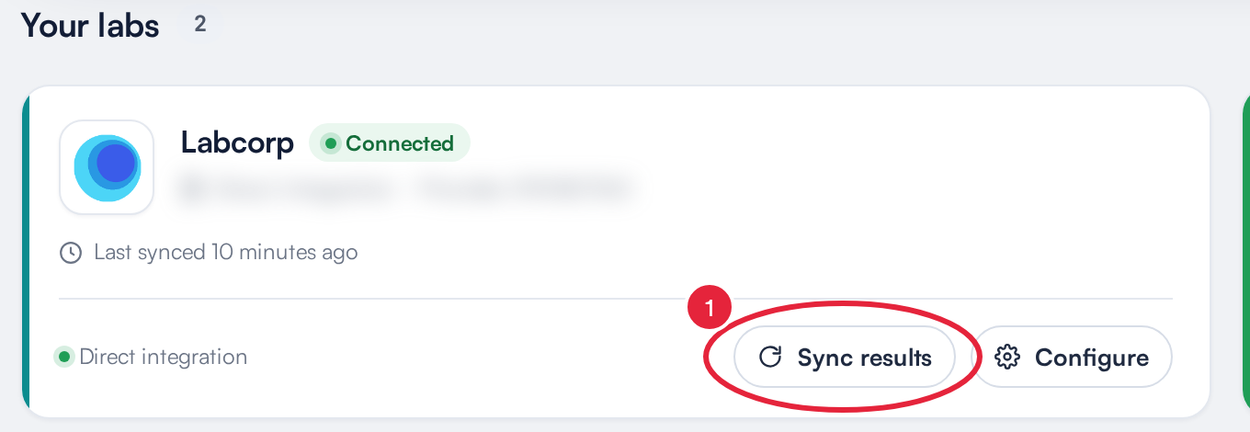
Labcorp under Your labs once it's connected
- The Sync Labcorp results screen explains that Pabau fetches up to 2 years of results. Click Sync results now.
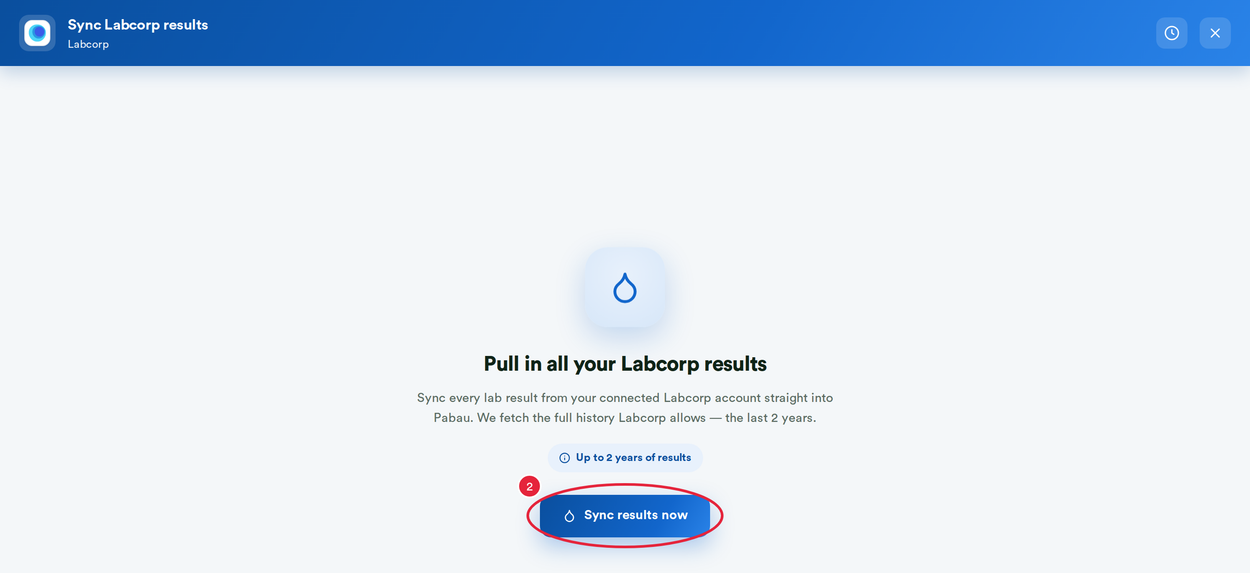
Pull in up to 2 years of Labcorp results
Pabau works through Connecting to Labcorp, Pulling results (last 2 years) and Finishing up, then lists what it found: the total, how many were out of range and in range, and a row for each result with the patient, tests, status, who ordered it and the reported date. The Pabau Match column shows whether the patient matches a client in Pabau. Click the eye icon on a row to preview the report PDF.
NOTE: For Labcorp this screen is for looking through your results. Unlike Quest Diagnostics, it has no Import button: new results reach client records through the automatic sync.
What's next?
- How to Connect Quest Diagnostics to Pabau
- How to Create a Lab Request (New Client Card)
- Overview of Labs
Was this guide helpful? Let us know by voting below - your feedback helps us write clearer articles.
For more guides, browse the related articles below or use the search bar at the top of the page. You can also watch our video learning series, the Pabau Academy, or visit the Support page for additional help.