
Connecting a staff mailbox brings its mail into Engage as a synced channel: messages appear in the unified inbox, and the mailbox shows up in the sidebar under Email with its own count. This article covers both Gmail and Microsoft 365 (Outlook).
Step 1: Open the Right Channel Card
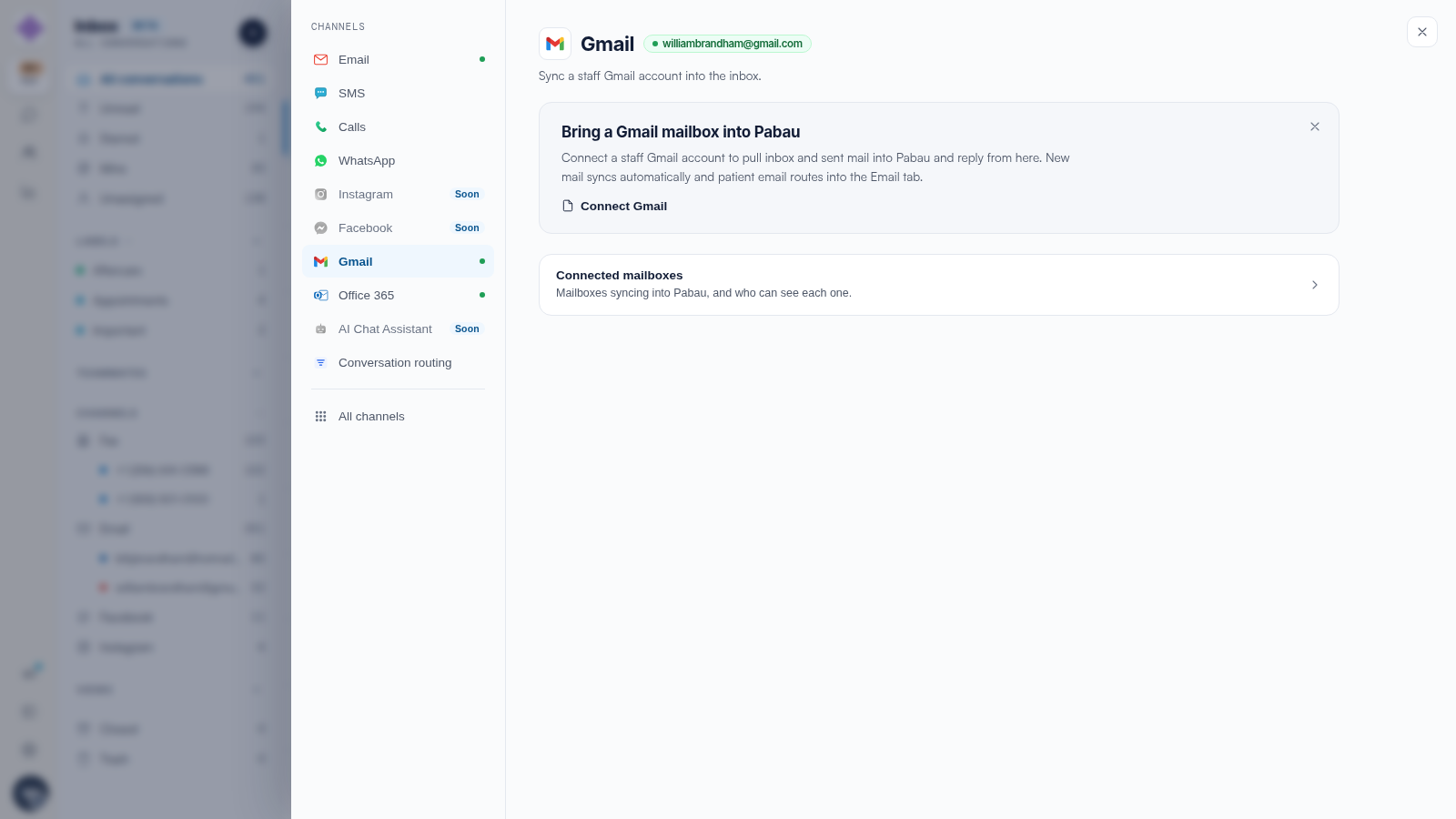
Click the Settings cog in the icon rail and choose Gmail or Office 365 from the channel list. Each card shows its own connection status.
Step 2: Sign In and Grant Access
Click the connect action and sign in with the mailbox’s own account — Google for Gmail, Microsoft for Office 365. The provider’s consent screen asks you to allow mail access; Pabau never sees the account’s password, only the permission you grant.
Step 3: Find the Mailbox in the Inbox
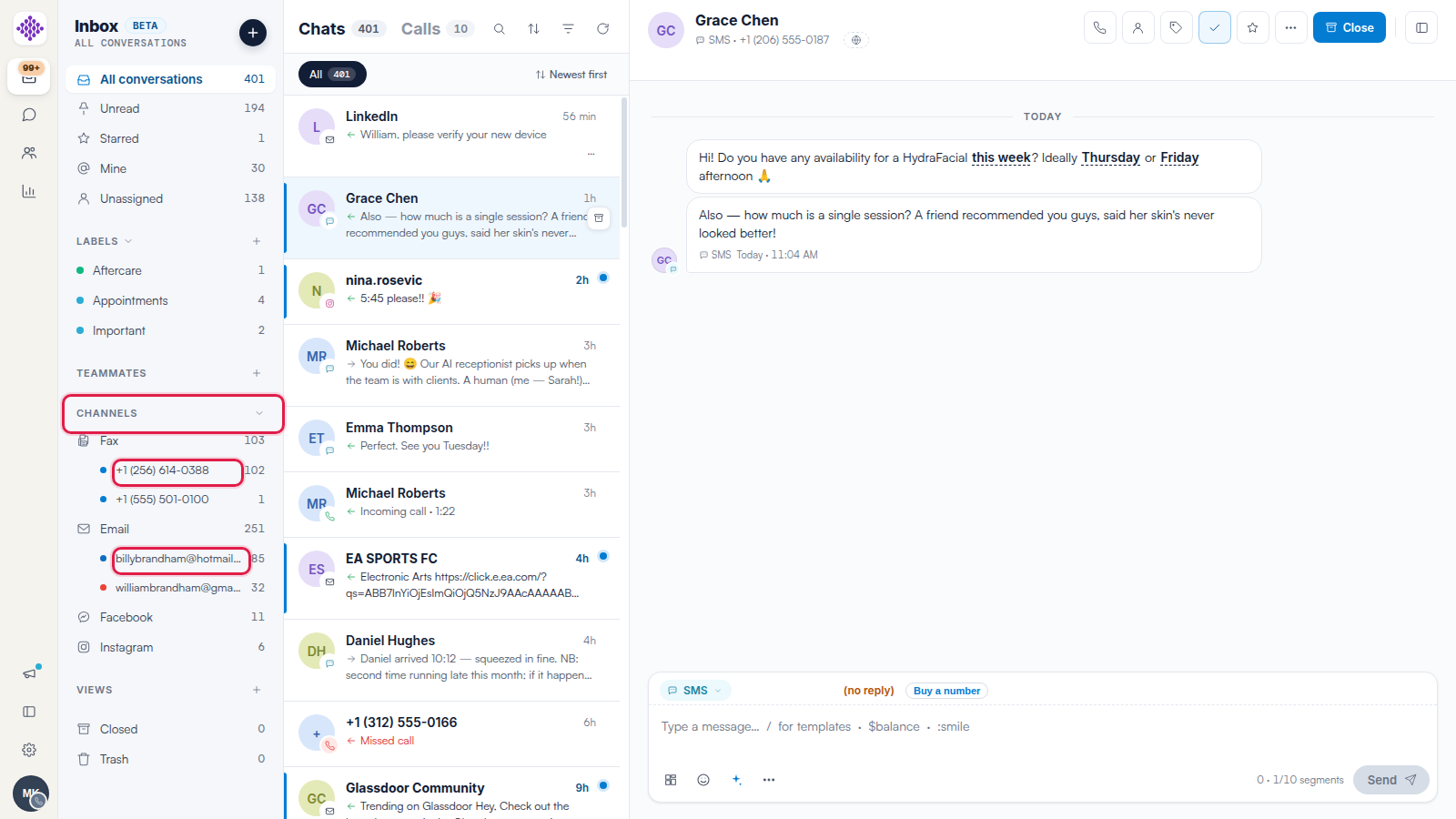
Once connected, the card shows Connected with the address, and the mailbox appears in the inbox sidebar nested under Email — click it to see just that mailbox’s conversations.
NOTE: A synced mailbox is personal to the account you connect. For a shared clinic address, forwarding is usually the better fit — see our How to Set Up Email Forwarding into Engage article.
Related Articles
We suggest reading our Email in Engage: Sending, Forwarding and Mailboxes Explained article for how everything email fits together.
For more guides, refer to related articles below, select additional guides, or use the search bar at the top of the page. These guides will help you get the most out of your Pabau account.
Additionally, to help you fully utilize and understand your Pabau account, we recommend exploring additional guides and resources offered at the Pabau Academy.