
Clinic readiness brings the key parts of your clinic’s setup into one place: account security, consent forms, medical history, treatment preparation, client instructions, and privacy and records. Pabau checks the settings it can verify for you, and your team records a decision for everything that needs a person’s judgement, so you always know what is done and what still needs attention.
NOTE: These checks support your Pabau setup. They do not certify regulatory compliance. Clinical suitability and local requirements still need your clinic’s own review.
NOTE: Anyone with access to the Setup page can open Clinic readiness, run the checks and record a review. The Dashboard, Inspections and Evidence Hub tabs on the same page are for mock inspections and are available to clinic administrators only.
Step 1: Open Clinic Readiness
- Click the Setup cog at the bottom of the left sidebar.
- Under Business, click Clinic readiness (“Review security, clinical forms and your clinic’s setup in one place.”).
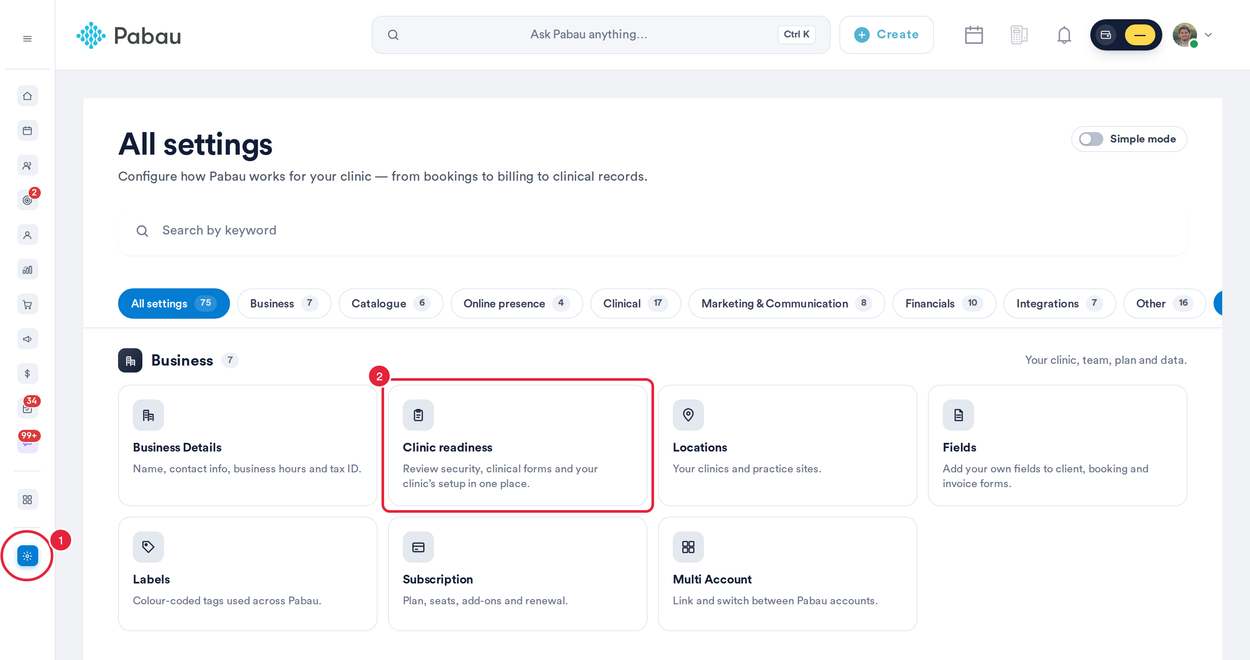
Clinic readiness sits in the Business section of Setup
Step 2: Run the Checks
- Click the Readiness checks tab.
- Click Run checks. Pabau reads your current settings again, and the Readiness summary shows how many of your applicable checks have passed, with a count for Passed, Needs attention, Needs review and Unable to check. Click any of these counts to show only those checks. The date of the last run appears beside the Readiness summary heading.
- Not sure where to begin? Your next step recommends one check to look at first. Click Review this check to open it.
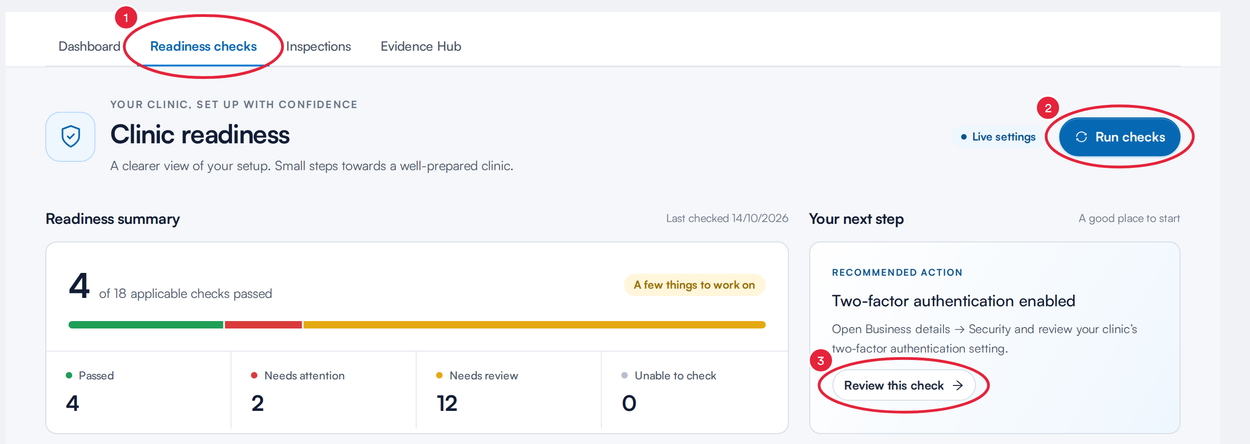
The readiness summary and your recommended next step
Step 3: Find a Check
Scroll down to Your readiness checks. The 18 checks are grouped into six areas: Account security, Consent forms, Medical history, Treatment preparation, Client instructions and Privacy & records. Each area shows how many of its checks have passed.
- Type in Search checks to find a check by name.
- Use the status filter to show All checks, or only those that are Passed, Needs attention, Needs review, Unable to check or Not applicable.
- Click a check to open it.
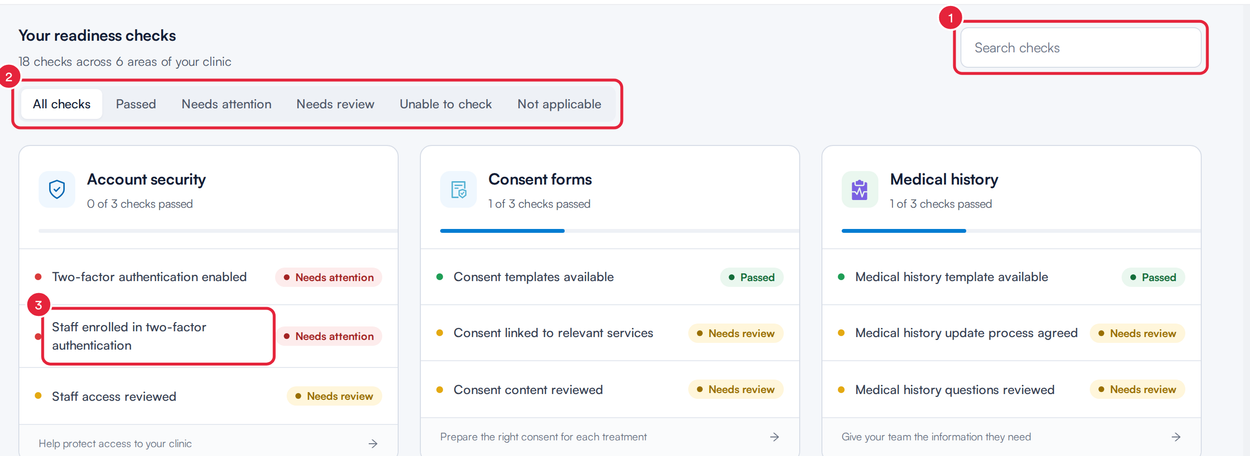
Checks are grouped into six areas of your clinic
What each status means:
- Passed: Pabau found the setting in place, or your team has reviewed and confirmed the check.
- Needs attention: Pabau checked your settings and something is missing, for example staff who have not enrolled in two-factor authentication.
- Needs review: this check needs a decision from your team (see Step 5).
- Unable to check: Pabau could not verify the check this time. Run the checks again, or ask someone with the relevant access to review it. It is never counted as passed.
- Not applicable: your team recorded that the check does not apply. It no longer counts towards your total.
Step 4: Fix a Check Pabau Runs for You
Checks marked Checked by Pabau read your saved settings. There are six: Two-factor authentication enabled, Staff enrolled in two-factor authentication, Consent templates available, Medical history template available, Treatment note templates available and Aftercare resources available.
- Open the check. The panel explains what Pabau looked for and, where it applies, how many items it found (for example, how many active staff have not enrolled in two-factor authentication).
- Read What to do, then click Open relevant settings to go straight to the right place in Setup and make the change.
- Come back to Clinic readiness and click Run checks again to update the result.
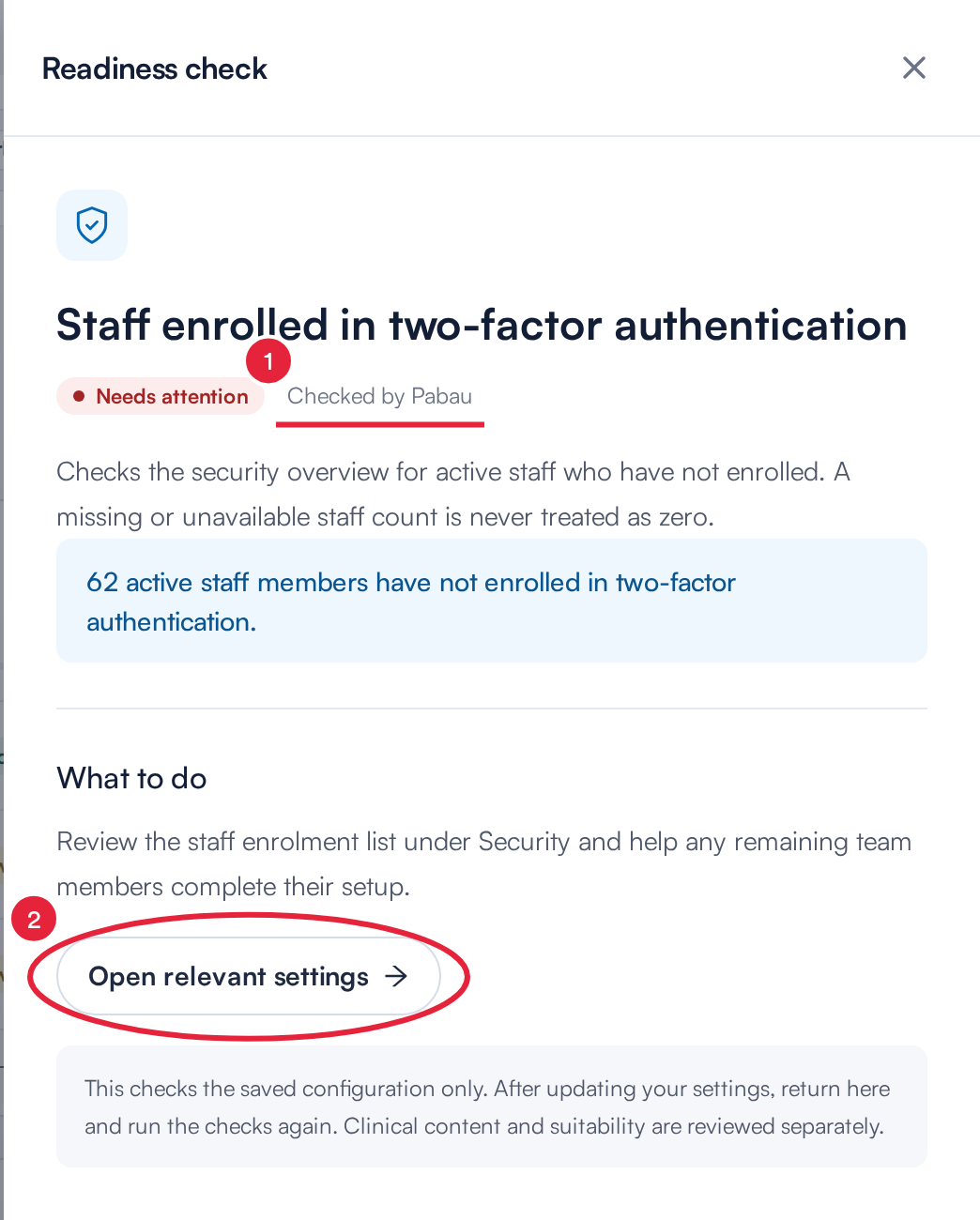
A check that Pabau runs against your settings
TIP: These checks only confirm that a setting exists, such as at least one active consent template. They don’t judge the content of your forms or whether every service is covered. Those questions are separate checks for your team to review.
Step 5: Record Your Clinic’s Review
Checks marked Reviewed by your clinic need a person’s judgement, for example Staff access reviewed, Consent content reviewed, Patch-test requirements reviewed or Privacy notice reviewed. Open the check, read What to do, then fill in Record your clinic’s review:
- Choose Reviewed and confirmed if the check is satisfied for your clinic, or Not applicable if it does not apply.
- In Review notes or reason, describe what you checked, the decision and where the supporting evidence is kept (10 to 2,000 characters). Include a policy title or evidence reference.
- Click Save review.
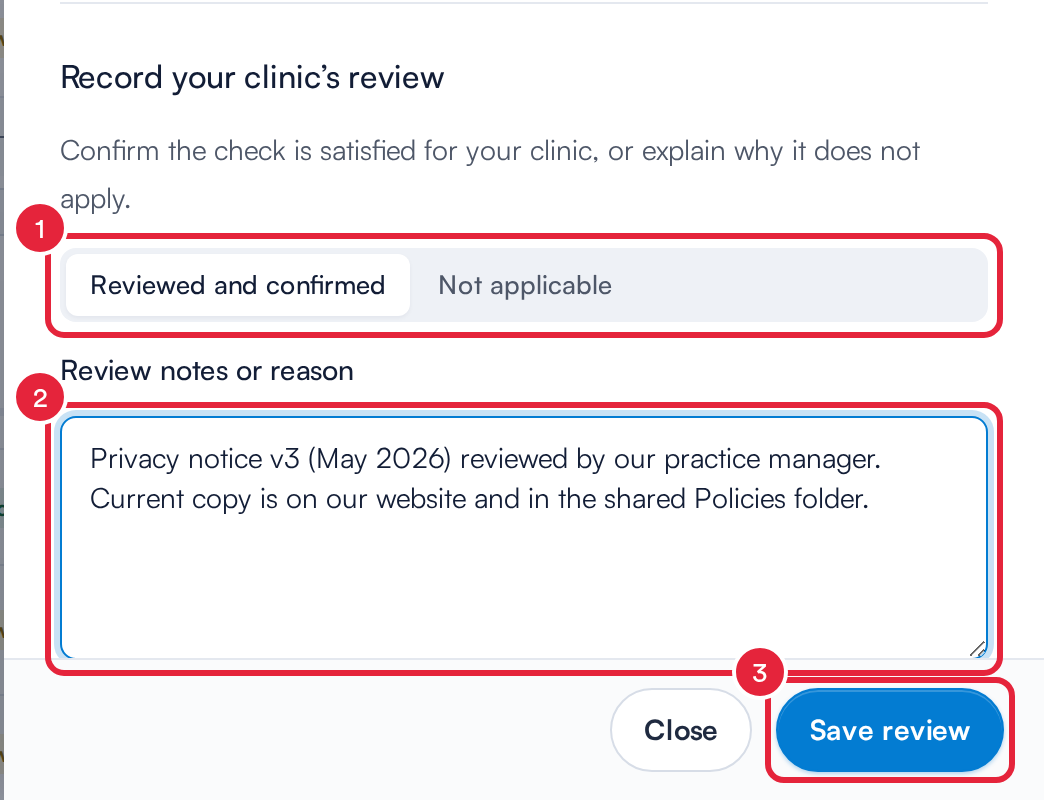
Recording a review for the Privacy notice reviewed check
IMPORTANT: Don’t include patient details, passwords or confidential clinical records in your review notes.
A check you mark Reviewed and confirmed moves to Passed. A check you mark Not applicable moves to Not applicable and is left out of your total. Pabau saves your name and the date with the review, and the check then shows Last reviewed by followed by that name and date.
Step 6: Keep Your Reviews Up to Date
- Focus on these next, near the bottom of the tab, lists up to three outstanding checks. Click Review beside one to open it.
- Review clinic evidence opens the next check that is waiting for your team’s review.
- Open a reviewed check at any time to read the saved notes, or save a new review over it. Run the checks again and update your reviews whenever your team, treatments or policies change.
What's next?
- How to Set Up Two-Factor Authentication (2FA)
- How to Make Your Account More Secure
- How to Create a Consent Form
- How Pabau Assists with CQC Compliance
Was this guide helpful? Let us know by voting below - your feedback helps us write clearer articles.
For more guides, browse the related articles below or use the search bar at the top of the page. You can also watch our video learning series, the Pabau Academy, or visit the Support page for additional help.