
Not every client message goes out on its own. Some are sent automatically when something happens, reminders go out at a time you choose, and others are only sent when someone on your team clicks Send or Share. The How it’s sent tab in the notification studio explains this for each message in plain words: what triggers it, what has to be in place, and which channels are switched on. It's the first place to look when a client says they didn't receive a message.
NOTE: This feature is being rolled out to clinics gradually. If you don't see it in your account yet, message us via the in-app chat.
Step 1: Open the How It’s Sent Tab
- Go to Setup and, under Marketing & Communication, click Client Notifications. Click Edit template on the message you want to check.
- In the notification studio, click the How it’s sent tab at the top left. The page is headed How this message works.
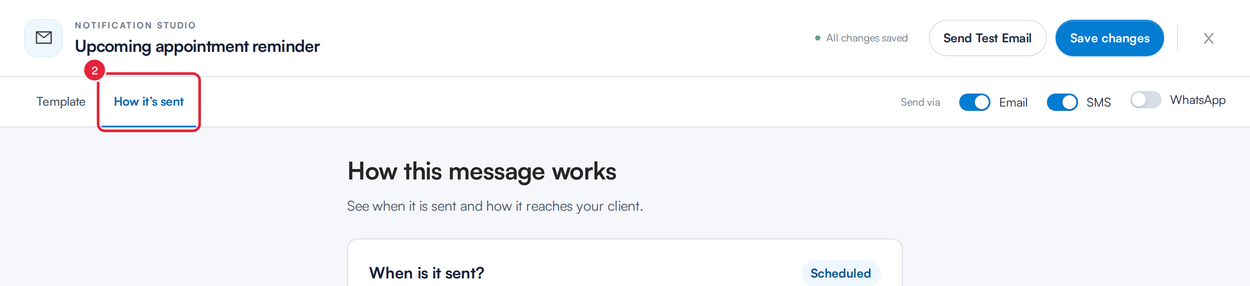
The How it’s sent tab sits next to Template
Step 2: Check When the Message Is Sent
Under When is it sent?, a badge tells you what kind of message it is, and the sentence below it says what triggers it.
| Badge | What it means |
|---|---|
| Automatic | Pabau sends it when something happens, for example when an appointment is booked and a confirmation is requested. |
| Scheduled | Pabau sends it at a set time before the appointment, such as appointment and class reminders. |
| Sent by you | It only goes out when someone on your team sends or shares it, for example a letter, a form, a quote or a no-show message. |
| Automatic or sent by you | Both: Pabau sends it after certain online purchases, and you can also send it yourself. Invoices and gift cards work this way. |
- Read the badge and the trigger sentence.
- On reminders, the blue line shows your current timing, for example Your schedule: 1 day before the appointment or class, at 12:00. To change it, click the Template tab, then Settings, and change the Reminder timeframe.
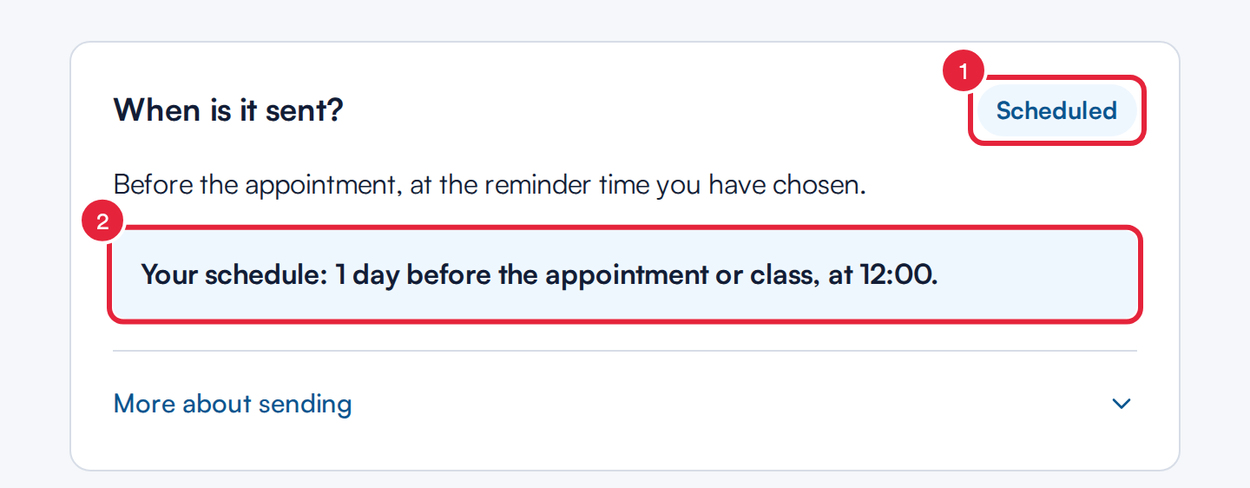
A scheduled reminder and its current timing
Step 3: Read the Conditions
- Click More about sending to see everything that has to be in place for the message to go out.
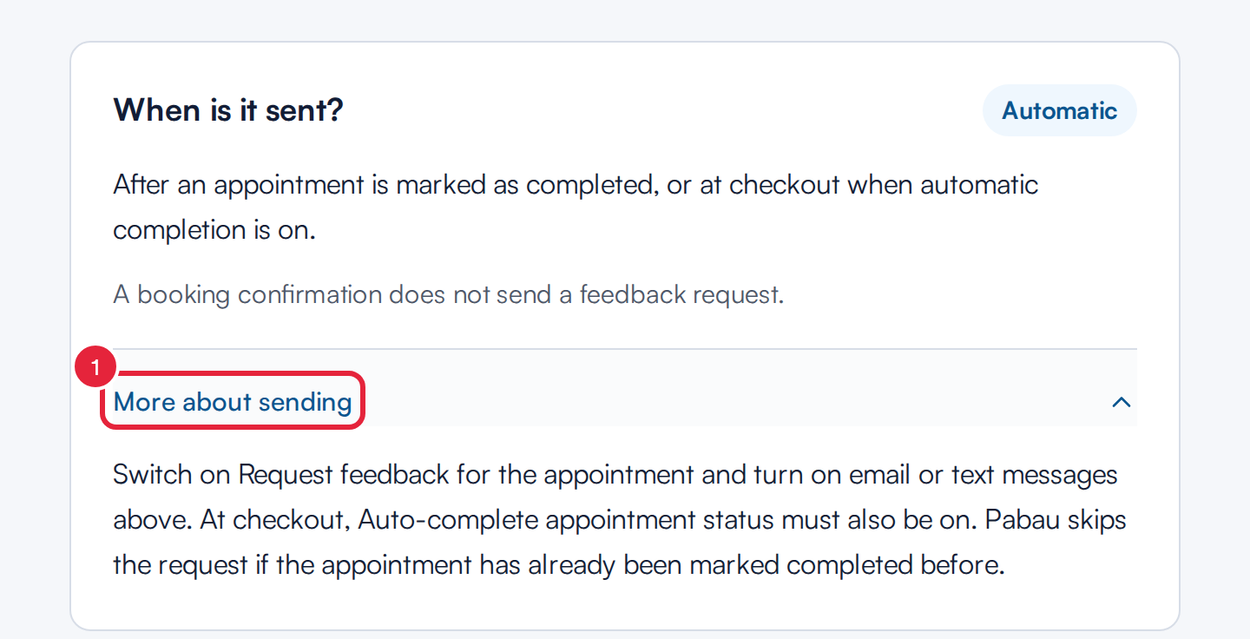
The conditions for the Request feedback message
Some examples of what you'll find here:
- New appointment is booked is only sent when you choose to send a confirmation while booking. It tells the client the booking is made; it doesn't confirm that they will attend.
- Request feedback goes after an appointment is marked as completed, or at checkout when Auto-complete appointment status is on. A booking confirmation doesn't send a feedback request.
- No Show Appointment is never sent just because the appointment time has passed. You decide whether to send it when you mark the appointment as a no-show.
- For reminders, times use your clinic’s time zone, and a booking made after the reminder time won't receive that reminder.
Step 4: Check How the Client Receives It
Under How will they receive it?, each channel shows its status and what it needs.
- Check the status next to Email and Text message (SMS):
- On or Off: whether the channel is switched on for this message. Change it with the Send via switches at the top right.
- You choose: for most messages you send yourself, such as letters, forms and quotes, you pick the channel each time you send.
- Automatic sending on or Automatic sending off: for invoices and gift cards. You can still send them yourself when automatic sending is off.
- Needs setup: your clinic has no active SMS sender, so text messages can't be sent. Add one in Setup under Sender Addresses.
- Read what each channel needs: An email address is needed. for email, and A mobile number and SMS credits are needed. for text messages. If the client has no email address or mobile number, that channel can't reach them.
- Click Edit message at the bottom to go back to the Template tab. Looking at this tab, or editing the message, never sends it to anyone.
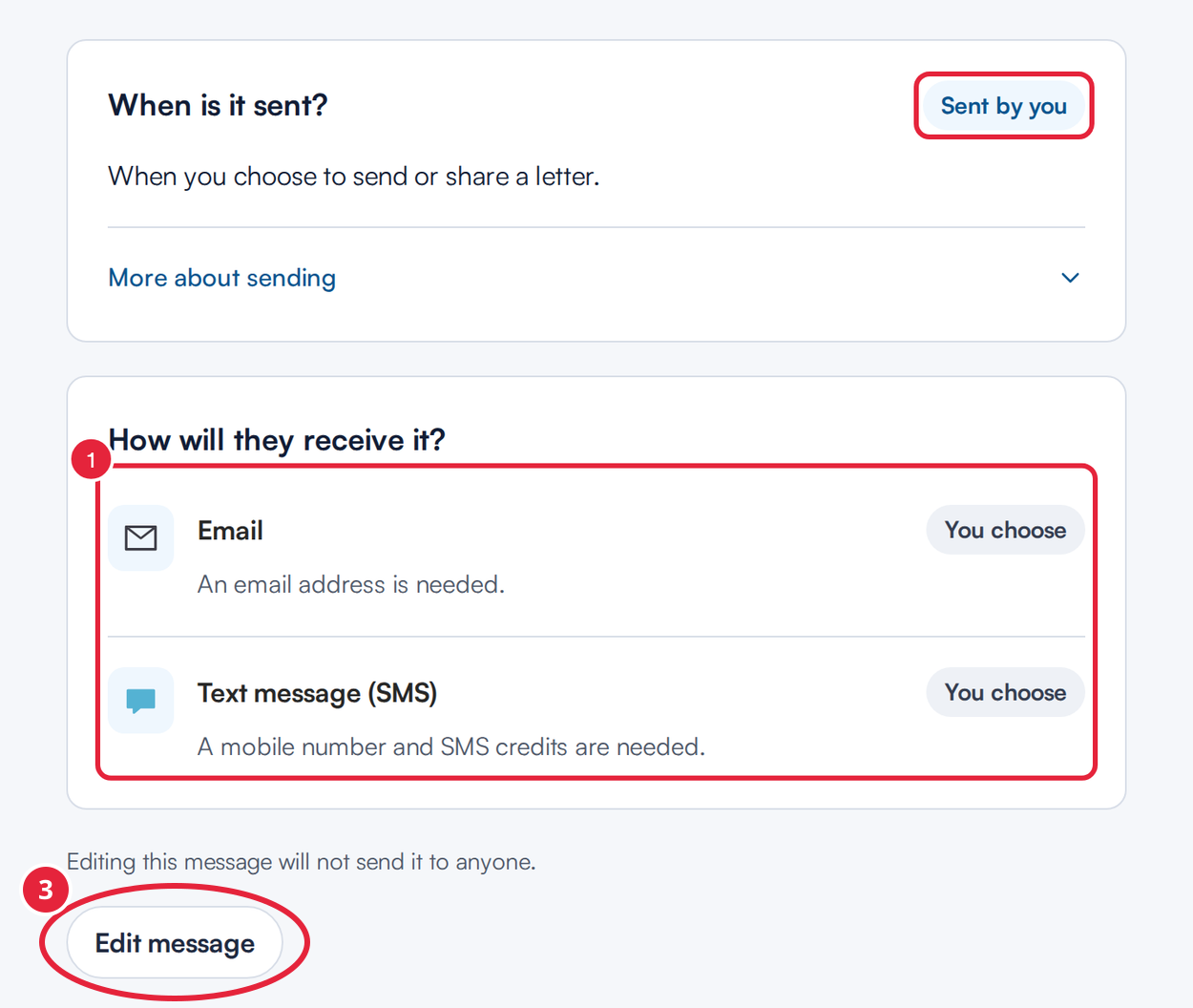
Letters are only sent when you send or share them
When Each Message Is Sent
A quick reference for the messages on the Notification Messages page:
| Message | Badge | When it's sent |
|---|---|---|
| New appointment is booked | Automatic | When an appointment is booked and a confirmation is requested. |
| Upcoming appointment reminder | Scheduled | Before the appointment, at the reminder time you have chosen. |
| Reschedule appointment | Automatic | When an appointment is moved and you choose to notify the client. |
| Cancelled appointment | Automatic | When an appointment is cancelled and a cancellation message is requested. |
| Request feedback | Automatic | After an appointment is marked as completed, or at checkout when automatic completion is on. |
| No Show Appointment | Sent by you | When you mark an appointment as No-show and choose to notify the client. |
| Wait List | Sent by you | When you choose to notify someone on the waitlist. |
| Class messages | As for appointments | Booking confirmations, changes, cancellations and feedback requests are automatic, the class reminder is scheduled, and the missed class message is sent by you. |
| Invoice | Automatic or sent by you | When you share an invoice, or after a fully paid online package or gift voucher purchase. |
| Gift cards | Automatic or sent by you | After a gift voucher is paid for online, or when you choose to send it yourself. |
| Account Balance | Automatic | When a client buys account credit through the client portal. |
| Quote | Sent by you | When you choose to email a quote to a client or lead (email only). |
| Insurance shortfall invoice | Sent by you | When you reissue an invoice to the client, then send the prepared email (email only). |
| Insurance card request | Automatic | When an insurer-billed appointment is booked with email confirmation selected (email only). |
| Insurance card reminder | Scheduled | Two reminders before an insurer-billed appointment, while the client still has no card on file for any shortfall. |
| Prescription, Forms, Letters, Lab Results, Secure email template | Sent by you | When you choose to send or share the item. Saving, completing or receiving it does not send it. |
| Connect registration | Automatic | When a client portal account is created or a client is invited to set up access. If Pabau creates the password, the email is always sent, even when email is switched off. |
What's next?
- How to Edit a Client Notification in the Notification Studio
- Understanding the Notification Messages Page
- How to Manage Client Notifications in the Appointment Booking Menu
- How to Set Up Reminder Emails and SMS
Was this guide helpful? Let us know by voting below - your feedback helps us write clearer articles.
For more guides, browse the related articles below or use the search bar at the top of the page. You can also watch our video learning series, the Pabau Academy, or visit the Support page for additional help.