
Table of Contents:
1. How to Enable Classes in Online Bookings
2. How to Book a Class From the Online Booking Portal
3. Notifications for Class Bookings
4. How to View Booked Classes from the Client Portal
How to Enable Classes in Online Bookings
Before clients can see and book classes online, you need to make sure the Classes option is enabled in your Online Bookings settings.
Step 1: Navigate to Online Bookings
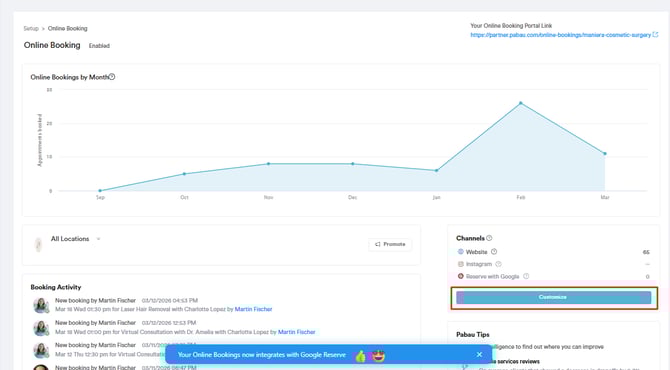
Log into your Pabau account and go to Setup in the left sidebar menu. Click on Online Bookings located under the Services section.
To customize your online booking settings, click the 'Customize' button.
Step 2: Enable the Classes Option
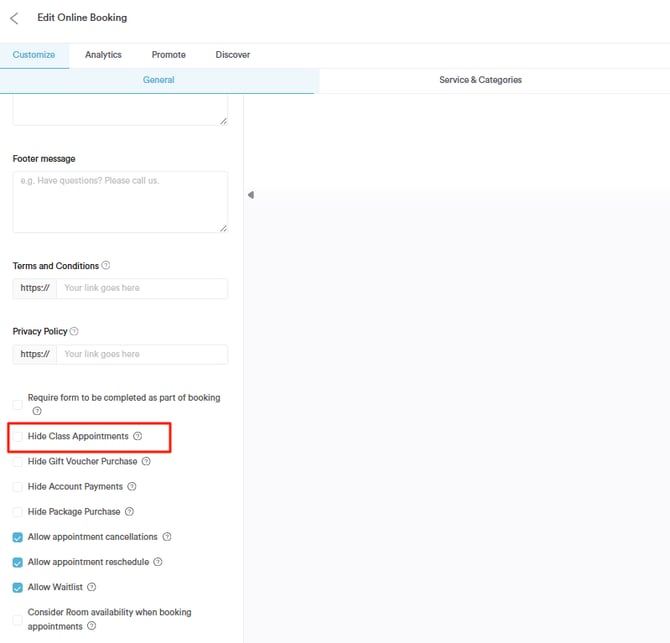
In the Online Bookings settings, locate the Hide class appointments checkbox. By default, this is disabled, meaning classes are hidden.
To make classes visible and bookable online, ensure this checkbox remains unchecked. When enabled, the Classes option will appear as the first category in your Online Bookings flow.
Step 3: Save Changes
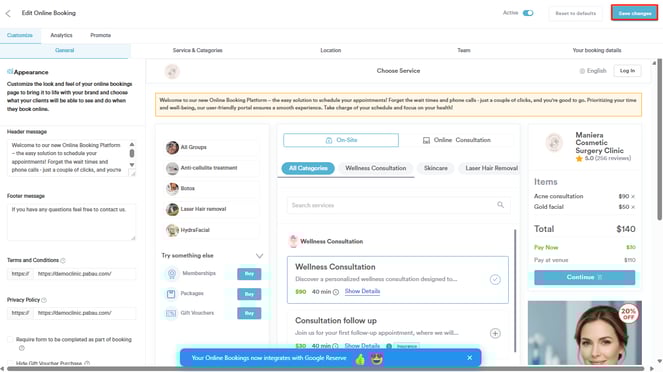
Navigate to the top right corner of the screen and click the 'Save Changes' button to save the changes.
By following these steps, you can easily make sure Classes are available for booking in your online booking portal.
How to Book a Class From the Online Booking Portal
Step 1: Navigate to Your Online Booking Portal
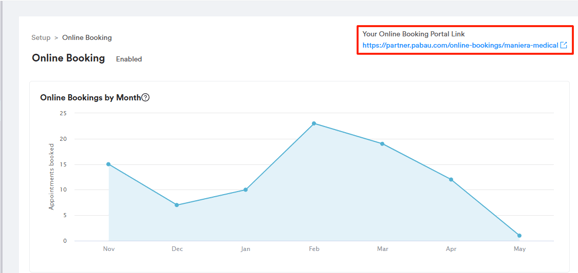
Access your online booking portal by navigating to the Setup page. Then, select the Online Bookings tab in the Services section.
At the top right corner of the Online Booking page, you’ll see your unique booking portal link. Click on it to access your client-facing booking site.
Step 2: Select the 'Classes' Option
In the booking portal, you’ll see a 'Classes' tab next to options like Gift Vouchers, Packages, and Memberships. Click on Classes to continue.
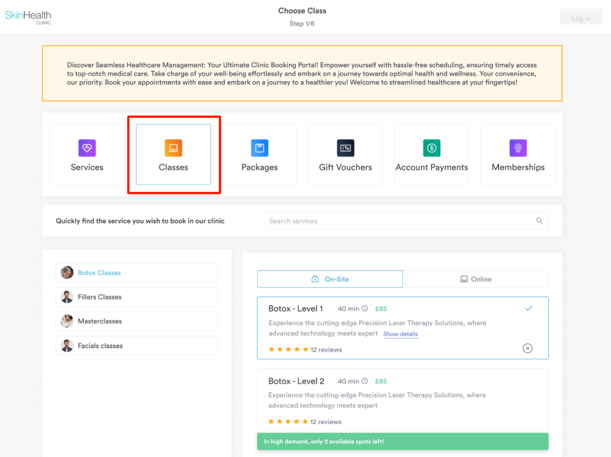
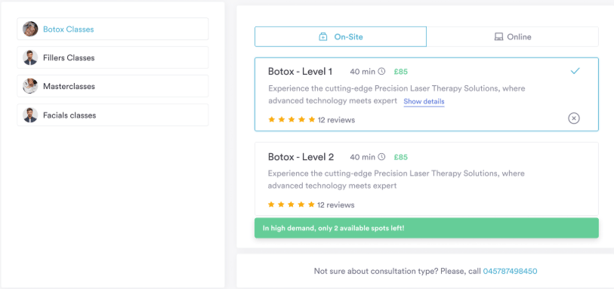
Step 3: Choose a Class
All available classes will be listed. Clients can select the desired class and click the Next button in the bottom right corner to proceed.
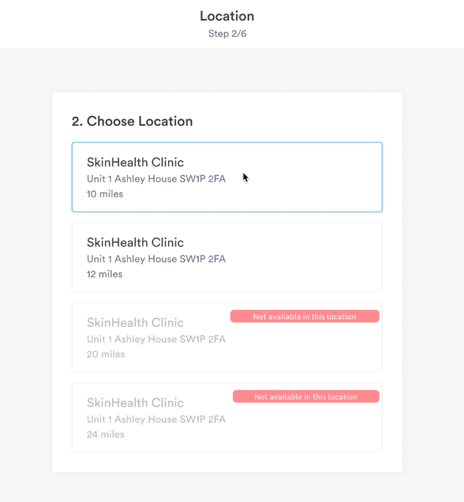
Step 4: Select a Location (For Multi-Location Clinics)
If your clinic operates in multiple locations and you’ve enabled this step during the customization of your online bookings, clients will now select their preferred location.
NOTE: If you’d like to learn how to customize your online booking flow, refer to this article.
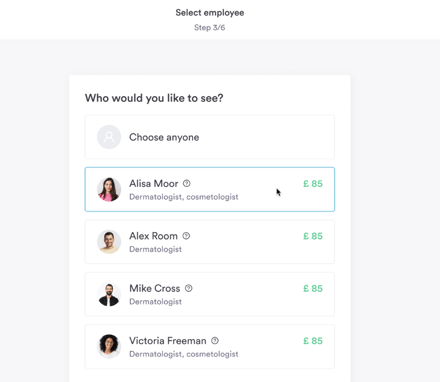
Step 5: Select an Employee
If the employee selection step is enabled, clients can choose their preferred staff member for the class.
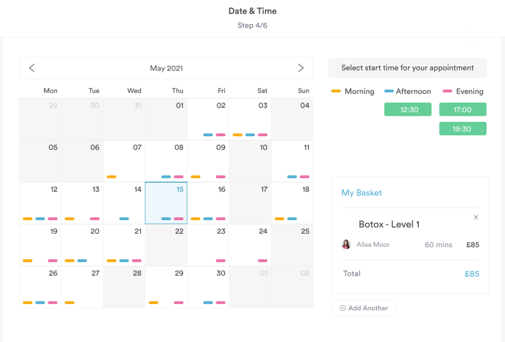
Step 6: Select Date & Time
Clients will now view your calendar and choose from the available time slots to book the class.
Available class sessions are displayed based on what has been pre-scheduled in your Pabau calendar. Unlike regular appointments, the same time slot can appear multiple times — once for each remaining space in the class.
For example, if a class at 9:00 AM has a maximum of 5 participants and 2 have already booked, the 9:00 AM slot will appear 3 times, reflecting the 3 remaining spaces. Once the class is full, the slot will no longer appear.
NOTE: If a client has already created a Connect account and is logged in, they will proceed to the next step; if not, they will need to register first.
To find out how clients can register in the Online Booking portal, refer to this article.
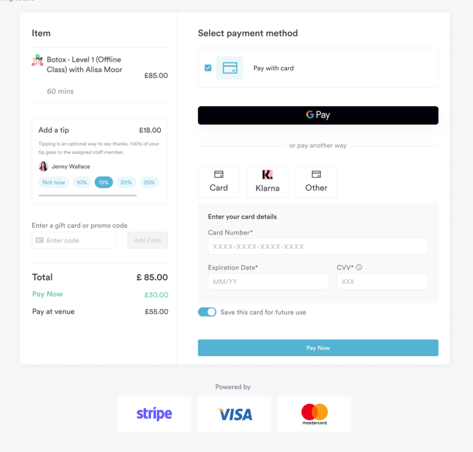
Step 7: Select Payment Method
If payment is required, clients will see the payment screen. They can view the total amount, select a payment method, enter their payment details, and click Confirm Payment to complete the booking.
Step 8: Booking Confirmed
After confirming the payment, clients will see a Booking Confirmed screen showing the class details, including date, time, and location. They will also receive a confirmation via email or SMS, depending on your settings.
NOTE: To learn how to set up confirmations, refer to this article.
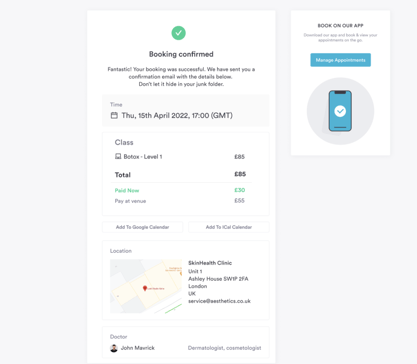
By following these steps, clients can book classes from your Online Booking portal.
Notifications for Class Bookings
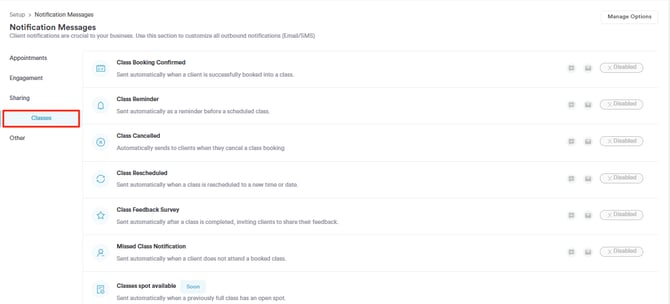
Once a client enrolls in a class via Online Bookings, the following notifications are sent automatically based on your Client Notifications settings:
-
Confirmation
Sent immediately after successful enrolment via email and/or SMS. Any forms associated with the class service that need to be completed beforehand are included in this email.
-
Precare
If a precare template is linked to the class service, it is sent to the client via email after successful enrollment.
-
Reminders
A reminder notification is scheduled and sent before the class at the configured reminder time via email and/or SMS. Reminders are only scheduled if the client enrolls before the reminder send time. Reminders are based on the class schedule start time, not the booking time.
-
Feedback Survey
A feedback survey is scheduled and sent after the class has been marked as completed in the calendar, via email and/or SMS.
NOTE: For more information on configuring class notifications in Pabau, refer to this guide.
How to View Booked Classes from the Client Portal
Step 1: Access Client Portal
To access their client portal, clients must be registered and logged in. For guidance on how clients can register, please refer to this article.
Step 2: Navigate to Appointments
To view their booked classes and appointments, clients should click on their avatar in the top right corner of the page to open the available options. Then select the "Appointments" option.
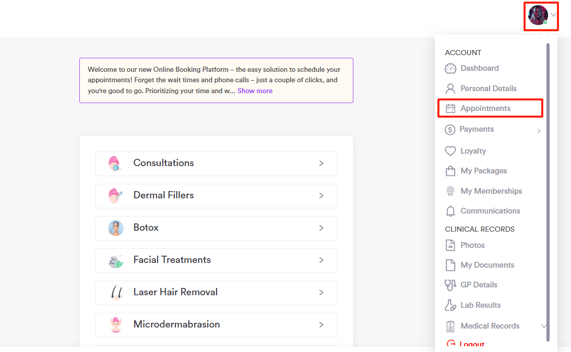
NOTE: This option will only appear if you’ve enabled it in the client portal customization settings in Pabau. For more information on customizing the client portal, refer to this guide.
Step 3: Filter by Appointment Type
Clients can filter their bookings by appointment type, choosing between classes or regular appointments for easier navigation. In this case, select "Classes" to proceed.
Step 4: View Booked Classes
At this stage, clients can view both their past and upcoming appointments.
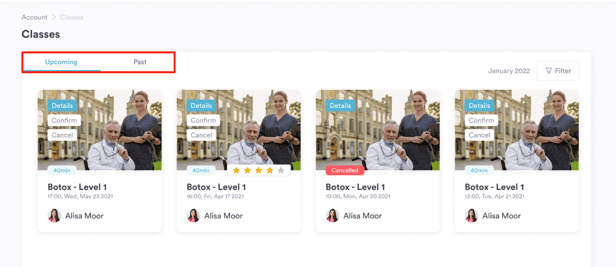
For upcoming classes, they’ll see options to view details, reschedule, or cancel, depending on your online booking settings. If rescheduling or cancelling is not enabled in your setup, only the class details will be visible.
For past classes, clients have the option to rate their experience.
NOTE: To learn how to customize your online booking settings, refer to this guide.
By following these steps, clients can review their booked classes.
For more guides, refer to related articles below, select additional guides, or use the search bar at the top of the page. These guides will help you get the most out of your Pabau account.
Additionally, to help you fully utilize and understand your Pabau account, we recommend exploring additional guides and resources offered at the Pabau Academy. It offers in-depth video tutorials and lessons, offering a holistic learning experience that can equip you with the essential skills for achieving success with Pabau.