
Work injuries are billed to the employer’s workers’ compensation carrier or, for federal employees and coal miners, to the US Department of Labor (DOL) programs FECA and Black Lung. These claims need details that a health plan claim does not: the right insurance program, often a provider number the payer gave you, the case number, the injury date and the treatment note. In this article, you will learn how to set up the insurer and the client’s policy so every claim goes out with them.
NOTE: Insurance billing is currently available for practices in the United States. To bill FECA or Black Lung, your practice must be enrolled as a provider with the DOL’s Office of Workers’ Compensation Programs (OWCP), which gives you your DOL provider number.
Step 1: Set Up the Insurer
Go to Setup → Third Parties, click the insurer and select the Settings tab. Then:
- Set Insurance program to Workers Compensation Health Claim for a state workers’ comp carrier, FECA for injured federal employees, or Black Lung for coal miners’ claims.
- For FECA and Black Lung, enter your DOL provider number in Billing provider ID for this insurer (box 33b). Enter one for a state carrier too if it gave you a provider number.
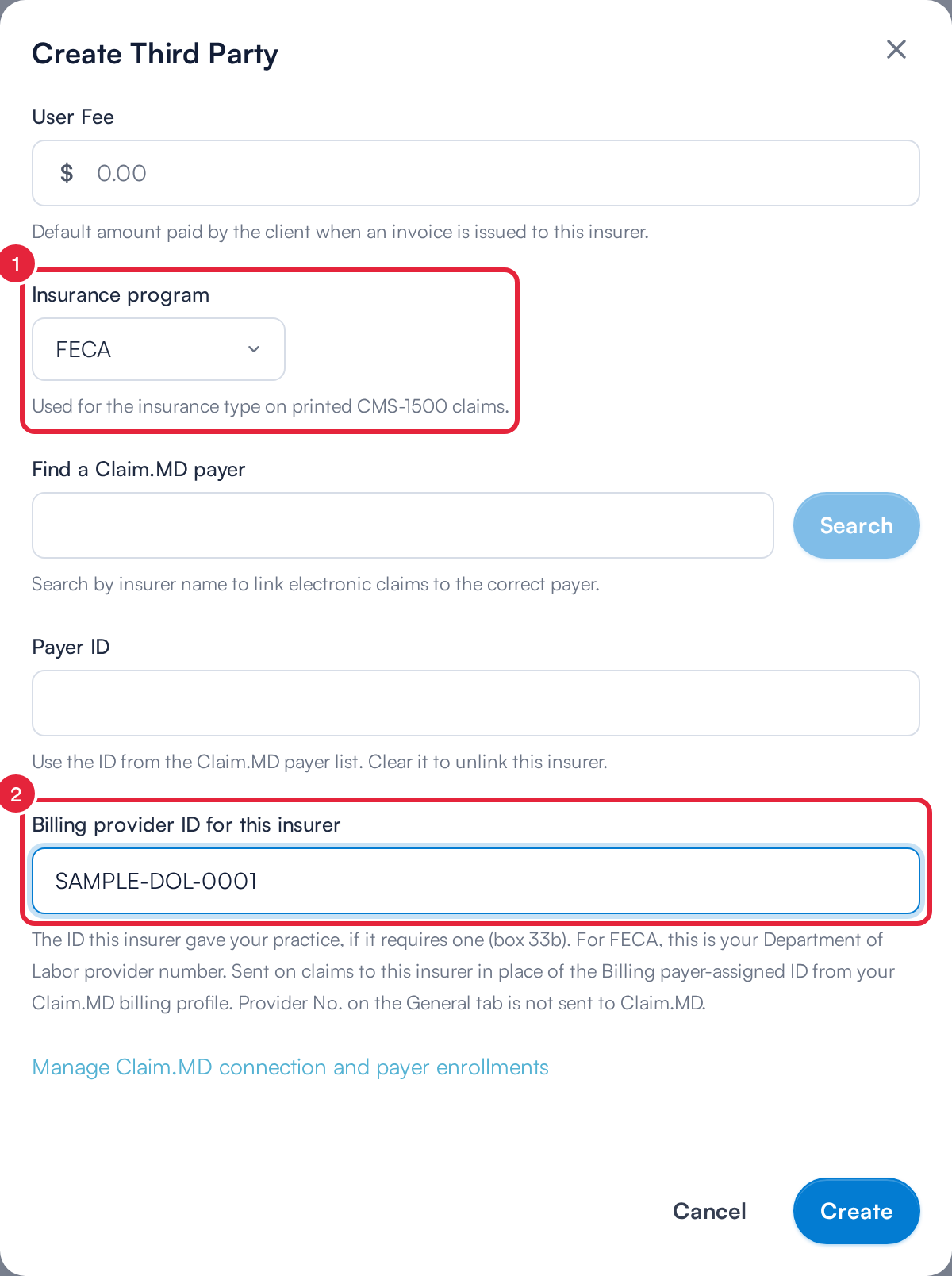
Insurance program and the payer’s provider number
Link the payer with Find a Claim.MD payer if it is not linked yet, then click Save.
IMPORTANT: Do not choose Federal Employees Program for FECA. That is the federal employees’ health plan, not workers’ compensation.
The program changes three things. FECA and Black Lung tick the FECA Blk Lung box (box 1) on printed CMS-1500 forms. All three programs make new claims start with the treatment note ticked to send (Step 5). The provider number replaces the Billing payer-assigned ID from your Claim.MD billing profile on this payer’s claims only.
TIP: Clients injured at work usually owe nothing, so you may want to turn off Collect card details for shortfalls on the same tab.
Step 2: Add the Client’s Policy With the Case Number
Open the client’s card and select the Insurance tab. Click New Policy, choose the insurer and click Assign to client. Then:
- In Subscriber / member identification number (box 1a), enter the claim number the carrier gave the injured worker, unless the carrier tells you otherwise. For FECA and Black Lung, this is the claim number the DOL gave the patient (for FECA, the OWCP case number).
- Click More options. For FECA, enter the case number again in Policy, group, or plan number (box 11). The DOL asks for it in both boxes, and leaving box 11 empty delays payment.
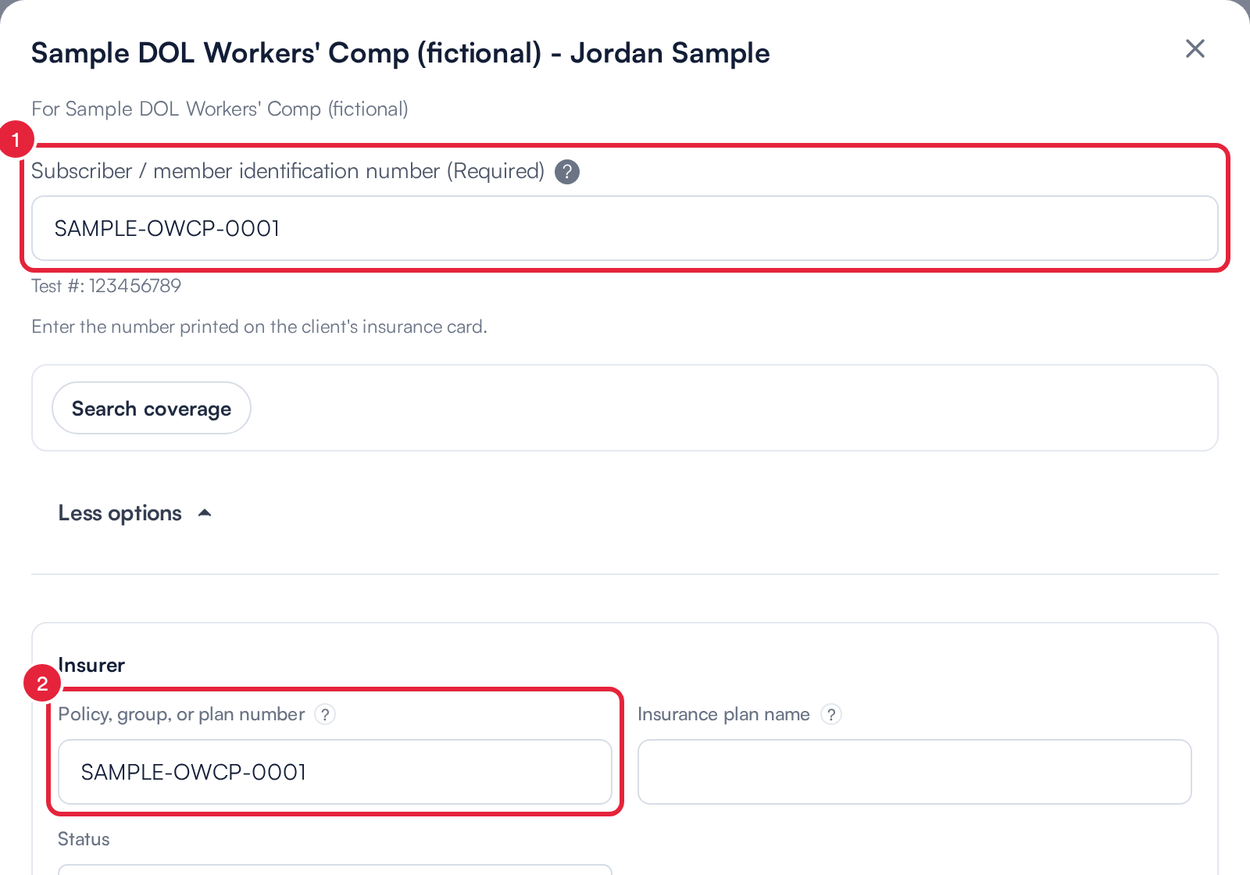
The case number in boxes 1a and 11
The policy also has Adjuster name and Adjuster phone fields, so your team has the claims adjuster’s details to hand.
Step 3: Record the Injury
Scroll down the same form to the condition fields. Then:
- Tick Employment? (Current or Previous) (box 10a).
- Under Enter another date related to the condition of the client or service, choose Accident and enter the date of injury.
- If the payer asks for them, enter Last Worked and Return to Work (box 16).
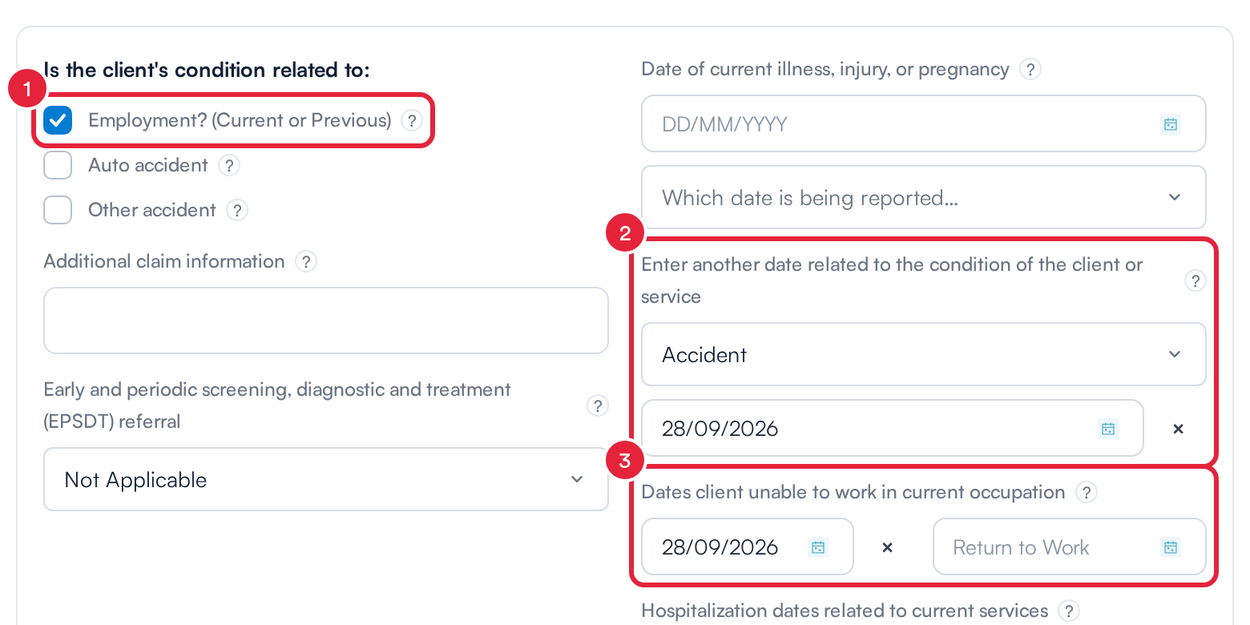
The work injury and its date on the policy
Click Create (or Save on an existing policy).
IMPORTANT: A claim marked as employment related must have the injury date. Claim.MD rejects it without one.
Step 4: Check the Claim
Bill the visit to the insurer as usual, then open the claim from More → Claims. In the Insurance section:
- Member / policy number (box 1a) shows the case number.
- Group number (box 11) shows the number from the policy’s Policy, group, or plan number, which for FECA is the case number again.

The case number on the claim
In the Claim details section:
- Employment related is Yes (Y).
- Accident / injury date shows the date of injury from the policy.
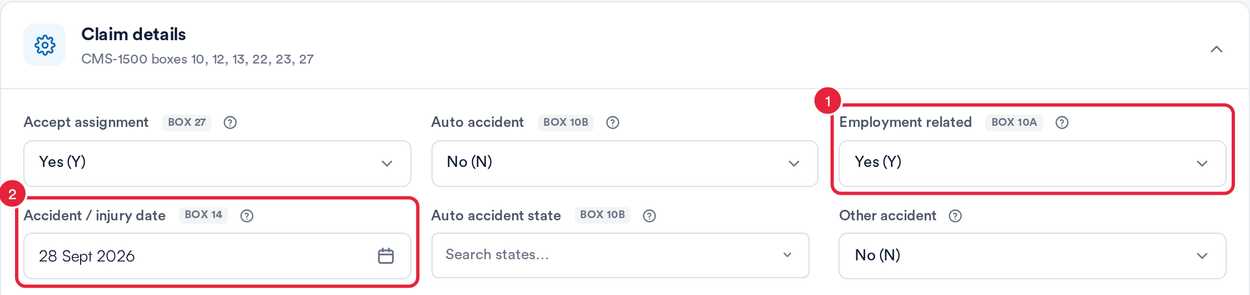
Employment related and the injury date come from the policy
You can change any of these on the claim. Changes apply to that claim only.
Step 5: Send the Treatment Note
Workers’ comp payers expect the treatment note with every claim. For these claims, Pabau ticks the note to send for you:
- Click Attach Document. Send a chart note with this claim is already ticked. Pick the visit’s treatment note or a PDF, and check the attachment type.
- The green dot on Attach Document shows a document will go with the claim.
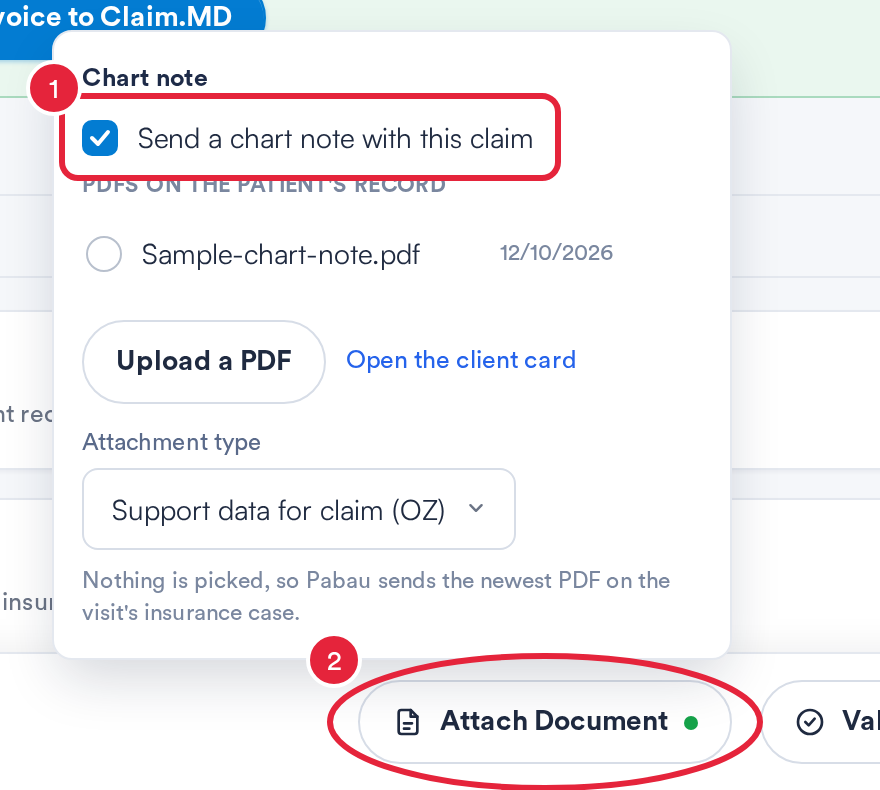
The chart note is ticked for workers’ comp claims
If you turn it off, Pabau reminds you that Workers' comp claims usually need the treatment note. You can still send the claim without one. See How to send a chart note or other document with a claim.
TIP: The note is also ticked for any claim whose policy has Employment? (Current or Previous) ticked, even when the insurer’s program was never set.
What's next?
- How to send a chart note or other document with a claim
- Box 10 – Is the Patient’s Condition Related To
- Box 11 – Insured’s Policy Group or FECA Number
- Electronic enrollments with insurance payers
Was this guide helpful? Let us know by voting below - your feedback helps us write clearer articles.
For more guides, browse the related articles below or use the search bar at the top of the page. You can also watch our video learning series, the Pabau Academy, or visit the Support page for additional help.