
Step 1: Navigate to Team
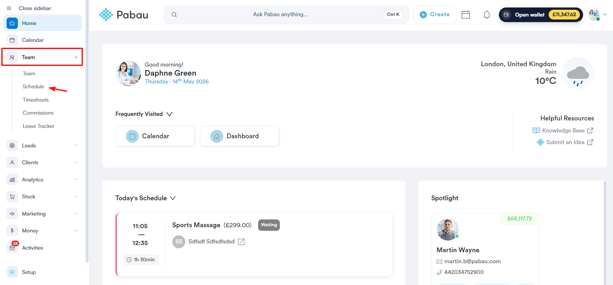
Start by logging into your Pabau account using your login credentials. Then, navigate to the "Team" tab located on the left sidebar menu and click to expand it. Click "Schedule" to access the scheduler.
Step 2: Edit Schedule
Once you've opened your team's schedule, click the specific shift to which you want to assign a room. You can also assign a room while creating a new shift for a staff member.
NOTE: To find out how you can create shifts in Pabau, refer to this guide.
Step 3: Select Room
When editing a shift, you'll find the ''Room'' field on the modal. Use this dropdown to select and assign one room to this specific shift.
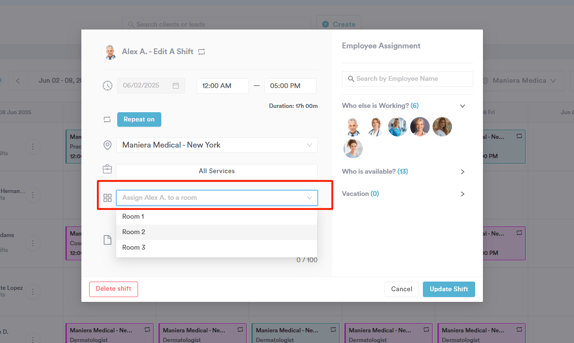
NOTE: The selected room will be selected by default for services that are currently active for this shift.
Step 4: Save Changes
After you've selected the room, click the "Update Shift" button in the bottom right corner to finalize the changes.
By following these steps, you can assign a room to a shift.
Can I Link a Room or Equipment to a Staff Member Instead?
No. There is no room or equipment setting on a staff member. A staff member's room comes only from the shift they're working, so to keep someone in the same room, set the Room on their shifts. If they work the same pattern every week, set it once on a repeating shift.
Rooms and equipment are linked to services and locations, not to people. In Setup → Resources → Rooms or Equipment, open the resource and use Services (Choose which services can use this resource.) and Locations. A practitioner then gets that room or equipment through the services they offer.
Where this comes from: when you book, the room is chosen in this order: the room you pick, the practitioner's shift room, the service's own room (when it has exactly one), the first free room for the service, then the service's highest-priority room. Equipment comes only from the service and from equipment set to All services. See How to Let Pabau Pick a Free Room or Equipment When Booking.
Was this guide helpful? Let us know by voting below - your feedback helps us write clearer articles.
For more guides, browse the related articles below or use the search bar at the top of the page. You can also watch our video learning series, the Pabau Academy, or visit the Support page for additional help.