
Once your client books an online appointment, they will be prompted to agree to your privacy policy and to receive marketing communications. If they click "Agree," marketing communications will be automatically enabled in their client card.
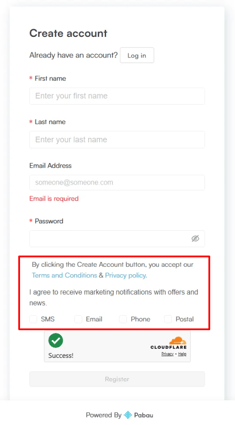
To adjust a client’s communication preferences manually, follow these steps:
Step 1: Navigate to the Client Card
Start by logging into your Pabau account. Use the search bar at the top of the page to open the client card of the client whose communication preferences you wish to update.
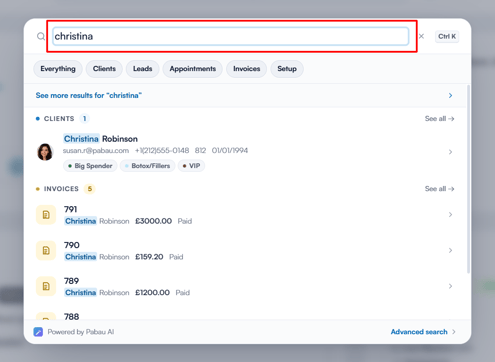
Step 2: Access Communication Preferences
Once you’re in the client card, click the bell icon near the top of the client details panel on the left, just above the client’s avatar. This opens the communication preferences panel.
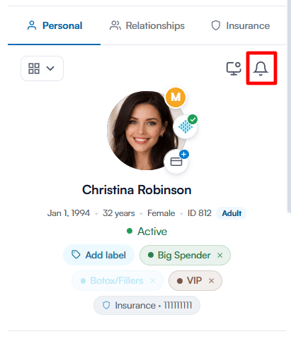
Step 3: Customise Communication Preferences
Under "Marketing promotion", tick or untick SMS, Email, Phone and Postal according to how the client is happy to be contacted with marketing material.
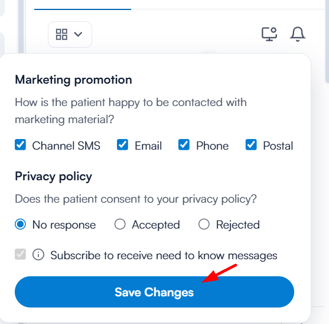
Under "Privacy policy", you can also record whether the client consents to your privacy policy by selecting "No response", "Accepted" or "Rejected".
When you’re happy with your changes, click "Save Changes" to apply them. The button stays unavailable until you change something.
NOTE: Need-to-know messages, such as appointment confirmations and reminders, are always on and cannot be disabled.
NOTE: To learn more about the client card, we recommend reading this article.
Was this guide helpful? Let us know by voting below - your feedback helps us write clearer articles.
For more guides, browse the related articles below or use the search bar at the top of the page. You can also watch our video learning series, the Pabau Academy, or visit the Support page for additional help.