
Table of Contents:
1. How to Create Gift Vouchers
2. How to Edit Gift Vouchers
3. How to Delete Gift Vouchers
4. How to Sell a Gift Voucher in the Point of Sale
5. How to Enable Online Sale of Gift Vouchers
6. How to Use a Gift Voucher to Pay for an Appointment
7. How to Resend a Gift Voucher from the Client Card
How to Create Gift Vouchers
Step 1: Navigate to Gift Cards
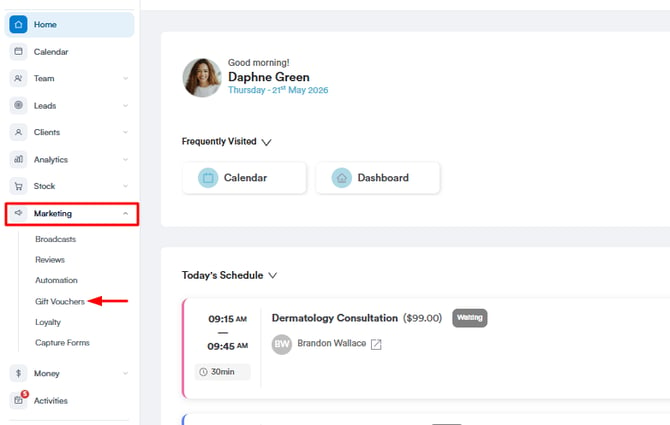
Log in to your Pabau account, and in the left sidebar menu, go to Marketing, then click on Gift Cards.
Step 2: Create a Gift Card
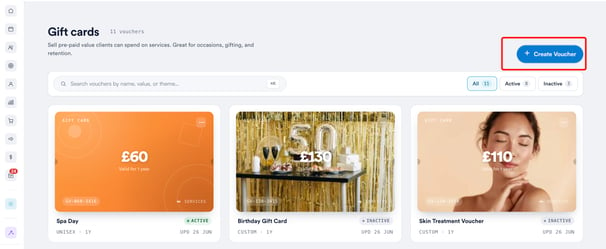
Click on "Create Voucher" to initiate the gift card creation process.
-
Set the card name
Choose a name for the card so it’s easy to recognize and market (e.g., “Birthday Treat Card” or “Luxury Facial Gift”). -
Set the terms and conditions
Define any rules around how the card can be used - such as expiry dates, usage limits, or exclusions (e.g., “Non-refundable” or “Cannot be combined with other offers”). -
Set the purchase price and card value
Set two amounts: the purchase price, which is what the client pays at checkout, and the gift card value, which is the amount loaded onto the card for the recipient to redeem. These can be the same or different if the purchase price is set lower than the card value. The card value determines what the recipient can redeem it for. -
Set the card validity
Choose how long the card will remain valid after it’s issued (e.g., 6 months, 1 year).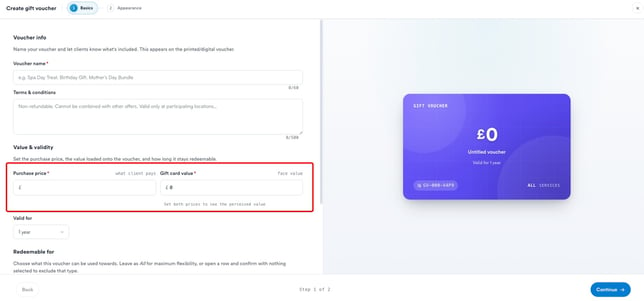
-
Specify what the card can be redeemed for
Under Redeemable for, decide what the card can be used towards across services, products, and packages. For each category, you can allow everything by leaving it set to All, narrow it down to specific items (e.g., selected facials or chosen retail products), or exclude that category entirely.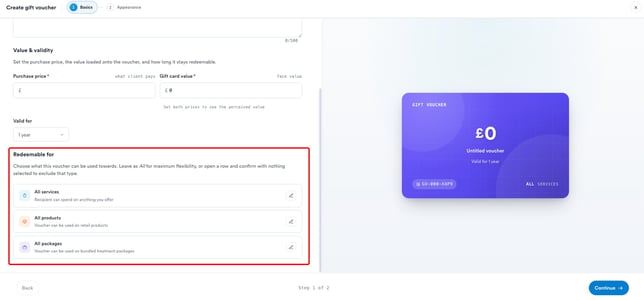
-
Preview changes to the name and value in the centre of the screen
As you update the name and value, a preview will appear in the middle of the screen so you can see how the card will look before saving it.
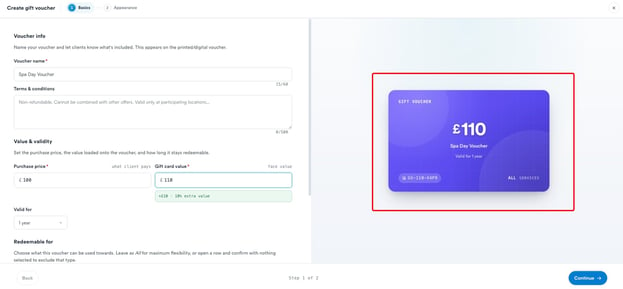
To customize the appearance of your gift card, head to the next step by clicking the “Continue” button in the bottom-right corner of the screen.
Step 3: Set Up Appearance and Behaviour
In the Appearance step, a live preview of the card appears on the right as you make changes.
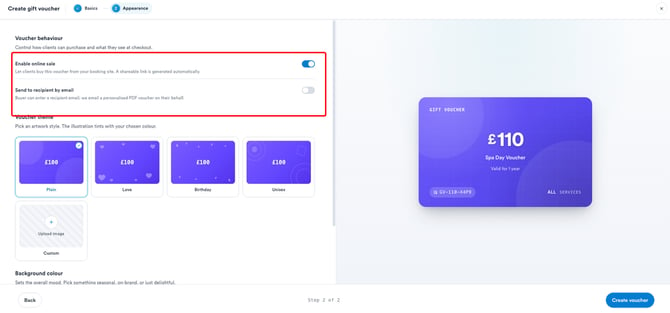
Voucher behaviour
Control how clients can purchase the card and what they see at checkout, using two toggles:
- ✅ Enable online sale - Let clients buy this card from your booking site. A shareable link is generated automatically.
- 📧 Send to recipient by email - The buyer can enter a recipient's email, and Pabau emails a personalised PDF card to them on the buyer's behalf.
Voucher theme
Pick an artwork style - Plain, Love, Birthday, or Unisex. 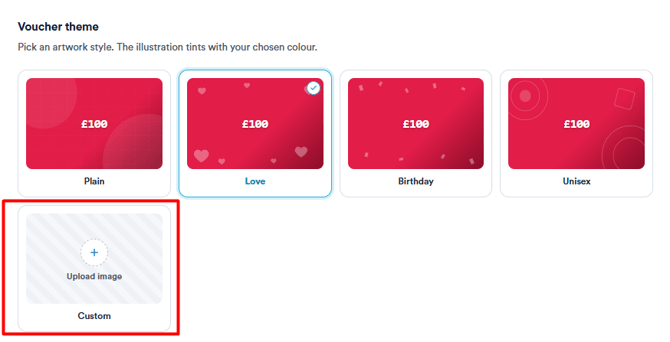
To use your own artwork instead, select Custom and upload an image ((Marketing Plus feature).
NOTE: To learn more, refer to our Marketing Plus guide.
Background colour
Choose a background colour to set the overall look based on your preference.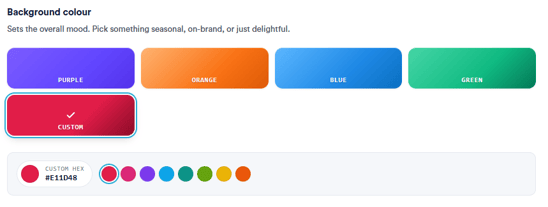
Step 4: Create the Card
Once you're happy with the preview, click Create voucher in the bottom-right corner to save it.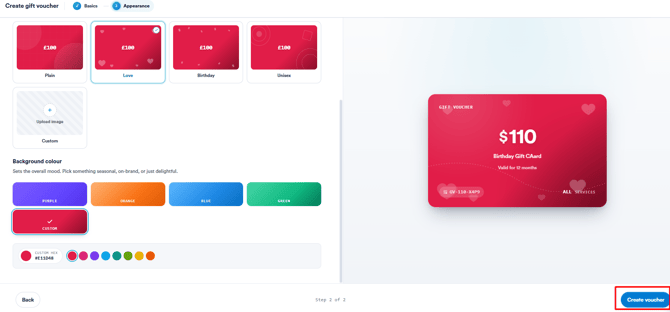
How to Edit Gift Vouchers
Step 1: Navigate to Gift Cards
Log in to your Pabau account, and in the left sidebar menu, go to Marketing, then click on Gift Cards.
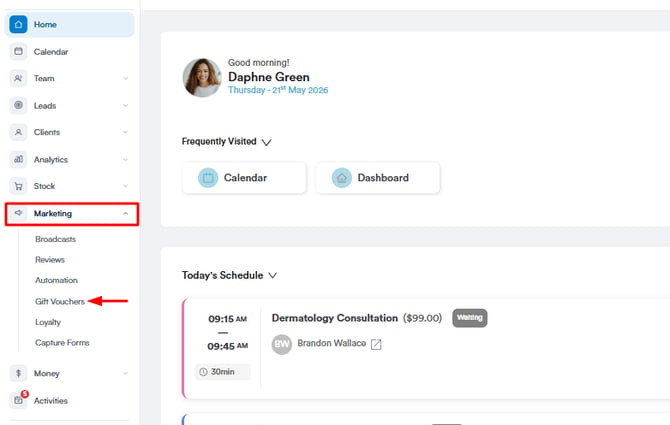
Step 2: Find the Gift Card for Editing
Locate the specific gift card you wish to edit, then click on the three dots in the top right corner of the card.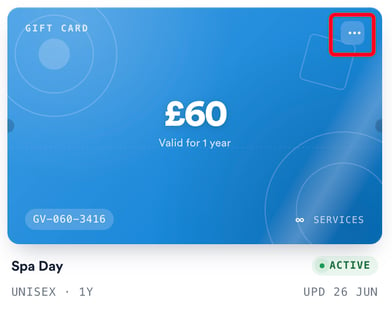
Step 3: Card Editing Modal
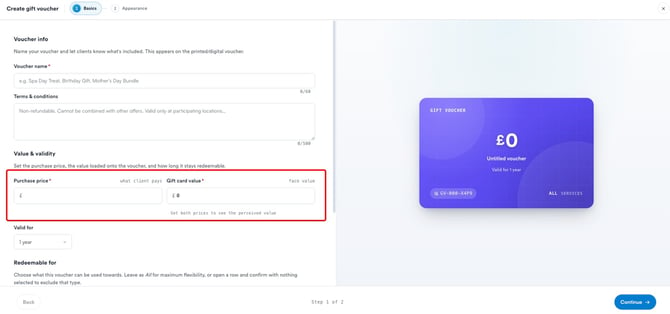
On the first page of the card editing modal, edit the card name, terms and conditions, value, and validity, and specify which services the gift cards can be used for.
Step 4: Additional Configuration
Clicking on "Continue" in the bottom right corner will take you to the next page, where you can adjust how the card looks and how it's sold. A live preview updates on the right as you make changes. Here you can:
- Enable online sale - Let clients buy the card from your booking site, with a shareable link generated automatically.
- Send to recipient by email - Allow the buyer to enter a recipient's email so Pabau sends them a personalised PDF card.
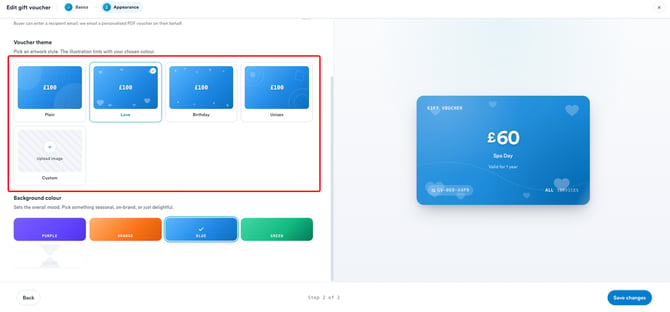
- Change the theme and background colour - Pick an artwork style (Plain, Love, Birthday, or Unisex) and a background colour, or select Custom to upload your own image (Marketing Plus feature).
Step 5: Save the Changes
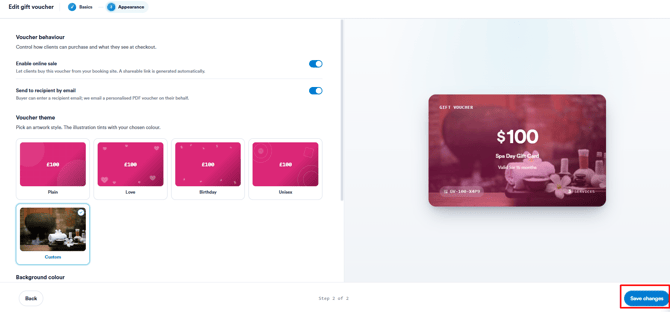
Once you've applied the desired changes, click on "Save changes" in the bottom right corner to save the changes.
NOTE: Changes made to the gift card will not have any impact on gift cards acquired by clients prior to the implementation of these modifications.
Now, your edited gift cards are ready for use, providing flexibility and customization to suit your business needs.
How to Delete Gift Vouchers
Step 1: Navigate to Gift Cards
Log in to your Pabau account, and in the left sidebar menu, go to Marketing, then click on Gift Cards.
Step 2: Find the Gift Card for Deleting
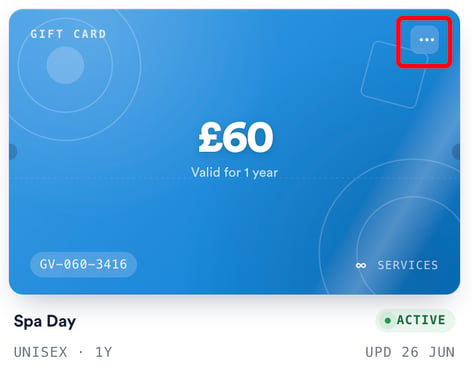
Locate the specific gift card you wish to delete, then click on the three dots in the top right corner of the card.
Step 3: Confirm Deletion
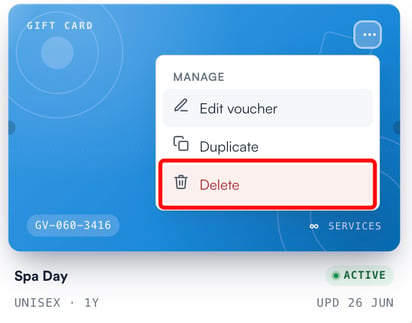
Click on "Delete" to permanently remove the selected card.
NOTE: If you delete a gift card, it can still be used by any clients who have bought it previously.
How to Sell a Gift Voucher in the Point of Sale
Selling gift vouchers in the Point of Sale is a seamless process that allows you to offer a convenient gifting option to your clients. Follow these steps to effortlessly execute gift voucher sales.
Step 1: Access the Point of Sale
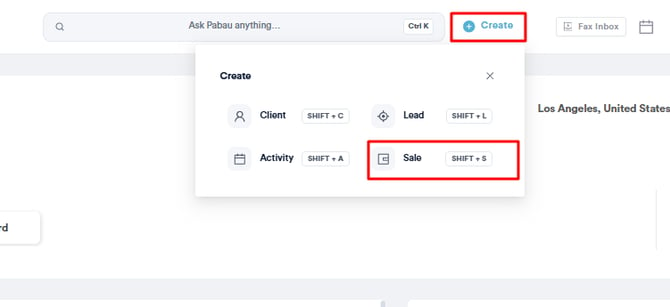
Start by logging in to your Pabau account using your login credentials. Click the Create button at the top of the page next to the search bar and select "Sale" to access the Point of Sale.
NOTE: For more details on the Point of Sale, please review this article.
Initially, you should select the client at the top right corner of the page for the features to become available for selection. Otherwise, they will remain greyed out until you select the client.
The Gift Voucher option appears in the bottom left corner of the page.
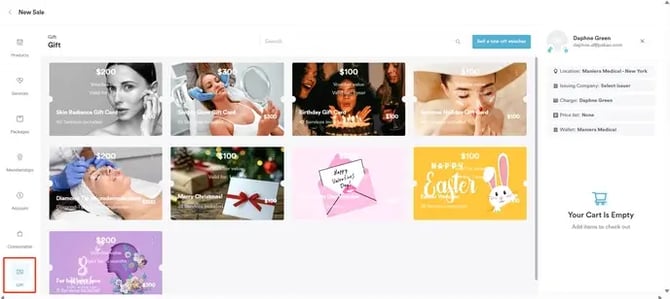
NOTE: If you have created vouchers in Pabau and the Gift Voucher option does not appear at the point of sale, check your POS Configuration to see if this option is disabled. Refer to this article on POS configuration for more information.
Step 2: Sell Gift Voucher
When you click "Gift," the gift vouchers you have created in Pabau will appear. You can then select the voucher to proceed with the purchase. Details of the gift voucher will be displayed underneath the client's name.
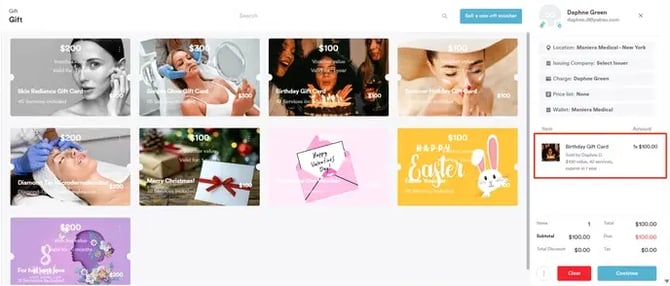
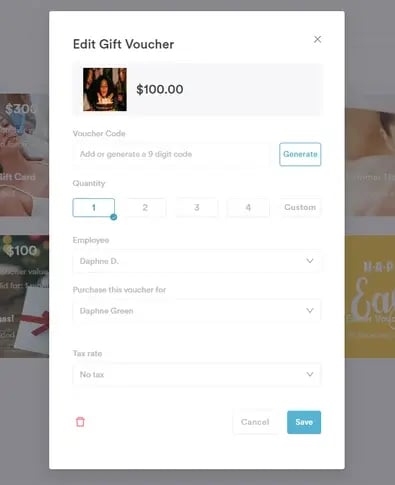
Clicking on the Gift Voucher line item in the cart will open the Edit Voucher pop-up, where the following components are present:
-
Voucher code - you can generate unique 9-digit codes or can manually input a code, ensuring there are no duplicate voucher codes in the system.
-
Quantity - allows you to choose the voucher quantity
-
Employee - allows you to select the employee under whom they want to record the voucher sale
-
Purchase this voucher for - This defaults to the client being charged for the voucher. However, you can select any client from their client base, allowing the voucher to be assigned to someone other than the paying client
-
Tax rate - allows you to add a tax rate if necessary
-
Trash can icon - remove item from cart
-
Cancel - cancel the edit voucher changes
-
Save - apply the edit voucher changes
If everything looks correct, click the "Continue" button to proceed to the payment page.
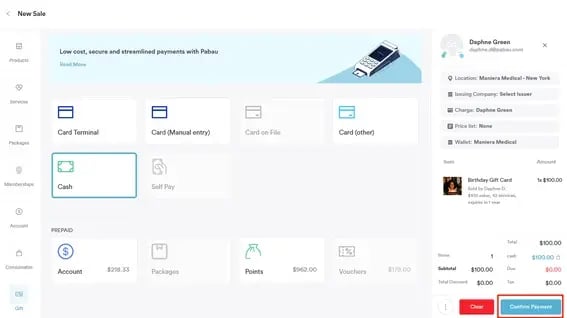
On the payment page, you can select the payment method that the client wants to use and click the "Confirm Payment" button to complete the transaction.
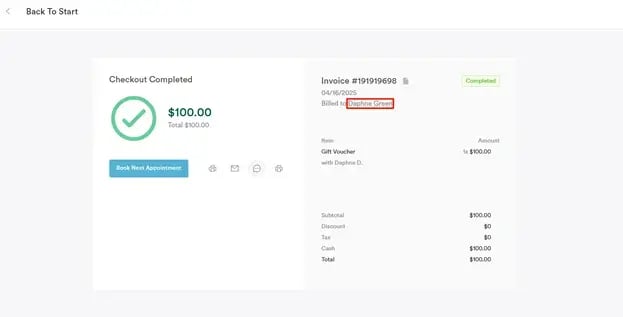
Once the payment is confirmed, you will view all invoice details, where you can select the client name to direct you to their client card to view the voucher.
Step 3: Navigate to the Client Card
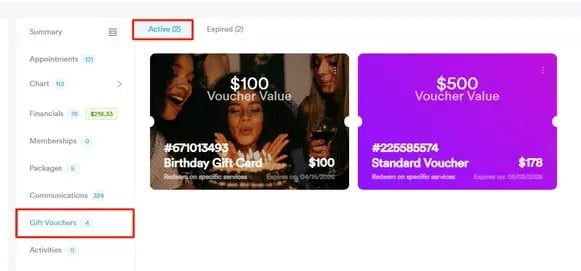
Once you access the client card, switch to the Gift Vouchers tab to view all vouchers the client has purchased. Pabau also categorizes vouchers into Active and Expired vouchers.
NOTE: To review how you can use a gift voucher to pay for an appointment, please review this article.
By following these steps, you can sell a gift voucher to a client from the checkout.
How to Enable Online Sale of Gift Vouchers
Step 1: Log in and Access Online Booking Settings
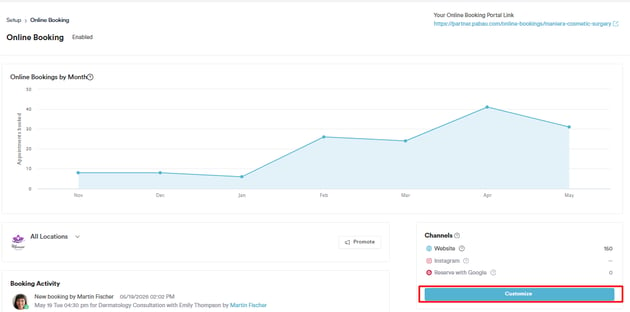
Log in to your Pabau account and navigate to Setup, then Online Booking under "Catalogue", then click on the blue "Customize" button.
Step 2: Customize Online Booking Settings
In the "Customize" tab of the online booking settings, untick "Hide Gift Voucher Purchase".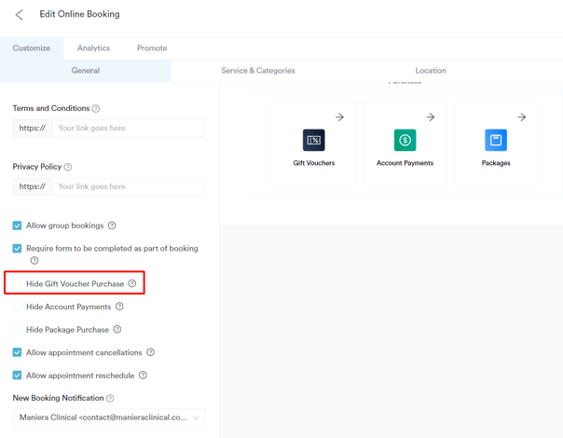
NOTE: Gift vouchers are available for online purchase only if your Pabau account is integrated with Stripe.
Step 3: Enable Gift Cards for Online Purchase
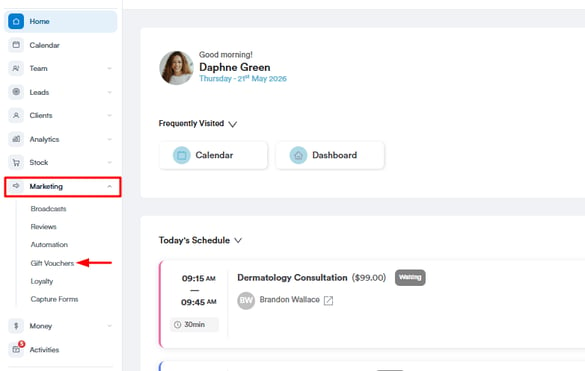
In the left sidebar menu, go to Marketing, then click on Gift Cards.
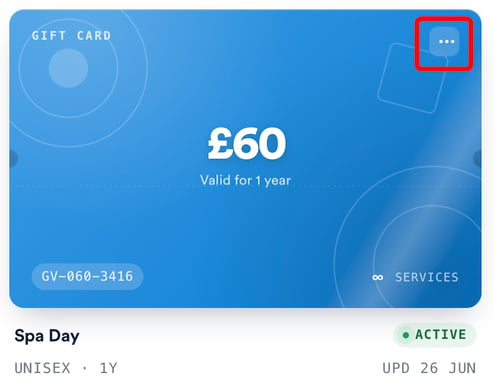
Click on the three dots in the top right corner of the voucher you want available online.
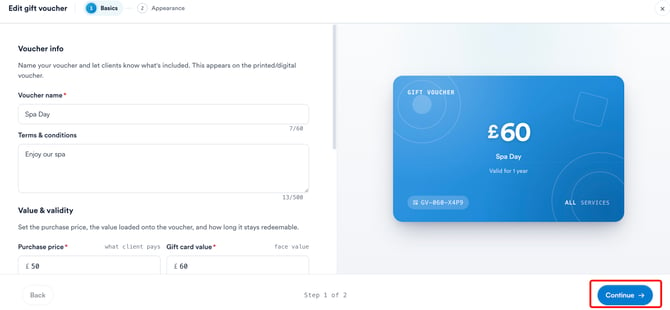
 Click on "Edit" and click "Continue" to get to the Appearance Tab.
In the Appearance tab, under Voucher behaviour, switch on the Enable online sale toggle to make this gift card available for purchase online. Once enabled, click Save changes to apply it.
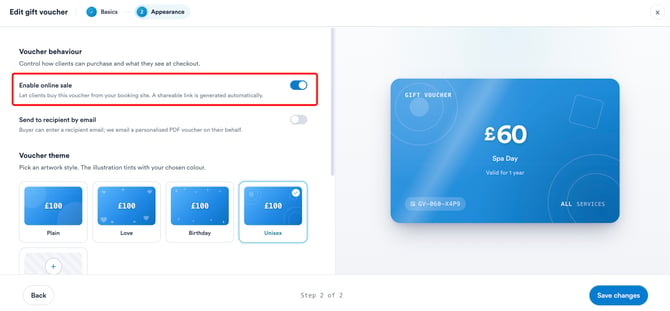
Now, the voucher will be displayed in your online booking portal.
How to Use a Gift Voucher to Pay for an Appointment
This guide outlines the process of checking out a client using a gift voucher in Pabau.
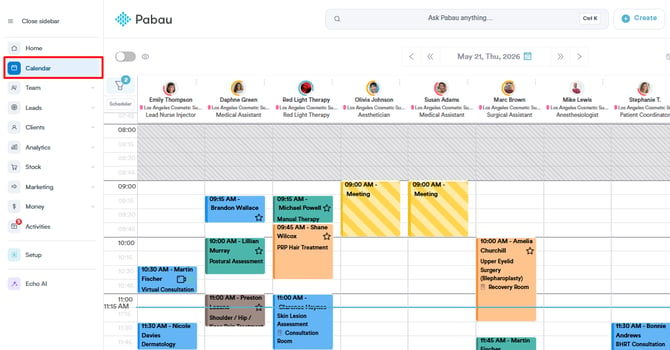
Step 1: Navigate to Calendar
Log in to your Pabau account and click on "Calendar" in the left sidebar menu.
Step 2: Access Appointment Checkout
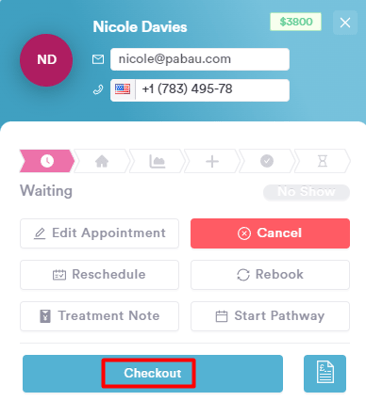
Click on the specific appointment you want to check out, then select "Checkout."
Step 3: Navigate through Point of Sale
In the Point of Sale, click on "Continue" in the bottom right corner. Select "Vouchers" from the pre-paid payment methods.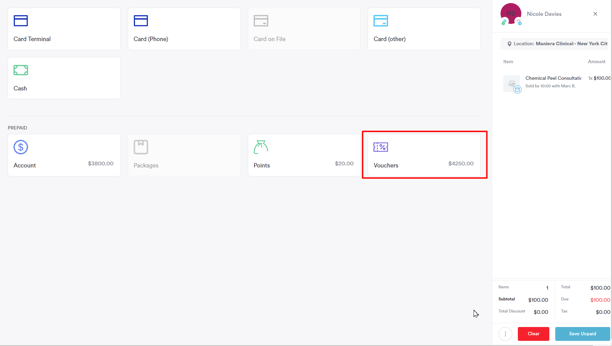
NOTE: Vouchers will only be available if the client possesses a valid voucher.
Step 4: Redeem Voucher
Choose the voucher you wish to redeem for the appointment, specify the amount to redeem, and click on "Pay". Confirm the payment by clicking on "Confirm Payment."
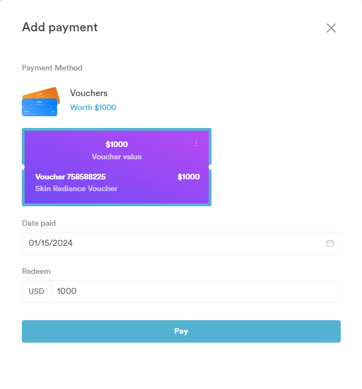
The appointment has been successfully checked out using the selected voucher. Streamline your payment processes by effortlessly utilizing gift vouchers in Pabau.
How to Resend a Gift Voucher from the Client Card
This article provides a step-by-step guide on resending a gift voucher to your client.
Step 1: Navigate to the Client Card
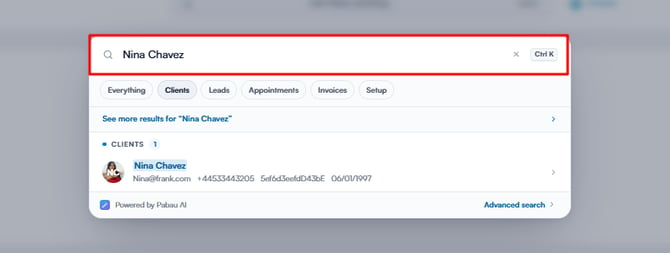
Log in to your Pabau account and navigate to the client card of the client you want to assign a label to by using the search bar at the top of the screen.
Step 2: Open the Gift Vouchers tab
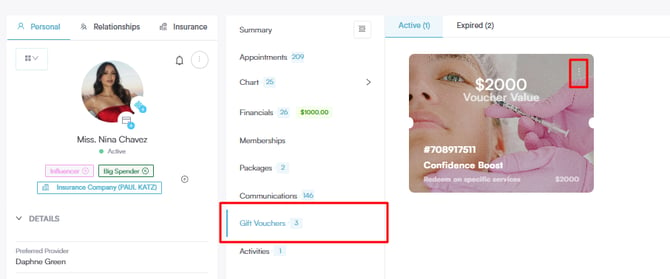
Within the client's card, find and access the "Gift Vouchers" tab.
Identify the particular gift voucher you want to resend, then click on the three-dot button associated with it.
Step 3: Resend the Gift Voucher
A menu will appear; choose the "Email" option to initiate the resend process. After selecting "Email," the gift voucher will be resent to the client's email address.
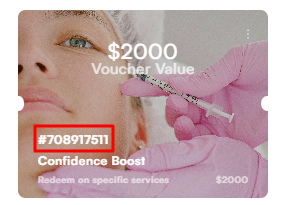
The client can then redeem the voucher in-clinic, or they can use the voucher code to pay for an appointment while booking online.
NOTE: For more information on enabling promo codes in your online booking portal, read this article.
For more guides, refer to related articles below, select additional guides, or use the search bar at the top of the page. These guides will help you get the most out of your Pabau account.
Additionally, to help you fully utilize and understand your Pabau account, we recommend exploring additional guides and resources offered at the Pabau Academy. It offers in-depth video tutorials and lessons, offering a holistic learning experience that can equip you with the essential skills for achieving success with Pabau.