
NOTE: Fertility is currently rolling out to selected clinics. If you can't see it in Features, please contact support.
NOTE: Fertility lives on the new client card.
Each drug row is supplied by prescriptions, not by one prescription per dose. You create them from the cycle with the drug and the planned amount already filled in.
Step 1: Prescribe a Drug
- In the Medication section, open the options menu next to the drug's name and click Prescribe.
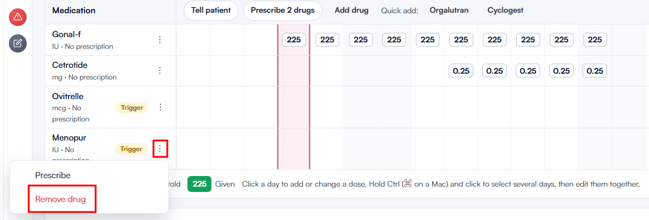
- To prescribe every drug that has no prescription yet in one go, click Prescribe all in the Medication section, for example Prescribe 2 drugs.
Step 2: Check the Prescription and Save It
The normal Create Prescription panel opens with these already filled in:
- the drug;
- the planned amount as the quantity. A drug picked from a database is prescribed in whole packs of that strength, for example 4 x 75 IU for 300 IU of a 75 IU vial. A typed drug name is prescribed as the total, for example 3150 IU;
- As directed as the dosage instructions;
- a note to the pharmacy: "Use as directed by the clinic. Daily doses are on the … plan."
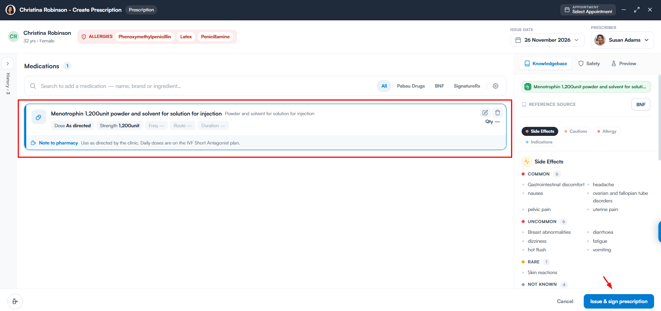
Check the prescription, then save it as a draft or sign it. When you click Done, you return to the cycle.
NOTE: This is the same prescription as anywhere else in Pabau. See How to Create a Prescription for signing and sending it.
Step 3: Read the Prescription Status
Under the drug's name, the row shows where its supply stands:
- No prescription: nothing is prescribed for this drug yet.
- Draft prescription: a prescription is saved but not signed.
- Prescribed …, for example Prescribed 3150 IU: signed, with the amount it supplies.
- Sent to pharmacy: the prescription has been sent.
- Plan needs … more: the planned doses add up to more than the prescriptions supply.
- Check the quantity on the prescription: the prescription's quantity isn't written in the row's unit (for example "3 pens"), so Pabau can't add it up. Pabau reads quantities such as 3150 IU or 3 x 1050 IU.
- A linked prescription was deleted: a prescription on this row has been deleted.
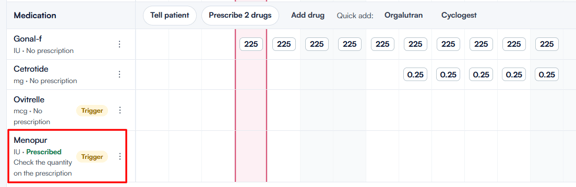
NOTE: If you edit a linked prescription, Pabau saves a new version and the row follows it automatically.
Step 4: Prescribe a Top-Up
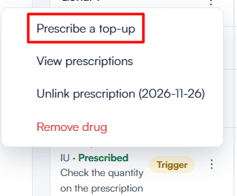
When the row says Plan needs … more, open the options menu next to the drug's name and click Prescribe a top-up. Create Prescription opens for the difference only. Save it as in step 2.
Step 5: View or Unlink Prescriptions
Once a row has a prescription, its options menu also offers:
- View prescriptions: opens the client's prescriptions.
- Unlink prescription (…): detaches that prescription from the row, without deleting it. The date shows which one.
TIP: Changing a dose never creates a prescription. Prescribe when you are ready, and top up as the plan changes.
What's next?
Start from Getting started with Fertility for the full picture, or carry on with the complete Fertility Guide series:
- Fertility Guide Part 1: Start and Manage a Treatment Cycle
- Fertility Guide Part 2: Plan and Record Doses
- Fertility Guide Part 3: Prescribe from a Cycle (this guide)
- Fertility Guide Part 4: Record Follicle Scans
- Fertility Guide Part 5: Tell the Patient and the Client Portal Planner
For what every row, marker and status on the board means, see Reading the Fertility Board.
Related guides:
Was this guide helpful? Let us know by voting below - your feedback helps us write clearer articles.
For more guides, browse the related articles below or use the search bar at the top of the page. You can also watch our video learning series, the Pabau Academy, or visit the Support page for additional help.