
NOTE: Fertility is currently rolling out to selected clinics. If you can't see it in Features, please contact support.
NOTE: Fertility lives on the new client card.
Patients see their doses in the Planner tab of the client portal's Prescriptions page. Only doses marked Patient told or Given appear there: a Planned dose is your clinic's draft and stays off it.
Step 1: Tell the Patient Their Doses
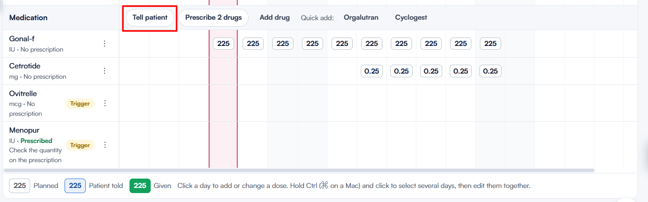
- In the Medication section, click Tell patient. The Tell the patient their doses window opens.
- Choose Today, Today and tomorrow, Next 3 days or Next 7 days. Pabau lists every dose due on those days.
- Tell the patient by phone, or tick Notify client of change to email and text them a link to their Planner (step 2).
- Click the button that marks them, for example Mark 3 doses as told (or Mark 3 doses as told and notify client). The planned doses change to Patient told and you'll see Doses marked as told to the patient.
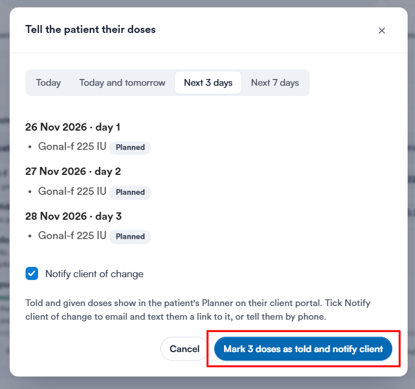
If every dose in the window is already told or given, Pabau says so. To mark specific days only, select them with Ctrl-click (⌘-click on a Mac) and use Edit selected, as in Fertility Guide Part 2: Plan and Record Doses.
Step 2: Notify the Client of a Change
Notify client of change is offered in Tell patient, in the dose window and in Edit selected. When you save with it ticked, Pabau:
- emails and texts the client a link that opens their Planner on the client portal. The messages don't name any drug or dose;
- marks the planned doses on those days as Patient told, so they are on the Planner the link opens. Doses already told or given are left alone.
A message confirms what was sent: Client notified by email and SMS, Client notified by email or Client notified by SMS. A client with no email address or no mobile number gets the other channel.
IMPORTANT: Pabau doesn't send the notification for a blocked or archived client, a suspended client portal account, a cancelled cycle, a clinic that isn't on the new client portal, or when your client portal's Prescriptions page is switched off. If no message goes, the doses are not marked told: you'll see Couldn't notify the client, so mark them as told yourself.
Step 3: What the Patient Sees in the Planner
In the client portal, the patient opens Prescriptions and clicks the Planner tab ("When to take each medication, and how much, as your clinic has told you."). It shows:
- Today: today's doses, or No medication today., and the next dose (Next dose: …).
- a calendar of the cycle by day, with each dose, the Trigger, doses marked Given, and the Egg collection date;
- Treatment cycle: a picker between the client's active (In progress) and Completed cycles.
The Planner reminds the patient to contact the clinic before their next dose if anything differs from what they were told.
NOTE: The Planner tab shows only when your clinic has Fertility switched on and your client portal's Prescriptions page is on.
What's next?
Start from Getting started with Fertility for the full picture, or carry on with the complete Fertility Guide series:
- Fertility Guide Part 1: Start and Manage a Treatment Cycle
- Fertility Guide Part 2: Plan and Record Doses
- Fertility Guide Part 3: Prescribe from a Cycle
- Fertility Guide Part 4: Record Follicle Scans
- Fertility Guide Part 5: Tell the Patient and the Client Portal Planner (this guide)
For what every row, marker and status on the board means, see Reading the Fertility Board.
Was this guide helpful? Let us know by voting below - your feedback helps us write clearer articles.
For more guides, browse the related articles below or use the search bar at the top of the page. You can also watch our video learning series, the Pabau Academy, or visit the Support page for additional help.