
The Expiring Memberships report is your save-the-member queue — it lists every membership ending in the next 180 days that hasn't been renewed, so you can reach out before members lapse.
It answers: how many memberships expire in the next 7, 30 and 180 days, how much renewal revenue is at stake, how much benefit value members still have unredeemed, and which of those members are still engaged enough to be worth a renewal conversation.
For example, if a client's "Glow Membership" ends on 20 August and she hasn't visited in six weeks, this report shows her membership in the "Expiring in 30 days" bucket, places her in the "Cooling off" engagement segment, and shows what a successful renewal would be worth.
NOTE: This report is different from the Upcoming Renewals report. That report covers memberships that will auto-renew — the bills are already scheduled. This one is the opposite: memberships about to lapse unless something changes. The two reports never overlap.
How to find it
Step 1: Open Reports
Log in to your Pabau account. In the left sidebar, hover over Analytics and click Reports. The reports catalogue opens, with every report you have access to.
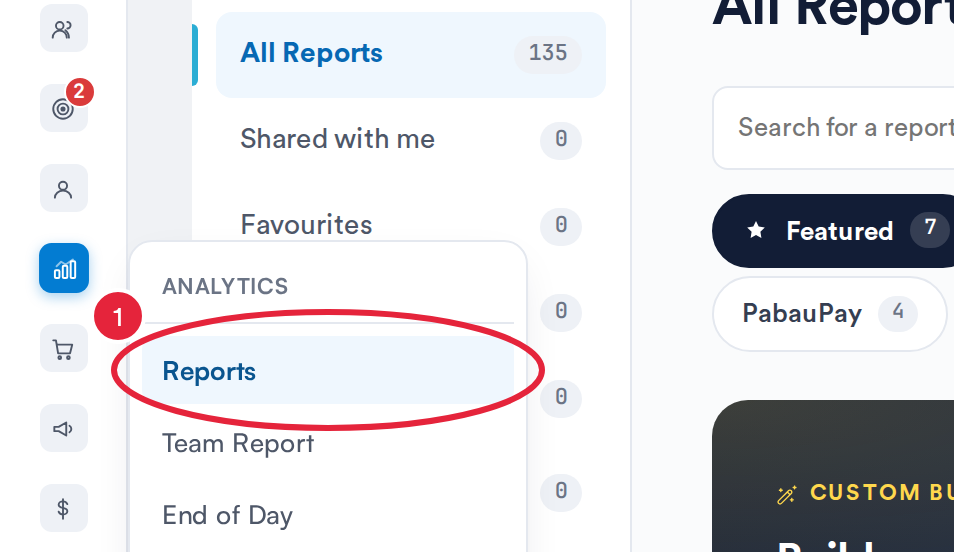
Analytics → Reports opens the reports catalogue
Step 2: Open the Report
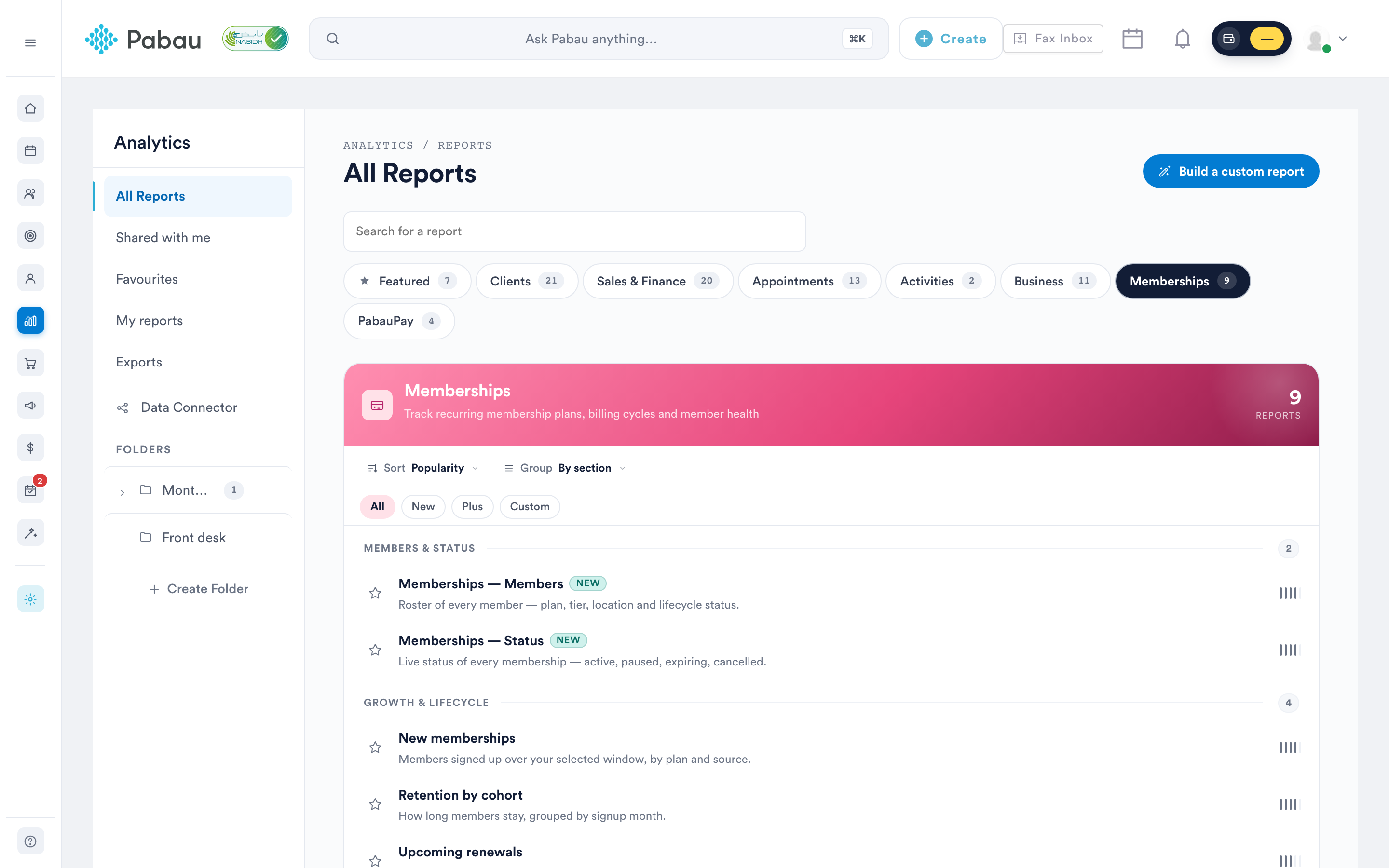
Click the Memberships tab, then click Expiring memberships in the Growth & lifecycle section to open the report. You can also type the report’s name in Search for a report.
Toolbar controls
| Button | What it does |
|---|---|
| Columns | Opens the column manager — show or hide any of the 9 table columns. Your choice is remembered in your browser for this report. |
| Export | Downloads the report as a CSV file (e.g. expiring-memberships-2026-08-04.csv). The export always contains the entire filtered list — not just the rows loaded on screen so far. |
| Opens your browser's print dialog, formatted for A4 landscape. | |
| Help | Opens the in-app help modal — an overview, how-to steps, the engagement segment definitions, and a definition of every column. |
| Refresh | Re-runs the report with your current filters, showing "Refreshing…" while loading. |
Filters
- Locations – Optional, multi-select, searchable. Defaults to All locations.
- Plan – Optional, multi-select, searchable. Defaults to All plans.
- Engagement – Optional, multi-select. Defaults to All members. Filters the list by how recently each member last visited — see the four segment definitions below.
NOTE: There is no date filter — the report always covers the next 180 days from today. The 7/30/180-day buckets are calculated in your clinic's timezone, and dates display in the date format set in your Business Details.
Understanding the report
The KPI cards
These summarise the whole 180-day window for your current filters.
| Card | Main value | Sub-text |
|---|---|---|
| Expiring this week | Memberships ending in the next 7 days. | The renewal revenue at stake, e.g. "£1,240 at stake". |
| Expiring in 30 days | Memberships ending in the next 30 days. | The renewal revenue at stake. |
| Expiring in 180 days | Memberships ending in the next 180 days. | The renewal revenue at stake. |
| Unused benefit value | The monetary value of benefits members haven't redeemed yet. | How many individual benefits that is, e.g. "36 benefits unredeemed". |
"At stake" is the value of a successful renewal — one full term at the current plan price — summed across the memberships in that bucket.
Expiry timeline (chart)
The "Expiry timeline — next 180 days" chart shows one stacked bar per day, coloured by member engagement (the legend sits in the chart header). Dashed markers flag the 7 days and 30 days boundaries so the urgent window stands out — denser bars mean denser renewal work ahead. Hover a bar to see the per-segment counts and the day's total.
Engagement segment cards
Four clickable cards split the expiring list by how recently each member visited. Each card shows the member count, its share of the list as a bar, and the total renewal value in that segment (e.g. "£3,120 renewal value").
- Recently engaged – Visited in the last 30 days. Highest conversion — likely to renew if asked.
- Cooling off – 31–60 days since visit. A renewal offer with a reactivation incentive often works.
- Dormant – 61–120 days since visit. Personal outreach recommended; consider a downgrade offer.
- Likely lost – 120+ days since visit. Don't waste premium offers — a low-touch win-back email is fine.
Clicking a card filters the table to that segment (it sets the Engagement filter for you). Click the same card again — or the Clear filter link next to the table — to remove it.
The expiry bucket toggle
Above the table, a Next 7 days / Next 30 days / Next 180 days toggle scopes which rows show — each option displays its membership count, and the summary line next to it reads, for example, "Next 30 days · 12 memberships · click a segment card above to filter". It defaults to Next 180 days. The KPI cards, timeline and segment cards always cover the full 180-day window regardless of the bucket you pick — the toggle only scopes the table.
The table
Default sort is Expiry Date, soonest first. Sorting happens on the server across the whole filtered list — not just the rows already loaded. Hover any column header for its definition. Long lists load 50 rows at a time as you scroll, with a "Showing 50 of 132 — scroll to load more" hint.
| Column | What it shows | Sortable |
|---|---|---|
| Expiry Date | The date the membership ends, with a countdown label — "Today", "Tomorrow" or "in N days". The cell is highlighted with increasing urgency once expiry is 14, 7 and 3 days away. Members can still redeem benefits up to this date. | Yes |
| Client | The member whose membership is expiring. Click the name to open their client card. | No |
| Membership Code | The system-generated identifier for the membership record. | Yes |
| Plan | The plan that's expiring. | No |
| Location | Where the membership was originally sold. | No |
| Unused Benefits | How many benefits the member still has available versus their original allocation — e.g. "3/5 unused" — with a progress bar. A high unused count is both a churn risk and a save opportunity. | No |
| Last Visit | Days since the member's most recent appointment, as a colour-coded badge (e.g. "12d ago") matching their engagement segment — or "No visits yet". | Yes |
| Unused | The monetary value of the member's unredeemed benefits. | Yes |
| Renewal Value | What a successful renewal would be worth — one full term at the current plan price. | Yes |
Beneath the table, the totals row shows Expiring in 30 days (the renewal revenue at stake over the next 30 days) and Unused benefit value for the current filters.
For example, a membership five days from expiry shows an urgency-highlighted Expiry Date with "in 5 days"; if the member has 3 of 5 benefits unused and last visited 40 days ago, start there — a renewal offer that reminds them of the value still on the table is your strongest play.
NOTE: The Memberships section of the new reports catalog is visible to users who have the All Sales & Finance reports switch turned on under Report access in their own or their role’s permissions. That switch covers every Memberships report, and an admin can also give a staff member or role access to this report on its own (see How to Give a Staff Member or Role Access to Individual Reports). The report is not behind a feature flag.
With this understanding, you can confidently use the Expiring Memberships report to spot the memberships worth saving, prioritise by engagement, and act before the expiry date passes. To see the other side of the lifecycle, pair it with the Upcoming Renewals report and the New Memberships report, and check what members actually redeem in the Membership Usage report.
Was this guide helpful? Let us know by voting below - your feedback helps us write clearer articles.
For more guides, browse the related articles below or use the search bar at the top of the page. You can also watch our video learning series, the Pabau Academy, or visit the Support page for additional help.