Email in Engage: Sending, Forwarding and Mailboxes Explained
This article explains how email works in Pabau Engage: what you get out of the box, the two optional ways to bring your clinic's existing mail into the inbox, and how incoming emails are matched to your clients. Understanding these building blocks will help you choose the right setup for your clinic before following the step-by-step guides.
Email Works Out of the Box
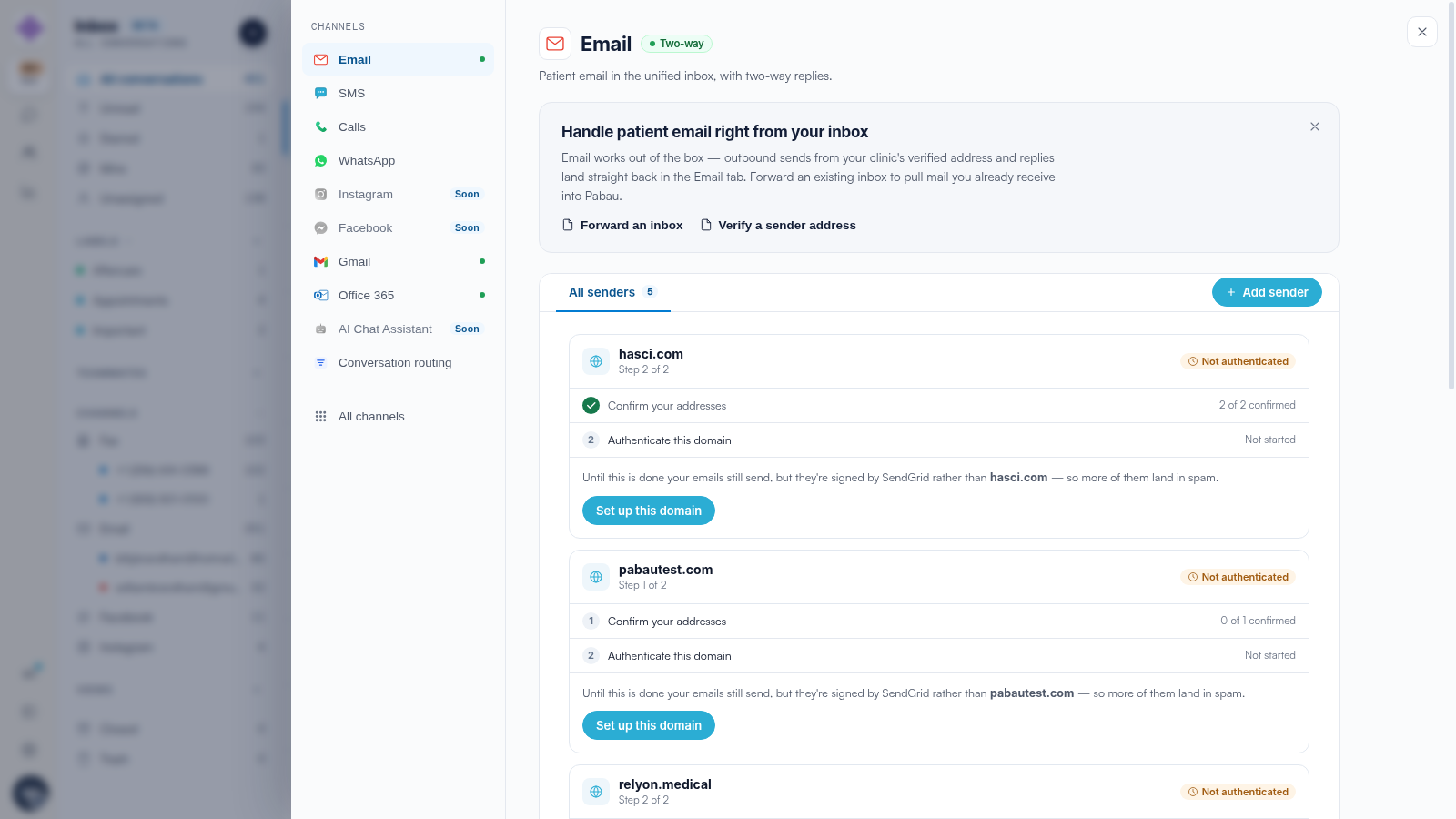
Email is a two-way channel inside the unified Engage inbox, and it needs no setup at all. In the Channel Catalog, the Email card always shows a green Live ribbon, with the status line Two-way · replies land in your inbox — or Two-way · also forwarding your inbox address once forwarding is set up. Outbound email is sent through your clinic's verified sender, and when a client replies, the message lands back in the Email tab of your inbox as part of the same conversation.
NOTE: Email is completely free in Engage. Unlike text messages or faxes, sending and receiving email uses no credits and carries no subscription.
Reading Email in the Inbox
Click Email under the channels list in the navigation rail to see your email conversations. Each incoming email shows its subject as a pill above the message body, and any attachments appear as image thumbnails or file cards you can download. Engage also trims the quoted reply history from incoming emails, so each bubble shows only what the client actually wrote.

Two Ways to Bring Your Existing Mail In
Engage email works without connecting anything, but most clinics also want their existing mail in the same place. Open the Channel Catalog by clicking Channels in the navigation rail, then select the Email tab to see three cards: Email, Gmail, and Office 365 / Outlook.

Email forwarding gives your clinic a dedicated Pabau forwarding address ending in @pabaumail.com. You add it as a forwarding destination in your existing mail provider — Gmail, Microsoft 365, or any other — and everything forwarded there lands in the Email tab. Click Forward an inbox on the Email card to start; we suggest reading our How to Set Up Email Forwarding into Engage article for the guided walkthrough.
Connected mailboxes let a staff member connect their own Gmail or Microsoft 365 / Outlook mailbox. Engage pulls in recent inbox and sent mail, keeps new mail syncing automatically, and lets your team reply from that address so the message also appears in the mailbox's real Sent folder. Click Connect on the Gmail or Office 365 / Outlook card to start; we suggest reading our How to Connect Gmail or Microsoft 365 (Outlook) to Engage article for the full steps.
TIP: The two options work well together, and timing differs slightly: mail arriving through a connected mailbox syncs within seconds, while forwarded mail can take a few minutes to appear.
How Incoming Email Matches to Clients
Engage matches every incoming email by the sender's address. If the address matches a client record in your Pabau account, the email lands in that client's conversation — showing their name and details — and is also logged to their client card. We suggest reading our What Engage Logs to the Pabau Client Card article for what appears on the timeline.
If the sender's address does not match any client, the email becomes its own conversation headed Not a patient, with Link patient and Create new buttons so you can connect it to the right record. We suggest reading our How to Link a Conversation to a Client in Engage article to learn how.

NOTE: Conversations from unknown senders are read-only by default — the composer shows "Replying to unknown senders isn't available yet." Once a Gmail or Office 365 / Outlook mailbox is connected, your team can reply to unknown senders through that mailbox.
Which Address Do Clients See When You Reply?
When you reply from your Pabau mailbox or Forwarded inbox address, the email goes out through your clinic's verified sender, and the client's reply routes straight back into the Engage inbox. When you reply from a connected Gmail or Outlook mailbox, the email genuinely comes from that address and a copy is saved in its Sent folder. You choose between them with the From picker in the composer, and each sending address can carry its own signature — set up from the Email card's Configure button.
We suggest reading our Email Signatures and Sending Email from the Engage Inbox article for the From picker, Cc, attachments, and signatures in detail.
For more guides, refer to related articles below, select additional guides, or use the search bar at the top of the page. These guides will help you get the most out of your Pabau account.
Additionally, to help you fully utilize and understand your Pabau account, we recommend exploring additional guides and resources offered at the Pabau Academy.