
This article covers the new Client Card, available to selected clinics from August 2026. If your Client Card looks different, see the Dictation (Classic) guide instead.
Step 1: Navigate to a Client Card
Start by logging in to your Pabau account. Then open a client card by searching for the client using the search bar at the top of the screen.
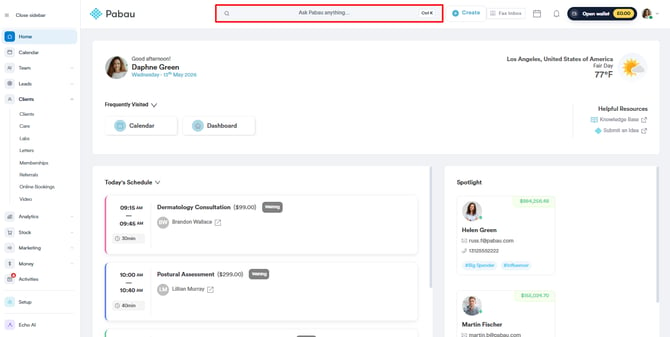
Step 2: Initiate Dictation
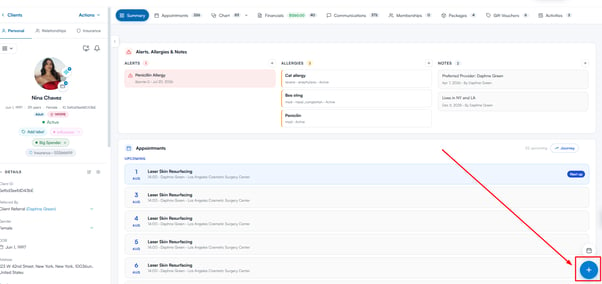
Click the Create button (the blue plus sign) in the bottom-right corner of the client card.
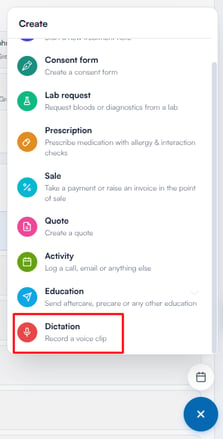
From the Create menu that appears, select Dictation. If Dictation doesn’t appear in the menu, it isn’t enabled for your account — contact our support team to have it switched on. Make sure your browser has microphone access enabled before proceeding — if it doesn’t, the panel will prompt you to enable it in your browser’s settings.
Step 3: Start Recording
Click the microphone button to begin recording. Speak clearly to capture the information you want to include.
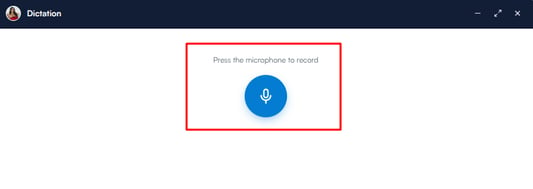
Step 4: Pause or Stop Recording
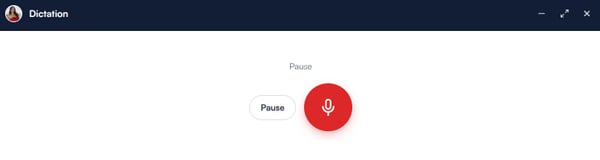
While recording, you can pause at any time using the Pause button next to the microphone, and click Resume to carry on. Once you have finished, click the microphone button again to stop.
Step 5: Review the Recording
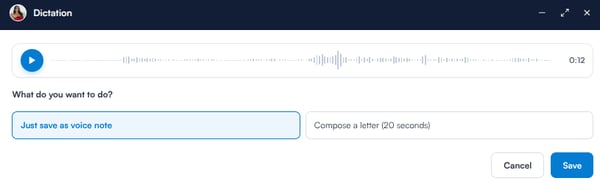
At the top of the panel, you can play the recording back to review it before saving.
Step 6: Save as a Voice Note or Compose a Letter
Under What do you want to do?, choose one of two options:
-
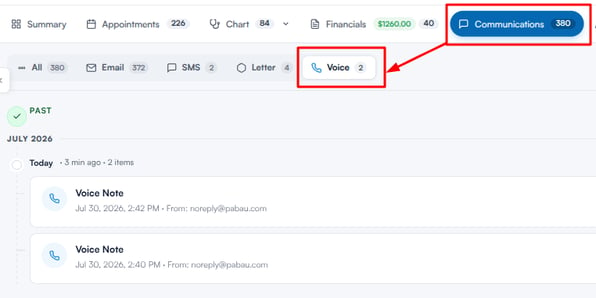
Just save as voice note: saves the recording directly to the client’s record, where it appears in the Communications section of the client card.
-
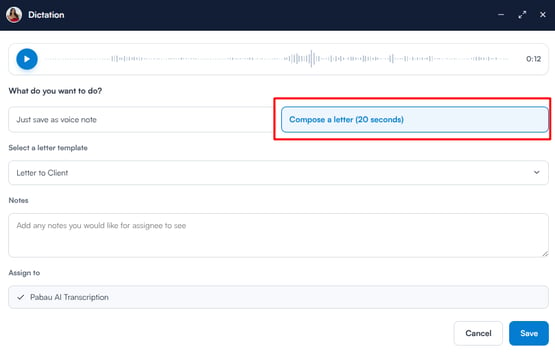
Compose a letter: turns the recording into a letter. Choose a letter template from the dropdown — the letter is assigned to Pabau AI Transcription automatically.
Step 7: Save
Click Save to finish. A voice note is saved straight to the client’s record. If you chose to compose a letter, Pabau transcribes the recording and opens the letter composer pre-filled with your chosen template and the transcript, ready for you to review and send.
Was this guide helpful? Let us know by voting below - your feedback helps us write clearer articles.
For more guides, browse the related articles below or use the search bar at the top of the page. You can also watch our video learning series, the Pabau Academy, or visit the Support page for additional help.