
NOTE: Build your own membership needs the Memberships feature on your account and your new online store. If you can't see Allow clients to build their own under Setup → Memberships, then the cog icon (Membership settings), contact Pabau Support.
What is Build Your Own Membership?
Build your own membership lets clients put together a membership from the treatments you choose. They pick how many of each treatment they want and how often, per week or per month, and see the monthly price and their saving update as they go.
Each build becomes a custom membership for that client only. It is billed once a month at one price, and it never appears on your plans list for other clients.
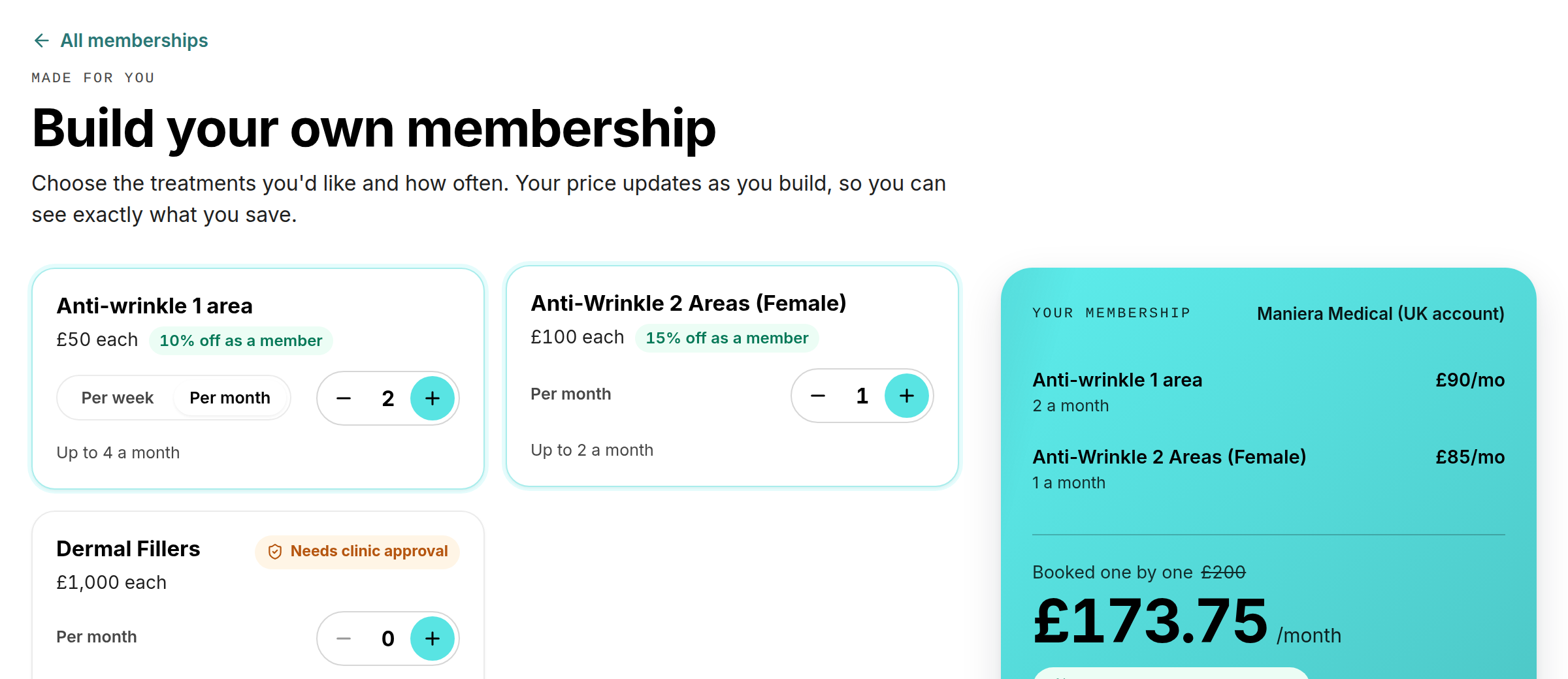
What clients see: pick treatments and how often, and the price updates as they build
How the price is worked out
You set the rules once, and Pabau works out every price from them. Clients never type a price.
- Each treatment is charged at its price for the location the client shops from.
- Any per-treatment discount is taken off.
- A tier discount applies once the monthly value passes the amounts you set.
- An optional extra discount applies if the client commits for a number of months.
- Your discount limit and rounding are applied last.
The client always sees what the same treatments would cost booked one by one, and how much they save.
Two ways a build can go
- Instant: if the build doesn't need approval, the client clicks Join, adds their card and becomes a member straight away.
- Approval: if the build needs approval, the client clicks Send to the clinic for approval. Your team reviews it under Requests, can change it, and approves or declines it. Approved clients get an email with a link to review and join. No card is taken until they join.
You decide which builds need approval: never, always, or above a monthly amount. You can also mark individual treatments as needing approval, for example a treatment that needs a consultation first.
Your team can also build a membership for a client from the client card or the Point of Sale. Those builds never need approval.
Where to find it
Go to Setup → Memberships, then the cog icon (Membership settings), then click Open membership builder. The builder has two tabs: Rules, where you set everything up, and Requests, where builds waiting for approval appear.

The cog icon on Setup → Memberships opens Membership settings
Before you start
- Your services need a price. A treatment without one can't be added to a build.
- Memberships need to be switched on for your online store. See How to Enable Memberships Online.
- Clients have to sign in to join or to send a build for approval.
What's next?
The complete Build Your Own Membership series:
- How to Set Up Build Your Own Membership
- How to Approve or Decline Membership Requests
- Build Your Own Membership Notifications
- How to Build a Membership for a Client
- How to Build Your Own Membership Online
Was this guide helpful? Let us know by voting below - your feedback helps us write clearer articles.
For more guides, browse the related articles below or use the search bar at the top of the page. You can also watch our video learning series, the Pabau Academy, or visit the Support page for additional help.