
The AVS Details for Saved Cards report lists every card saved on file for your clients, together with the Address Verification System (AVS) verdict Stripe returned for it — so you can spot cards whose billing address failed verification before you charge them.
What is AVS? When a card is saved or charged, Stripe asks the card issuer to check the billing address the client provided — the postal code and the first line of the address — against what the issuer has on record. A mismatch is a common fraud signal, and charges on those cards are more likely to be declined.
It answers: which saved cards passed or failed address verification, which clients have no billing address on file at all, and how each card’s most recent transaction went — so you can update details or request another card before charging, for example ahead of a membership renewal.
In this article, we’ll explain how to find the report, what each filter and column means, and how to read the AVS verdict pills.
How to find it
Step 1: Open Analytics Reports
Log in to your Pabau account, and in the left sidebar menu, hover over Analytics and click Reports.
Step 2: Open the Report From the PabauPay Section
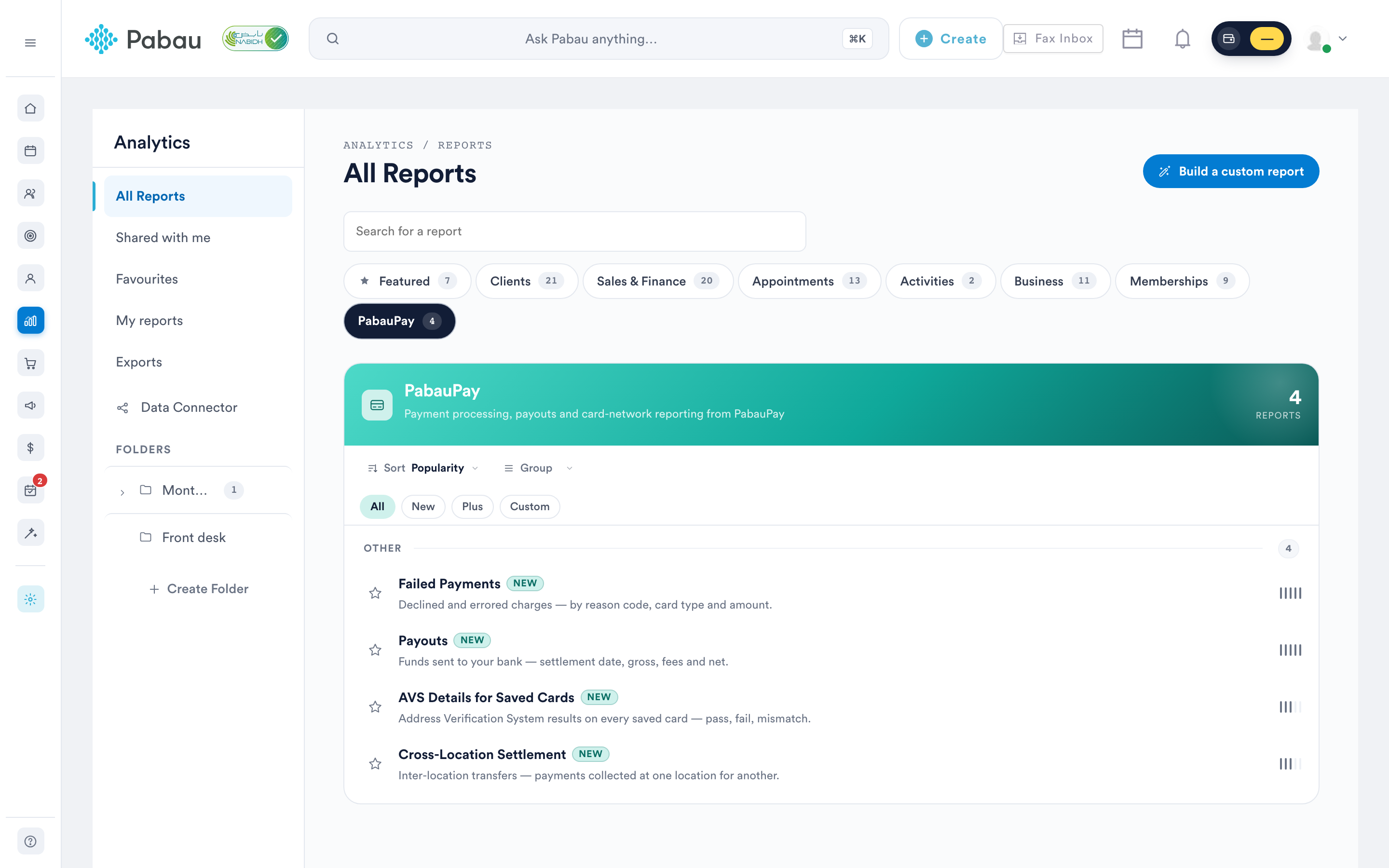
In the list of report categories, click PabauPay, then click AVS Details for Saved Cards to open the report.
NOTE: The PabauPay reports appear for staff who have All Business reports turned on under Report access in their permissions, or who have been given AVS Details for Saved Cards on its own. See How to Give a Staff Member or Role Access to Individual Reports for where Report access is set. The report reads live data from your PabauPay (Stripe) account. If your account is on a free trial, the report shows generated sample data so you can explore the layout — your real saved cards appear once PabauPay is live on the account.
Toolbar controls
| Button | What it does |
|---|---|
| Columns | Opens the column manager — show or hide any of the 13 table columns. Your choice is remembered in your browser for this report. |
| Export | Downloads the on-screen table as a CSV file (e.g. avs-details-2026-08-04.csv). |
| Opens your browser’s print dialog, formatted for A4 landscape. | |
| Help | Opens the in-app help panel — an overview, how-to steps, and a definition of every column. |
| Refresh | Re-runs the report with your current filters. |
Filters
- Location – Optional, single-select, searchable. Scopes the report to one location — only locations you’re permitted to access are listed.
- Last transaction – A date range matched against each card’s last transaction date — it is not a reporting period. Defaults to the last 30 days, with presets for Today, Last 7 days, Last 30 days, This month, Last month, and Year to date. Widen the range to include cards that haven’t been used recently.
- Card brand – Optional, single-select. Defaults to All brands, or pick one of Visa, Mastercard, American Express, Discover, Diners Club, JCB, UnionPay, or Unknown.
- Address availability – Optional, single-select. Defaults to Any address, or narrow to Has address or Missing address. Filtering to Missing address gives you a ready-made list of clients to chase for billing details.
Understanding the report
The table
Each row is one saved card. For a definition of every column, open the Help panel.
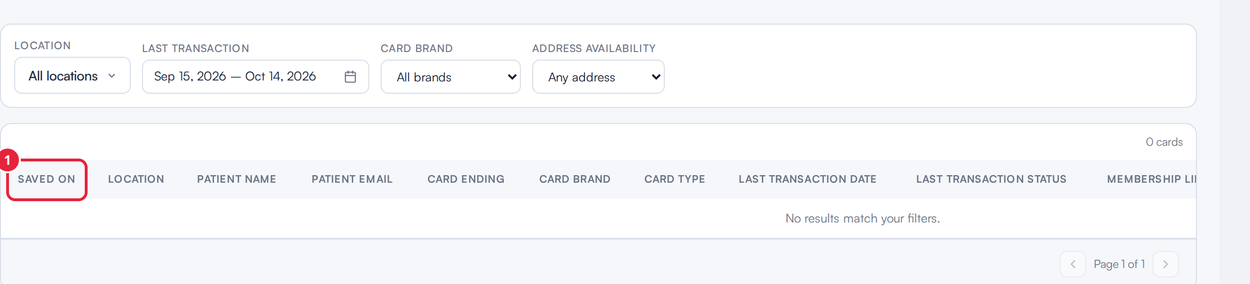
Saved on is the first column of the report
| Column | What it shows |
|---|---|
| Saved on | When the card was saved to the client’s file. The AVS check usually runs at that point, so this tells you how old the verdict is, and whether the client’s address has changed since. It is included in the CSV export. |
| Location | The clinic location the card belongs to. |
| Patient name | The client the card is saved for. Click the name to open their client card. |
| Patient email | The client’s email address. |
| Card ending | The last four digits of the saved card, e.g. "XXXX-4242". |
| Card brand | The card brand, e.g. Visa or Mastercard. |
| Card type | The card’s funding type: credit or debit. |
| Last transaction date | When the card was last used to transact. |
| Last transaction status | How the card’s most recent transaction went — Success shows as a green pill, a failure as a red pill. |
| Membership linked | Yes or No — whether the card is linked to an active membership. |
| Address availability | Yes or No — whether a billing address is on file for the client. |
| Address updated on | When the client’s address was last updated. |
| Is address valid? | The AVS verdict Stripe returned, shown as a colour-coded pill (see below). |
Reading the "Is address valid?" column
| Pill | Colour | Meaning |
|---|---|---|
| Valid postal code | Green | The postal code matched the card issuer’s records. |
| Invalid postal code | Red | The postal code did not match the issuer’s records — double-check with the client before charging. |
| Address unavailable | Amber | The issuer could not verify the address. |
| N/A | Grey | No AVS check has been run for this card yet. |
When Stripe’s verdict on the first line of the address disagrees with the postal-code verdict, a "Line 1: …" tag appears under the pill. A postal code that passes while the street address fails (or vice versa) is a distinct signal worth double-checking with the client.
This report has no totals bar — the results label simply shows the count, e.g. "154 cards".
NOTE: The report covers the saved cards of up to 500 clients. If your client base is larger than that, use the Location and Address availability filters to work through it in smaller sets.
Related guides
- Failed Payments Report — the charges that were declined, and why.
- How to Save Your Card on File for Future Payments
- How to Pay with Card on File
With this understanding, you can confidently use the AVS Details for Saved Cards report to catch address problems early, reduce declined charges, and keep the card details on file clean.
Was this guide helpful? Let us know by voting below - your feedback helps us write clearer articles.
For more guides, browse the related articles below or use the search bar at the top of the page. You can also watch our video learning series, the Pabau Academy, or visit the Support page for additional help.