
Step 1: Log in to Xero
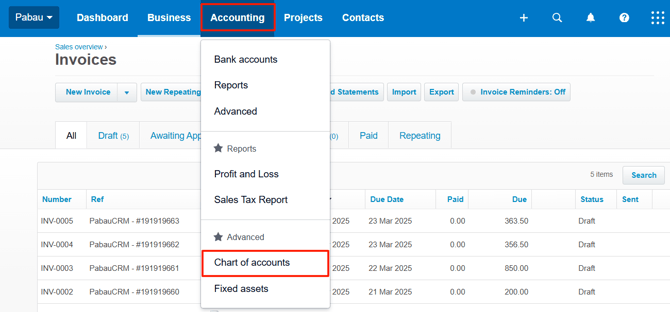
Start by logging in to your Xero account. Under the Accounting tab on the top left side of the page, you will find the Chart of Accounts option.
Step 2: Enable Account Code
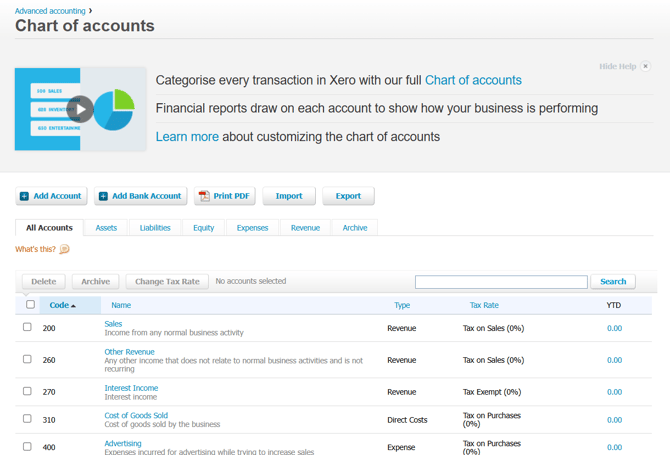
Once you are on the Chart of Accounts page, you can view a list of codes to integrate into your Pabau account. These codes help categorize every transaction.
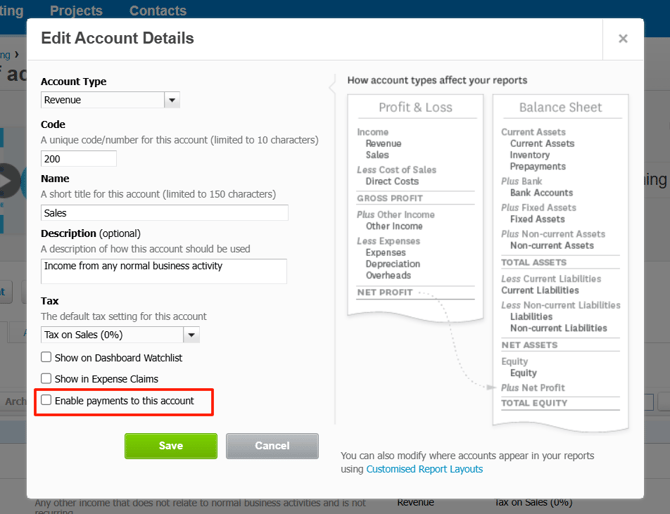
After locating the code you need, click on the name, and a pop-up window will appear where you need to tick the "Enable Payments to this Account" option. Click on the Save button to finalize the action.
Step 3: Check the Code in Pabau
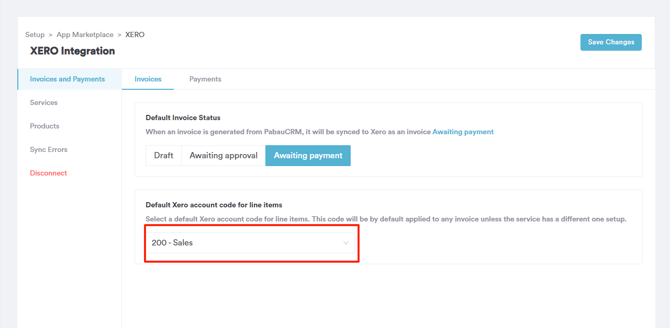
After enabling the code in Xero, log in to Pabau to ensure everything reflects properly. Navigate to the Xero integration page to proceed. Under the invoices tab, you will find Default Xero account code line items. Any codes enabled from Xero will appear in the dropdown menu, where you can select which code you would like to set as default.
How to Incorporate Service-Specific Account Codes into Pabau
If you want to map some specific services with different codes, you can do that by going to the Services tab on the Xero integration page and selecting the available codes that appear on the dropdown menu on the far right side of the service name.
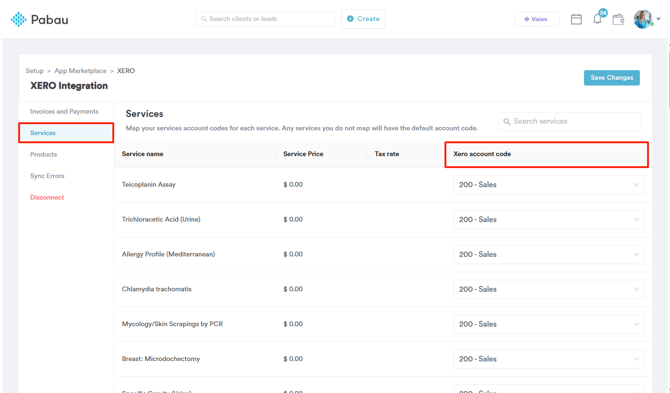
NOTE: If you don't assign a code to a service, it will have the default account code you set on the Invoices tab.
Was this guide helpful? Let us know by voting below - your feedback helps us write clearer articles.
For more guides, browse the related articles below or use the search bar at the top of the page. You can also watch our video learning series, the Pabau Academy, or visit the Support page for additional help.