
When WhatsApp misbehaves, the cause is usually one of four things: the connection, the template, the window, or the number. This article works through them in order.
1. Check the Connection
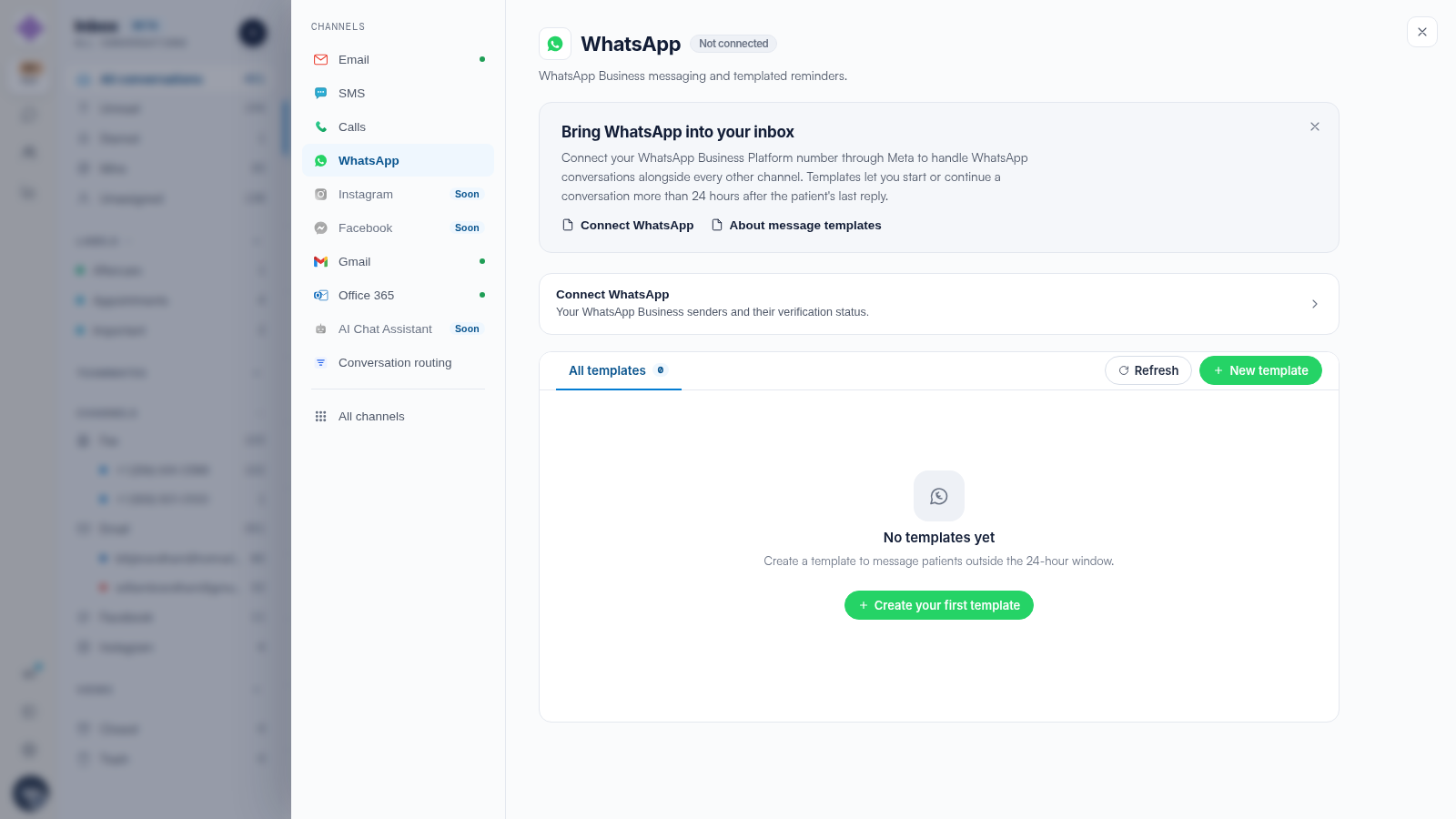
Open Settings → WhatsApp. The header shows the channel state — Connected or Not connected — and the Connect WhatsApp section lists your senders and their verification status. A sender stuck in verification is the first thing to rule out.
2. Check the Template
If an outbound message will not send, and the client’s last reply is old, the message needs an approved template. In All templates, check the template’s status — pending templates cannot be sent, and rejected ones need editing and resubmitting. Click Refresh to fetch the latest review state from Meta.
3. Respect the 24-Hour Window
Free-form replies only work within 24 hours of the client’s last message. Outside the window, use a template — this is WhatsApp policy, not an Engage setting. See our WhatsApp Templates and the 24-Hour Window article.
4. Check the Number
A phone number can only be registered to one WhatsApp Business account at a time. If the connect wizard rejects your number, it may still be attached to a previous WhatsApp registration — release it there first, or connect with a Pabau-provided number instead.
NOTE: Meta occasionally reviews business accounts; if your Meta Business account itself is restricted, WhatsApp sending pauses until Meta resolves it — that state is visible in Meta Business Manager rather than in Engage.
Related Articles
We suggest reading our How to Connect WhatsApp Business to Engage article to re-run the connection cleanly.
For more guides, refer to related articles below, select additional guides, or use the search bar at the top of the page. These guides will help you get the most out of your Pabau account.
Additionally, to help you fully utilize and understand your Pabau account, we recommend exploring additional guides and resources offered at the Pabau Academy.