
Templates are WhatsApp’s passport for business messaging: the only way to start a conversation — or continue one more than 24 hours after the client’s last reply. This article shows you how to create and manage them in Engage.
Why Templates Exist
WhatsApp protects its users from spam by requiring businesses to pre-register the messages they send outside an active conversation. Each template is reviewed and approved by Meta before it can be sent. Inside the 24-hour window after a client’s message you can write freely; outside it, only approved templates go through.
Step 1: Open the Template Editor
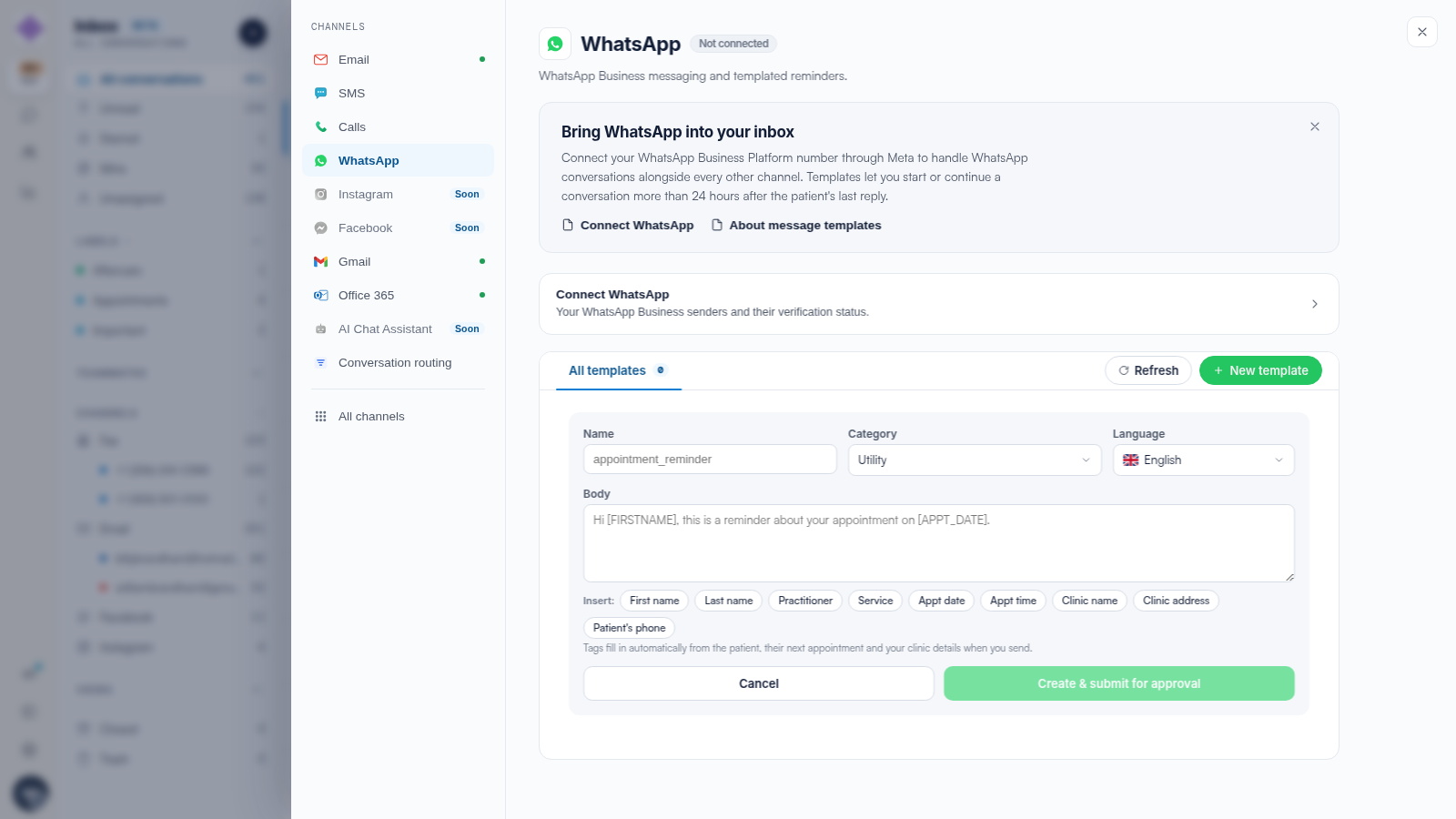
Click the Settings cog in the icon rail, choose WhatsApp, and click + New template (or Create your first template).
Step 2: Fill In the Template
The editor asks for:
- Name — lowercase with underscores, for example appointment_reminder.
- Category — such as Utility for appointment-related messages.
- Language — the language you will send in.
- Body — the message itself.
Step 3: Personalise with Tags
Use the Insert tags — First name, Last name, Practitioner, Service, Appt date, Appt time, Clinic name, Clinic address and Patient’s phone. Tags fill in automatically from the patient, their next appointment and your clinic details when the template is sent.
Step 4: Submit for Approval
Click Create & submit for approval. The template goes to Meta for review; its status shows in the All templates list — use Refresh to pull the latest state. Once approved, it is available in conversations from the template picker.
TIP: Write templates that read like a person, not a robocall — Meta’s review and your clients both prefer it. One clear sentence with the appointment details beats a wall of caps.
Related Articles
We suggest reading our How to Send and Receive WhatsApp Messages in Engage article for the 24-hour window in practice.
For more guides, refer to related articles below, select additional guides, or use the search bar at the top of the page. These guides will help you get the most out of your Pabau account.
Additionally, to help you fully utilize and understand your Pabau account, we recommend exploring additional guides and resources offered at the Pabau Academy.