
When your Pabau credit balance is running low, a banner appears at the top of your Pabau account with the following message:
The banner is a reminder to add credits to your account before your balance runs out. Pabau credits are used for features such as SMS campaigns, automated SMS client notifications, virtual consultations, AI tools, workflow actions and sending prescriptions to pharmacies. If your balance reaches zero, these features can stop working until you add more credits.
-
When the banner appears: The banner appears when your company's credit balance drops below its "Low account level", the low-credit threshold set in Credits & SMS. This is the same threshold auto top-up uses.
-
Who sees the banner: Every user in your account sees the banner. Admins also see a "Click here to top it up" link in the banner, which opens the credit purchase window.
-
Closing the banner: Click on the X on the right side of the banner to hide it. The banner stays hidden for 7 days, in that browser only. If your balance is still below the low-credit threshold after 7 days, the banner appears again. Closing the banner does not add credits to your account.
-
Other banners: If other notices are active on your account, such as a trial or failed payment banner, the banners rotate in the same space at the top of the screen, changing every 7 seconds.
NOTE: For a full list of features that use credits and how many credits each one uses, read this article. To learn more about how credits work, refer to our Benefits of Using Pabau Credits article.
If you use SMS for two-factor authentication (2FA), you will still receive your login code when your account has no credits left, as these messages are sent at no charge when your balance is empty.
To top up your credits and clear the banner, follow the steps below.
Step 1: Navigate to Credits & SMS
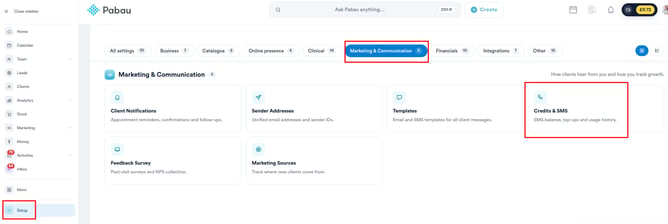
Log in to your Pabau account and click on Setup in the left sidebar menu. Under "Marketing & Communication", click on "Credits & SMS". Here you can see your current "Credits Remaining" at the top of the screen.
If you are an admin, you can also click on "Click here to top it up" in the banner to open the credit purchase window directly, then continue with Step 2.
Step 2: Purchase Credits
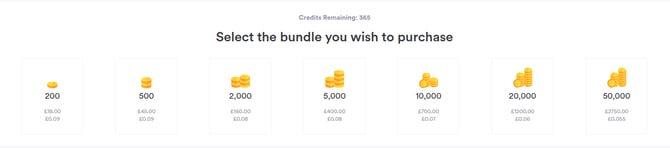
Select the credit bundle you want to purchase and click on the "Next Step" button in the bottom right corner of the screen. Bundles range from 200 to 50,000 credits, and larger bundles have a lower price per credit. On the next screen, review your "Low account level" and choose what should happen "When running low". If you prefer to purchase credits manually each time, select "Do Nothing". Click on "Next Step", review your order, and then click on the "Purchase" button in the bottom right corner of the screen to complete the purchase.
NOTE: To purchase credits, Stripe must be connected to your Pabau account. To find out how to connect Stripe, read this article.
For a detailed walkthrough, read our How to Manually Purchase Credits and How to Purchase a Credit Bundle articles.
Step 3: Set Up Auto Top-Up
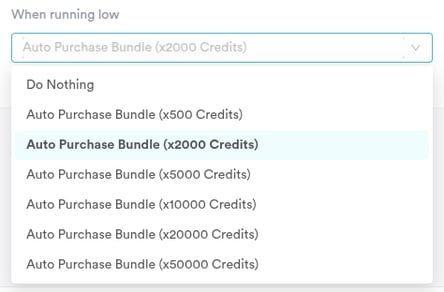
To make sure your balance is topped up automatically before it runs out, enable "Auto Top-up" located on the bottom right corner of the Credits & SMS page. In the auto top-up settings, set the "Low account level", which is the balance at which an automatic purchase is made, and choose how many credits should be purchased "When running low".
As the banner and auto top-up use the same "Low account level", enabling auto top-up purchases credits as soon as your balance reaches this level, which stops the banner from coming back.

To read more about managing this setting, read this article.
By following these steps, you can top up your Pabau credits and clear the low credit balance banner, so that features such as SMS notifications and AI tools continue to work without interruption.
Was this guide helpful? Let us know by voting below - your feedback helps us write clearer articles.
For more guides, browse the related articles below or use the search bar at the top of the page. You can also watch our video learning series, the Pabau Academy, or visit the Support page for additional help.