
What is the Vaccine Dashboard?
The Vaccine Dashboard gives you a complete overview of a client’s vaccination status in a single, easy-to-read interface. From basic client details to dose tracking across multiple diseases, this dashboard ensures you always have up-to-date, clinical information at your fingertips.
The Vaccine Dashboard serves as a complete overview of:
-
Administered and scheduled vaccines
-
Disease protection status (past, present, and future)
-
Related product and dosage data
-
Site of administration, batch numbers, and more
Step 1: Access Client Card
Start by logging into your Pabau account using your login credentials. Then, navigate to the search bar located at the top of the screen and type in your client's name. Their profile will appear on the search results, click to access their client card.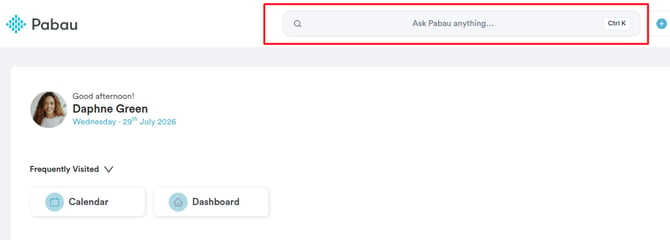
Step 2: Open the Vaccines Dashboard
In the client card, click on the "EMR" tab in the navigation menu at the top (labelled "Chart" for US accounts). This opens the clinical overview grid. Click on the "Vaccines" card to open the client's Vaccine Dashboard. If you don’t see the "Vaccines" card, the Vaccines feature needs to be enabled for your account first — see How to Manage Vaccines.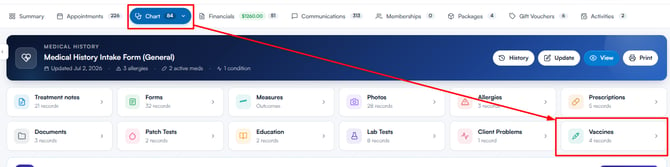
Step 3: Switch Between Views
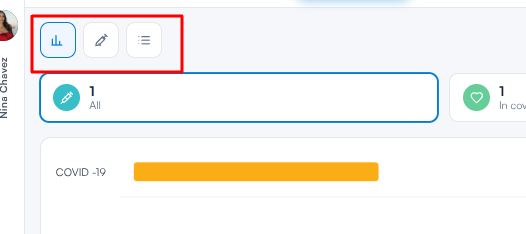
The "Schedule a vaccine" and "Administer a vaccine" buttons sit in the top right corner of the dashboard. The dashboard itself has three views, selectable using the icons in the top left corner:
-
Vaccine history graph (first icon): The default view. Shows the vaccine timeline at the top and a full table of all scheduled and administered vaccine records below it.
-
Vaccines administration list (second icon): Shows a focused table of all administered vaccines only, with the following columns: Administration date, Administered by, Vaccine Name, Vaccine expiry, Batch Number, Batch Expiry, and Site Given.
-
Diseases coverage list (third icon): Shows a summary of vaccine coverage grouped by disease.
Step 4: Read the Vaccine History Graph
In the Vaccine history graph view, the timeline at the top shows each disease the client is or was vaccinated against, with coloured bars indicating coverage status:
| Colour | Meaning |
|---|---|
| 🟩 Green | In Cover - The patient is currently protected (vaccine administered) |
| 🔵 Blue | Scheduled - A future dose is booked |
| 🟨 Yellow | Lapsed - Coverage has expired |

Below the timeline is a table of all vaccine records showing: Vaccine name, Diseases, Status, Planned Date, Administration date, Site Given, Batch number, Batch expiry, and Actions. Administered vaccines show a status of "Administration" with full details, while scheduled doses show "Scheduled" with N/A for fields not yet filled in. Click any column heading to sort the table. Each row has a three-dot menu in the Actions column with a Delete option.

Step 5: View the Vaccines Administration List
Switch to the Vaccines administration list view using the second icon at the top left. This shows only vaccines that have been administered, making it easy to review the full administration history for a client, including who administered each dose and when.

Step 6: View the Diseases Coverage List
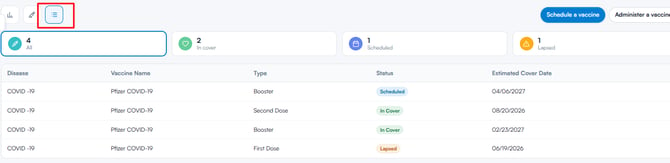
Switch to the Diseases coverage list view using the third icon at the top left. This view shows a summary of all vaccine coverage grouped by disease, with the following columns: Disease, Vaccine Name, Type, Status, and Estimated Cover Date. The Status column shows whether each record is In Cover, Scheduled or Lapsed, making it easy to see which diseases the client is currently protected against and when that protection is estimated to expire.
With the Vaccine Dashboard, you’ll have a clear, organised view of each client’s vaccination history, helping your team deliver safer, more accurate care every time.
Was this guide helpful? Let us know by voting below - your feedback helps us write clearer articles.
For more guides, browse the related articles below or use the search bar at the top of the page. You can also watch our video learning series, the Pabau Academy, or visit the Support page for additional help.