
This article covers the new Client Card, available to selected clinics from August 2026. If your Client Card looks different, you may be using the classic version.
Step 1: Access the Client Card
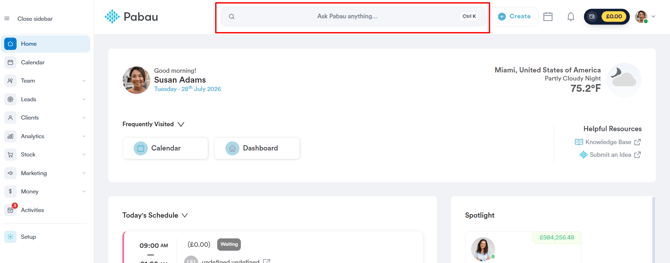
Start by logging into your Pabau account using your login credentials. Then, navigate to the Client Card of the client whose quotes you want to view by using the search bar at the top of the screen.
Step 2: Access Financials
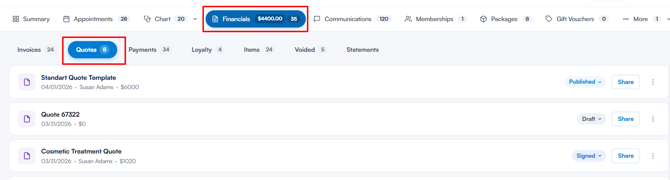
Open the Financials tab, then click on the Quotes sub-tab.
Step 3: Manage Quotes
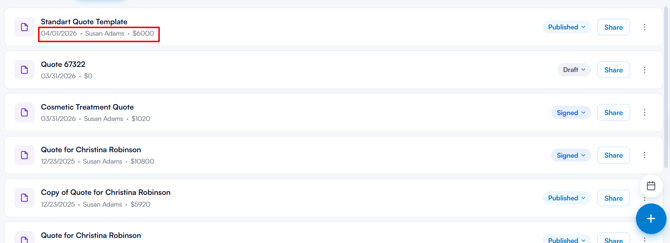
The Quotes tab displays all quotes created for the client. Each quote shows its name, date, the team member who created it, the total amount, and its current status.
You can manage quotes in the following ways:
Change the Quote Status
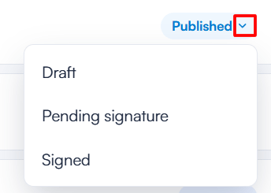
Click the status badge on a quote to update its current status. Available options include:
- Draft
- Published
- Pending signature
- Signed
NOTE: Once a quote has been paid, its status shows as Paid and can no longer be changed.
Share a Quote
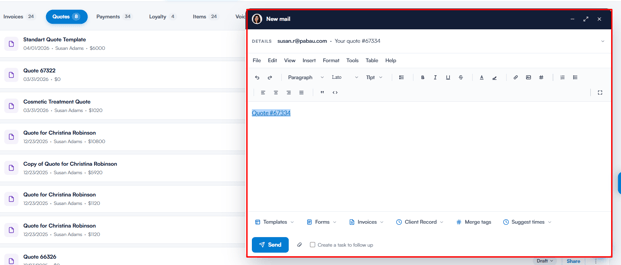
Click Share to send the quote to the client by email. An email window will open, pre-filled with a link to the quote. Review the message, then send it.
More Actions
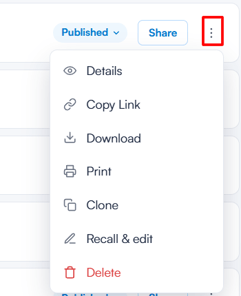
Click the three-dot menu next to a quote to access additional options:
- Details - Open a preview of the quote, where you can also print it, download it, or capture the client’s signature using the Sign button. The Sign button is unavailable once the quote has already been signed.
- Copy Link - Copy a shareable link to the quote.
- Download - Save a copy of the quote to your device.
- Print - Print the quote.
- Clone - Create a copy of the quote.
- Recall & edit - Recall the quote so you can make changes.
- Delete - Permanently remove the quote. You’ll be asked to confirm, as this action cannot be undone.
NOTE: Some options may be unavailable if you don’t have the relevant quote permissions (for example, Can edit quotes or Can delete quotes). If the Quotes sub-tab isn’t visible at all, you may be missing the Can view quotes permission. An administrator can adjust these in the Team feature, within the Money permissions group.
By following the steps above, you can view, update, share, and manage all of a client’s quotes directly from their Client Card, keeping the sales process organised in one place.
Was this guide helpful? Let us know by voting below - your feedback helps us write clearer articles.
For more guides, browse the related articles below or use the search bar at the top of the page. You can also watch our video learning series, the Pabau Academy, or visit the Support page for additional help.