
Step 1: Navigate to the Client Card
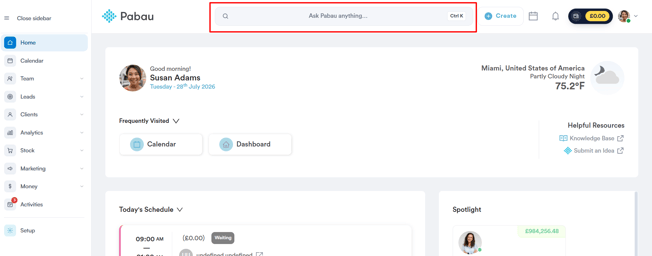
Start by logging in to your Pabau account. Then click the search bar at the top of the page and type at least three letters of the client’s name — Pabau filters the results as you type. Select the client to open their Client Card.
Step 2: Switch to the Appointments Tab
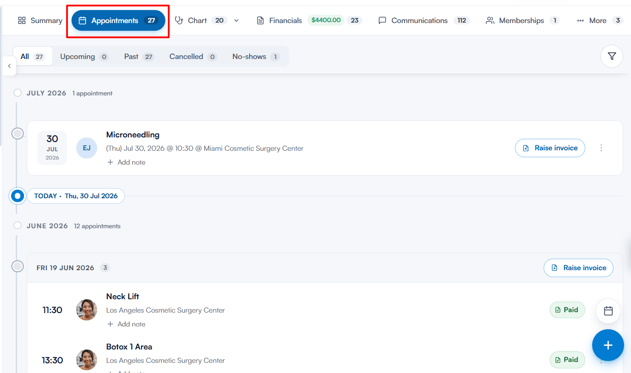
On the Client Card, select Appointments in the navigation to view all upcoming and past appointments for the client.
Step 3: Locate the Appointment
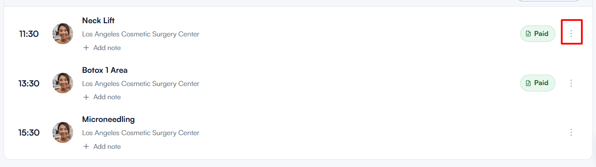
Find the appointment you want to review, then click the three dots on the far right of the appointment.
Step 4: Open the Audit Log
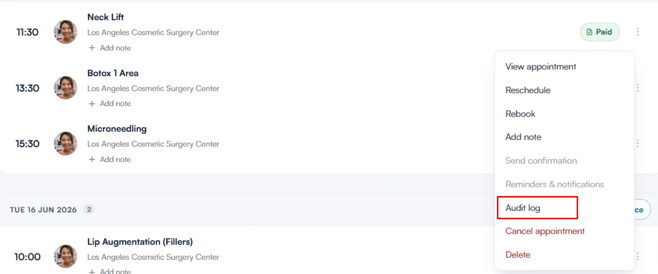
From the menu, select Audit log to view a detailed record of the appointment’s history.
The audit log opens as a panel headed with the appointment’s service name, the team member it’s booked with, and how many events have been recorded. Filter chips at the top — All, Lifecycle, Status, Schedule, Comms, Forms and Financial — let you narrow the timeline to one type of change; only the categories present in this appointment’s history are shown.
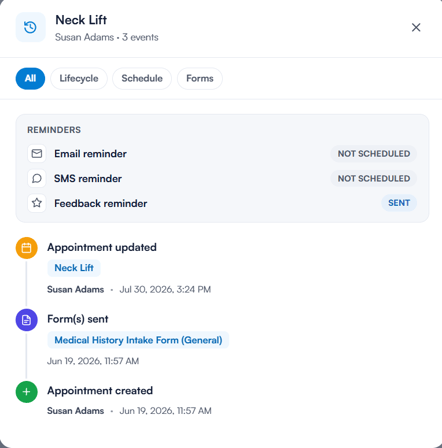
At the top of the panel, a Reminders section shows the state of each reminder for this appointment:
- Email reminder
- SMS reminder
- Feedback reminder
Each reads Scheduled (turned on, appointment still upcoming), Sent (turned on, appointment in the past) or Not scheduled (turned off).
Below this, a timeline lists every recorded event, with the most recent at the top. Each entry includes:
- What happened — for example Appointment created, Rescheduled, Status changed, Invoice raised, Email confirmation sent or Form completed
- Before-and-after values for reschedules and status changes
- The team member who made the change, and the date and time it happened
Actions taken by the client through the patient portal are tagged Connect, and automated actions are tagged Automation. Messages that didn’t send successfully are flagged Failed or Pending.
By following these steps, you can trace exactly what has happened to any appointment — useful when investigating reschedules, cancellations or missed reminders.
Was this guide helpful? Let us know by voting below - your feedback helps us write clearer articles.
For more guides, browse the related articles below or use the search bar at the top of the page. You can also watch our video learning series, the Pabau Academy, or visit the Support page for additional help.