
When a client has a membership, the perks included in their plan appear as individual cards in the "Benefits" section of the Memberships tab. Each benefit shows what the client is entitled to and, where relevant, how much of it they have left in the current billing cycle. Understanding how these benefits work helps you check a client's entitlements at a glance and see exactly how each perk has been used.
Step 1: Navigate to the Memberships Tab
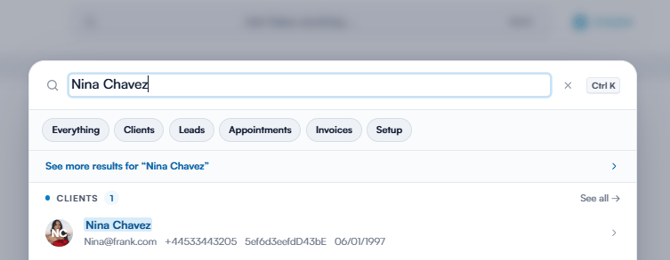
Start by logging in to your Pabau account. Use the search bar at the top of the page to find the client, then click on their name to open their client card.
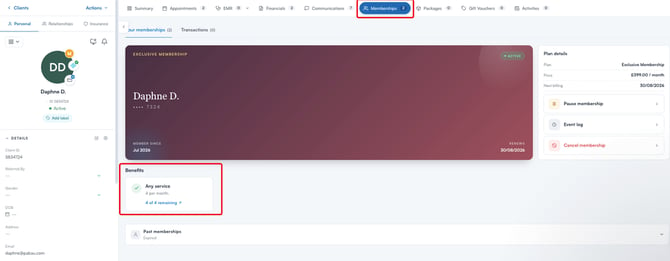
In the top bar, click on the "Memberships" tab (the crown icon), then scroll down to the "Benefits" section below the membership card.
Step 2: Review the Benefit Types
Each benefit appears as its own card, and the type of benefit determines what information it shows:
Service allowances: A set number of sessions per cycle, such as "1 per month," with a counter showing how many remain (for example, "1 of 1 remaining"). The counter turns red when it reaches zero. The allowance resets each billing cycle, and some plans roll unused sessions over to the next one.
Discounts: A percentage or fixed reduction, marked as "Discount applied automatically at checkout." These are applied at the Point of Sale without any manual steps.
Credits: A spending balance that refills each cycle, shown with the remaining amount the client can spend.
Complimentary perks: Extras that are not metered, so they have no counter or usage limit.
Step 3: View a Benefit's Usage History
For a service allowance, click on the "remaining" counter on the benefit card to open the "Usage history" drawer. This shows how many sessions have been used, the date of each use, and the invoice linked to it. Click on an invoice number to open the invoice directly.
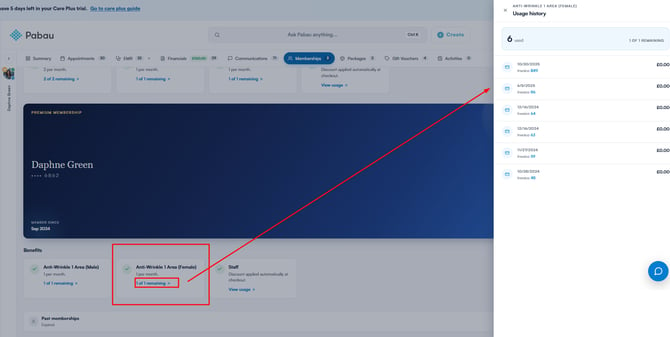
For a discount or credit benefit, click "View usage" on the benefit card to see where and when it has been applied.
Step 4: Add an Extra Benefit
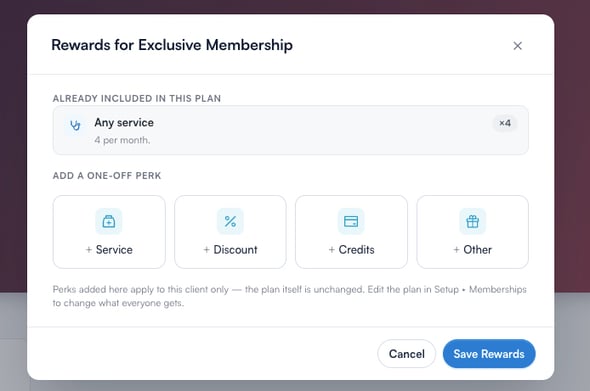
To give a client a benefit on top of the ones included in their plan, click the "+ Add" button next to the Benefits section and select the perk you want to add to their membership.
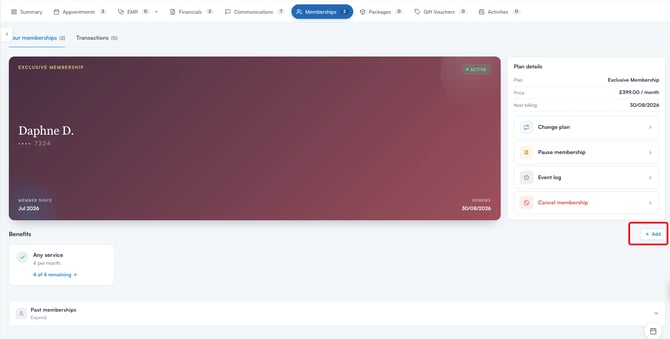
A "Rewards" window opens, showing what is already included in the plan at the top, and a row of one-off perks you can add below: "Service", "Discount", "Credits", and "Other". Select the type of perk you want, set its details, then click "Save Rewards".
Reviewing a client's benefits and their usage history gives you a clear picture of what each membership includes and how much value the client has used, helping you answer their questions and manage their plan with confidence.
Was this guide helpful? Let us know by voting below - your feedback helps us write clearer articles.
For more guides, browse the related articles below or use the search bar at the top of the page. You can also watch our video learning series, the Pabau Academy, or visit the Support page for additional help.