
This feature is part of the new client card version and is currently available to select users only, starting August 2026. A wider rollout to all accounts is coming soon.
The Problems list is where you record the medical conditions, or diagnoses, associated with a client. Each problem shows its name along with the diagnosis date, the code system and code, and any notes. Recording problems with a recognized diagnostic code keeps a client's medical history structured and consistent, which supports accurate reporting, clinical documentation, and continuity of care.
Step 1: Navigate to the Problems List
Start by logging in to your Pabau account. Use the search bar at the top of the page to find the client, then click on their name to open their client card.
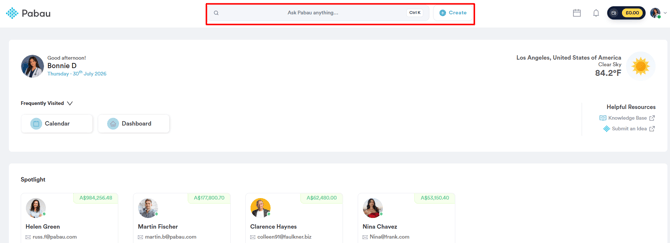
In the top bar, click on the "Chart/EMR" tab, then select the "Client Problems" card to open the Problems list.
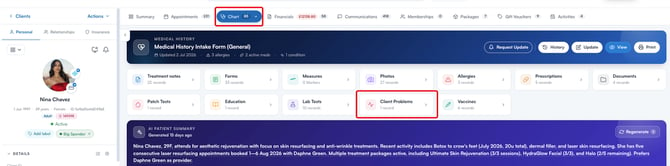
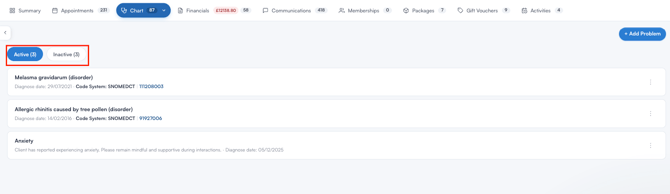
Here you will see two tabs, "Active" and "Inactive", each with a count of the problems it contains.
Step 2: Set the Default Code Set
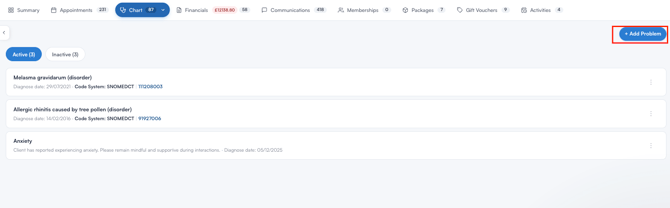
Click the "+ Add Problem" button in the top right corner to open the "Enter Problem" window.
At the top right of the "Problem" field, you will see the code set currently in use (for example, "ICD-10-CM"). Click on it to open the "Diagnostic & Billing Codes" window, where you choose the default code set used when adding diagnoses.
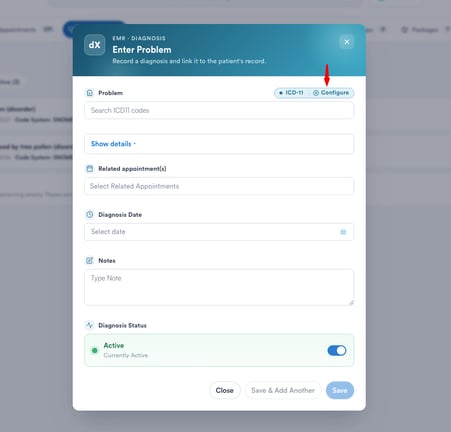
Use the filters at the top ("All", "UK", "US", "EU", "Singapore", and "Australia") to narrow the list by region. Each code set shows a short description, the regions it is commonly used in, and the number of codes it contains. The main options are ICD-10 (a classification system for reporting and billing, with regional variations such as ICD-10-CM), ICD-11 (the newer revision built for digital health systems), and SNOMED CT (a detailed clinical terminology for precise documentation). Click "Set as diagnostic default" on the one you want to use, then click "Done".
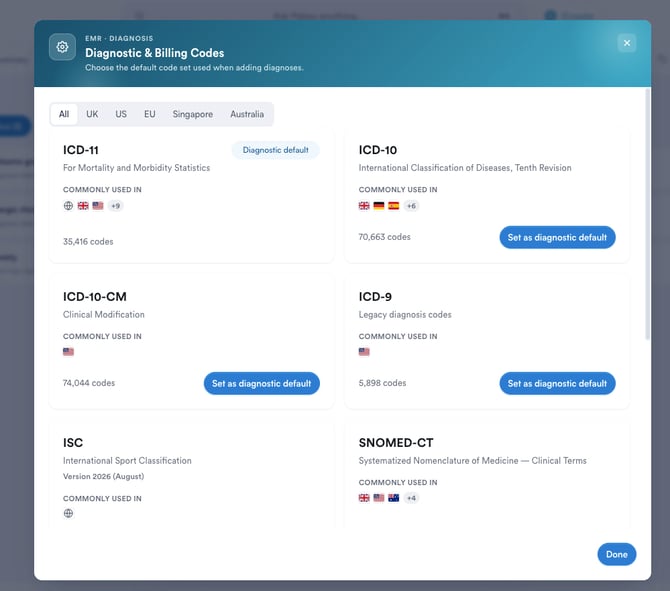
NOTE: The default code set applies to all diagnoses added in your account, not just the current client. Once set, the "Problem" search field updates to search that code set.
Step 3: Add a Problem
In the "Enter Problem" window, search the "Problem" field by condition name or code. Matching results from your selected code set appear in a dropdown, and you can select "Manage list" to view or edit your custom Medical Conditions. Once you select a condition, complete the remaining fields:
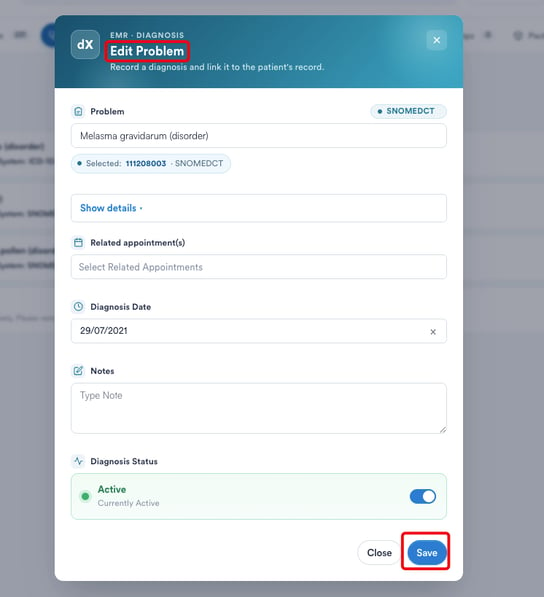
- Show details: Expand this option to record the code details. Select the "ICD Version", then enter the "ICD Code" and, where relevant, the "SNOMED CT Code".
- Related appointment(s): Link the diagnosis to one or more of the client's appointments.
- Diagnosis Date: Set the date the condition was diagnosed.
- Notes: Add any additional details about the diagnosis.
- Diagnosis Status: Use the toggle to set the problem as active or inactive.
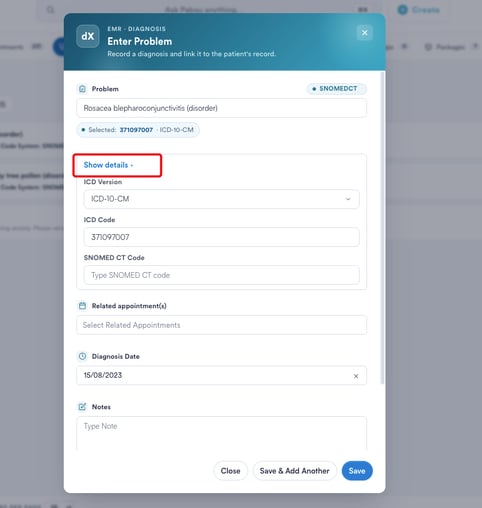
Click "Save" to record the problem, or "Save & Add Another" to log several conditions in a row without closing the window. The new problem then appears in the list with its diagnosis date, code system, and code.
Step 4: Mark a Problem as Active or Inactive
The Problems list separates the conditions a client currently has from those that are resolved, without losing the historical record. Only active problems count toward the "Conditions" total shown on the medical history banner at the top of the Chart tab.
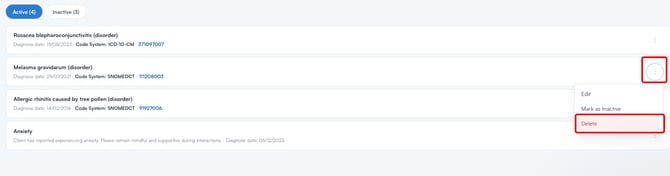
To move a problem between the two tabs, click the "⋯" menu on the right side of the problem and select "Mark as Inactive" or "Mark as Active". Marking a problem as inactive is the recommended way to retire a condition you want to keep on record, rather than deleting it.
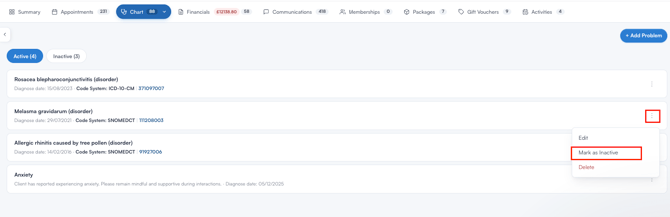
Step 5: Edit or Delete a Problem
To edit a problem, click the "⋯" menu and select "Edit", or click on the problem in the Problems widget on the Summary tab. Make your changes in the "Edit Problem" window and save.
To remove a problem, click the "⋯" menu and select "Delete", then confirm your choice.
Keeping a client's Problems list up to date gives you an accurate picture of their medical history and ensures the right conditions are reflected across their record.
Was this guide helpful? Let us know by voting below - your feedback helps us write clearer articles.
For more guides, browse the related articles below or use the search bar at the top of the page. You can also watch our video learning series, the Pabau Academy, or visit the Support page for additional help.