
No staff available to book online
If clients see a message saying there are no bookable staff members, check the following:
- The staff member has their schedule set up under Team → Schedule
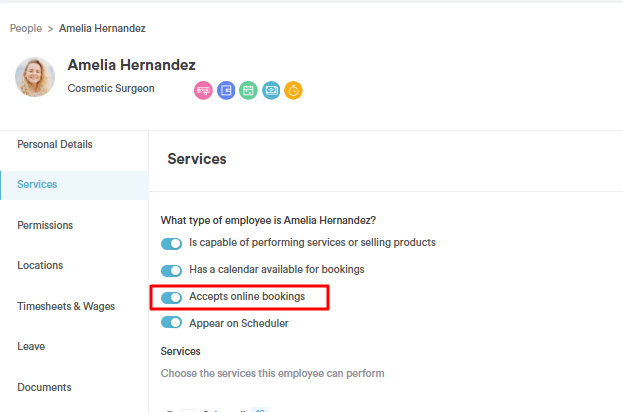
- The staff member has the accepts online bookings toggle enabled on their profile under Team → Team
- The location has the accepts online bookings toggle enabled under Setup → Locations
If the issue is with a specific service only, also check that the service is assigned to the staff member under Setup → Services → Assign → Employees, and that the staff member has an active shift that includes that service.
A service is not showing in the online booking portal
If a service is not appearing for clients to book, check the following:
- The service is set to active under Setup → Services
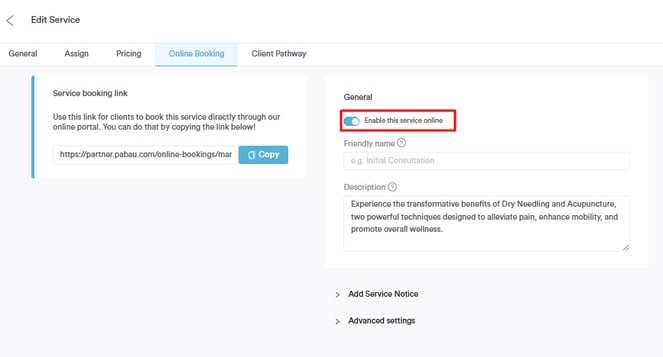
- The service has the allow online bookings option enabled in the service settings
- The service is assigned to at least one staff member who has an active shift
- If you have pink shifts (service-specific shifts), confirm the service is included in the shift
Packages, gift vouchers, memberships or account payments are not showing
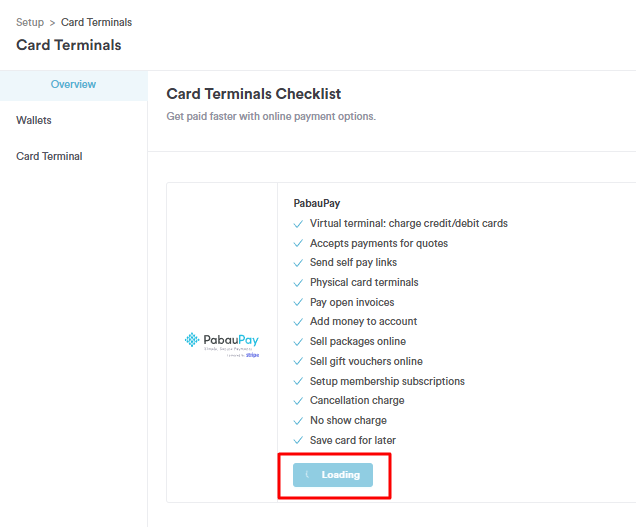
All of these require Stripe to be connected before they will appear in the online booking portal. Navigate to Setup → Card Terminals and check whether Stripe shows as connected. If the button says Connect, it has not been set up yet.
Once Stripe is confirmed as connected, also check:
- The item is set to active
- The item has online purchase enabled in its settings
- The option to hide it is not ticked under Setup → Online Bookings → Customize → General
The client portal is blank or showing no information
If a client logs into their portal and sees nothing, check the following:
- The client has verified their email address — hover over the Pabau icon on their client card avatar to check their verification status. If unverified, ask them to check their inbox for the verification email or resend it from the client card.
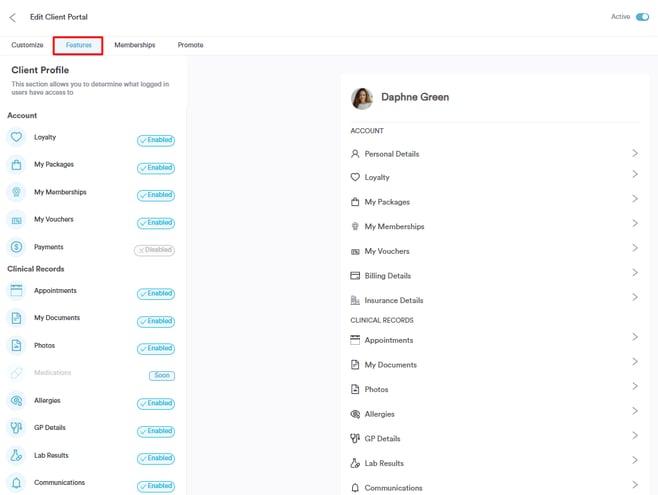
- Features are enabled to display in the portal under Setup → Client Portal → Customize → Features
Clients are not seeing pre-appointment forms
If a client is not receiving their pre-appointment forms, check the following:
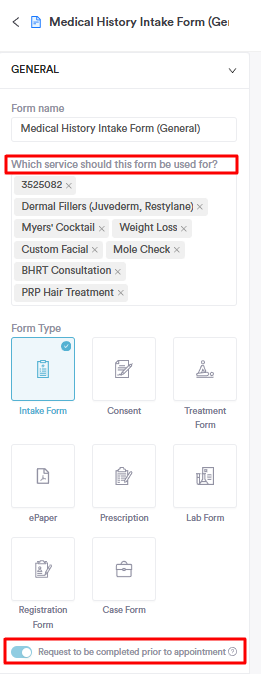
- The form is linked to the correct service under Setup → Forms → General
- The Request to be completed prior to appointment toggle is enabled on the form
The client cannot log into the portal
If a client is unable to log in at all, check the following:
- They are using the correct email address — the one registered on their client card in Pabau
- Ask them to try resetting their password using the Forgot password option on the login page
- Ask them to try a different browser or clear their cache and cookies if the page is not loading correctly
The online booking page is not loading or looks broken
If the booking page is not loading properly for clients, ask them to try the following:
- Clear their browser cache and cookies and reload the page
- Try a different browser or device
- Disable any browser extensions that may be interfering with the page
If the issue persists across multiple devices and browsers, please contact Pabau support with a screenshot or screen recording of the issue.
For more guides, refer to related articles below, select additional guides, or use the search bar at the top of the page. These guides will help you get the most out of your Pabau account.
Additionally, to help you fully utilize and understand your Pabau account, we recommend exploring additional guides and resources offered at the Pabau Academy. It offers in-depth video tutorials and lessons, offering a holistic learning experience that can equip you with the essential skills for achieving success with Pabau.