Skip to content
  • There are no suggestions because the search field is empty.

Tracking or Withdrawing a Port Request

This article guides you through tracking a phone or fax port request in Engage, understanding what each status means, and withdrawing a request if your plans change. Throughout the port, your number keeps working with your current provider, so you won't miss a call or a fax while you wait.

Step 1: Open Your Port Requests

Port requests are tracked in the settings panel of the channel you are porting into.

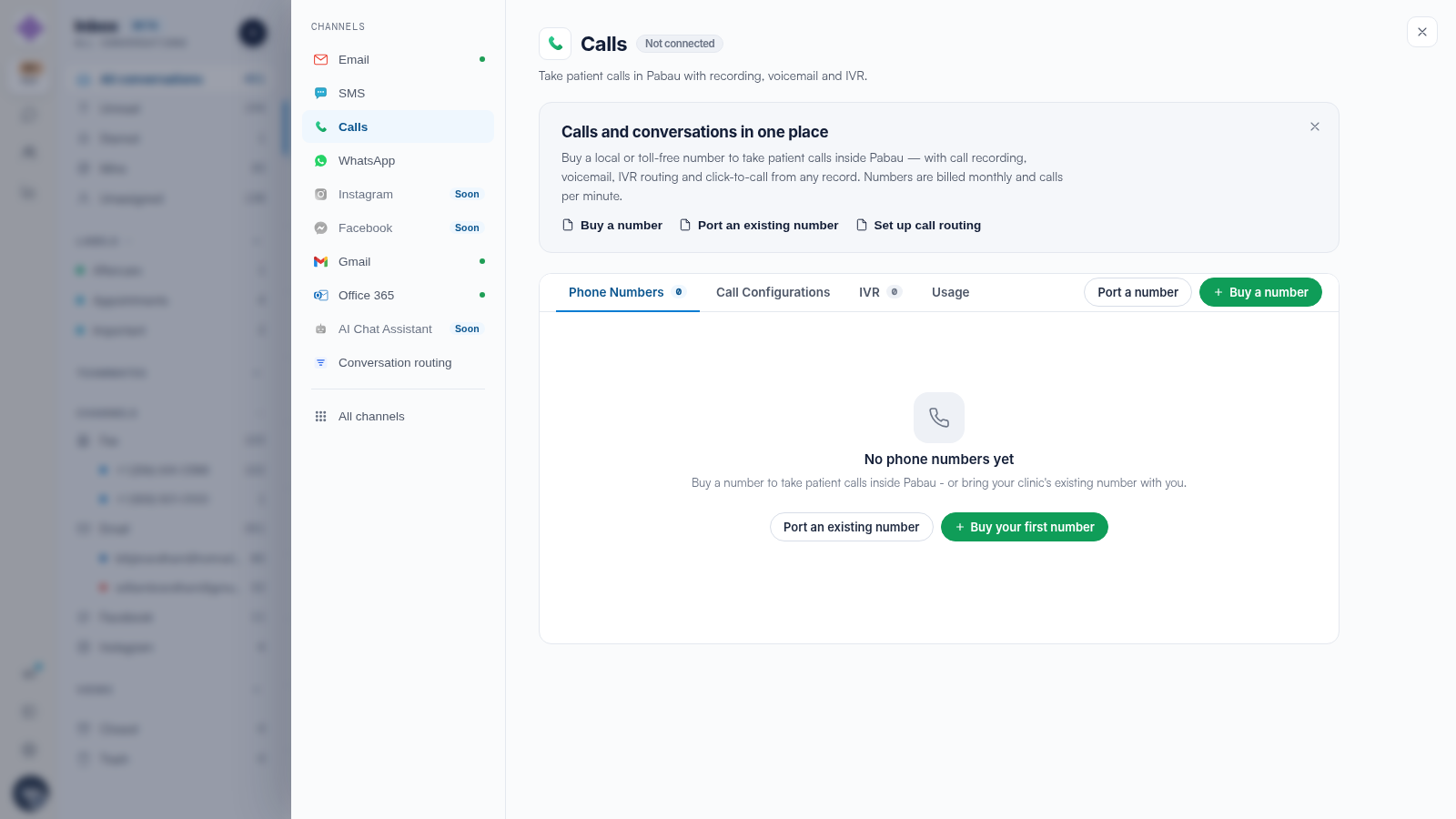
For phone ports, click the Channels button in the navigation rail to open the Channel Catalog, then click Manage on the Calls card. The Call Setup panel opens, and your port requests appear at the top of the Phone Numbers tab, above the numbers you already own.

Settings · Call Setup with a phone port request row at the top showing the amber Filed with carrier pill and the withdraw X, above the clinic's existing phone numbers

For fax ports, open the same Channel Catalog and click Manage on the Fax card. Your port requests appear at the top of the All numbers tab in the Fax Numbers panel.

NOTE: Port requests are visible even if you don't own any Pabau numbers yet, so you can follow the progress of your very first number.

Step 2: Check the Status of a Request

Each request row shows the number, the provider it is porting in from, the date you requested it, and a status pill on the right.

Phone port requests move through Port requested, Filed with carrier and Porting in progress, finishing as a green Port completed or a red Port rejected. Once the carrier confirms a switch date, a Port date appears in the row, and the row's note tells you what is happening at each stage — for example, that the authorization is waiting to be e-signed.

Fax port requests move through Request received, Submitted to carrier and Porting in progress, with Rejected shown in red. The Pabau team can add a note to the row, such as the scheduled switch date.

Settings · Fax Numbers tracking three fax port requests with Request received, Submitted to carrier and Porting in progress pills above a live fax number row

A phone port request row with the amber Porting in progress pill and a confirmed port date shown in the row's details


NOTE: Phone port statuses refresh each time you open Call Setup, so reopen the panel for the latest state. Fax port statuses are updated by the Pabau team as your port moves forward.

A completed phone port stays in the list with a green Port completed pill until you activate it. We suggest reading our After You Request a Phone Port: Statuses, E-Sign and Activation article for a full walkthrough of each phone status, the e-sign authorization email and the Activate number step. A completed fax port drops off the list, and the number then appears as a normal row in your Fax Numbers panel (there can be a short delay between the two).

Step 3: Withdraw a Request (If You Change Your Mind)

If you no longer want to move a number, click the small X button on the right of its row — its tooltip reads Withdraw port request. The row disappears as soon as the request is withdrawn.

The X is only available while a request can still be stopped:

  • Fax ports can be withdrawn only while the pill reads Request received. Once it moves to Submitted to carrier or Porting in progress, contact support to stop the port.
  • Phone ports can be withdrawn while the pill reads Port requested, and — for ports that were filed automatically with the carrier — while it reads Filed with carrier or Porting in progress.

IMPORTANT: Withdrawing happens immediately — there is no confirmation prompt. For phone ports, the carrier accepts cancellations only more than 72 hours before the confirmed port date; closer than that, the port can no longer be stopped.

If withdrawing fails with the message "Request not found or already being processed.", the request has moved forward since you opened the panel. Reopen the panel to see its current status, and contact support if you still need to stop it.

If a Request Is Rejected

A rejected request stays in your list with a red pill (Port rejected for phone, Rejected for fax) so you can see what went wrong — the reason appears in the row, for example a mismatched account number, or a phone port authorization that wasn't e-signed within 30 days. Rejected rows can't be dismissed from the panel; contact support if you'd like one cleared.

Settings · Fax Numbers showing a rejected fax port request with the red Rejected pill and the reason note "Account number didn't match - please re-file"

You can file a new request for the same number straight away with the corrected details. If you're not sure why a port was rejected, contact support before re-filing.

Filing Again for the Same Number

Only one port request can be in flight per number. If you try to file another while one is still active, you'll see a message that a port request for that number is already in progress. Withdraw the existing request first (see Step 3), then file a fresh one.

We suggest reading our How to Port Your Phone Number to Pabau article for filing a phone port request, and our How to Port Your Fax Number to Pabau article for filing a fax port request.

For more guides, refer to related articles below, select additional guides, or use the search bar at the top of the page. These guides will help you get the most out of your Pabau account.

Additionally, to help you fully utilize and understand your Pabau account, we recommend exploring additional guides and resources offered at the Pabau Academy.