
Once a claim leaves Pabau it is out of your hands but not out of your sight. The claims dashboard keeps every claim's current state, pulls updates back from Claim.MD and the payer, and records each step, so you can see where a claim stopped and why.
NOTE: Insurance billing is available for practices in the United States. Claims go to payers electronically through the Claim.MD clearinghouse, using your own Claim.MD account.
Step 1: Find Your Claims
- Go to More → Claims. The list opens on the last 90 days and shows every invoice issued to an insurer, whether or not it has been sent yet.
- Use the tiles across the top to jump to a folder. Each tile shows how many claims it holds and the amount still owed; click one to filter the list to it, and hover its i for a reminder of what it means.
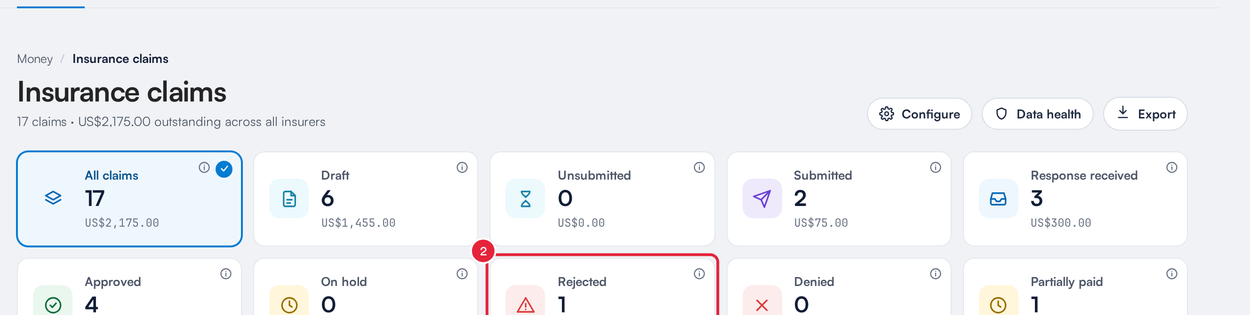
Click a tile to see only the claims in that folder
| Folder | What it means | What to do |
|---|---|---|
| Draft | Started but not validated, so it cannot be sent yet. | Open it, fill in anything the visit did not supply, and validate. |
| Unsubmitted | Validated and ready to go, but not sent to Claim.MD yet. | Send it, on its own or in a batch. |
| Submitted | With Claim.MD or the payer, waiting on their response. | Nothing yet. Refresh occasionally and wait for the payer. |
| Response received | The payer has answered, but the money is not posted to the invoice yet. | Post the remittance. This is your posting queue. |
| Approved | Paid in full and reconciled. | Nothing. Bill any secondary payer from the claim. |
| On hold | Parked: Claim.MD is waiting for a document the claim declares, or you parked the claim while you wait on information or a decision. | Attach the document. If you parked it yourself, set its next status from the ⋮ menu on the claim when you are ready. |
| Rejected | Bounced back before the payer assessed it, usually because of data such as eligibility, codes or format. | Open it, click Correct claim, fix the fields named and send again. |
| Denied | The payer assessed it and refused to pay. | Read the reason codes, then appeal or bill the client. Resending it unchanged will not work. |
| Partially paid | Some money has come in and a balance is left. | Check the remittance for the shortfall. |
For every status, what it means and the next action, see Understanding claim statuses on the Insurance claims list.
Step 2: Narrow the List
- Period: Today, Yesterday, Last 7, 14, 30, 90 or 180 days, or a custom range.
- Worklists: Secondary due (the primary has paid and a secondary claim still needs sending), Secondary rejected, and, when there are any, Awaiting approval and Stalled (see Step 7).
- All team members and All locations: show the claims for chosen practitioners or branches only.
- Search: matches on claim number, client name and authorization code.
- Refresh: pulls the latest statuses from Claim.MD (see Step 4).

The filters above the claims list
The insurer tabs above the table split the list by payer, with a count on each. The Overdue column shows how many days an unpaid claim is past 30 days, so the oldest debts stand out.
Step 3: Check the Chart Note and Open the Invoice
Each row shows the visit date, the invoice number, the client, provider and insurer, the authorization code, the procedure and diagnosis codes, and the amounts. Two parts of a row do more than display information:
- Charting shows whether the claim has a chart note to go with it. A blue clipboard means no chart note is attached yet; hover it for a reminder to attach a document or treatment note to the claim's case on the client card. A green clipboard means a chart note is attached: for a sent claim it is the note that went with it, and for a claim you have not sent yet it is the newest PDF on the claim's case, which is what Pabau sends when you choose to send a chart note and pick nothing else. Hover the green icon to see whether it is a document or a treatment note, and click it to preview the note full screen. When the note is a treatment note, Open treatment note in the preview opens the client's treatment notes in a new tab.
- Click the Invoice # on any row to open that invoice in the invoice editor, straight on its Items. You stay on the claims list: close the editor and the list refreshes, because changing the items can change the claim's amount, balance and status.
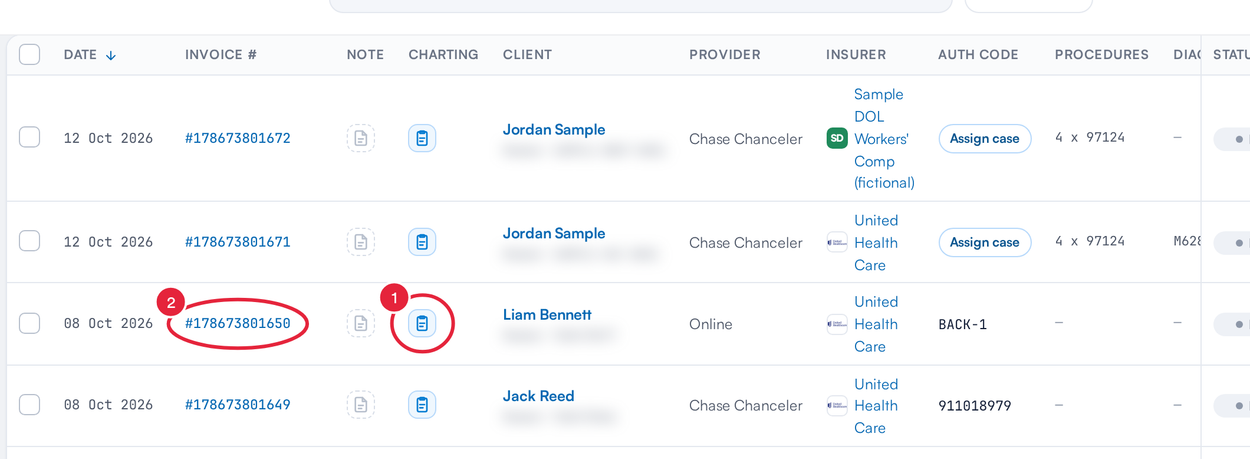
The Charting column and the Invoice # link on the claims list
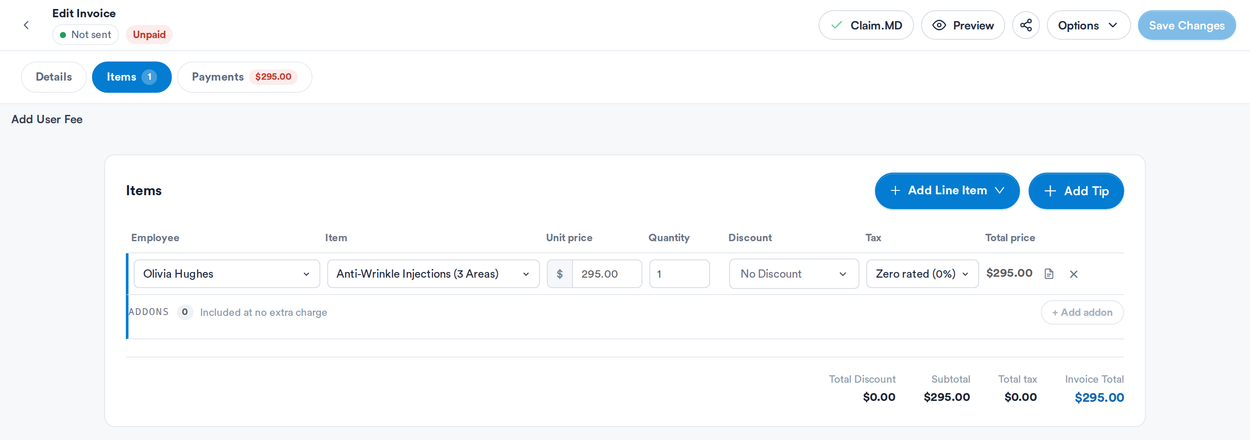
Clicking the Invoice # opens the invoice on its items
NOTE: The Charting column appears for practices in the United States. To attach a chart note to a case, open the client card's Insurance tab, open the case the visit is billed under and add the document or treatment note to its attachments. To send the note, or a different document, with one claim, see How to send a chart note or other document with a claim.
Step 4: Pull the Latest Updates
Pabau checks Claim.MD for status updates in the background throughout the day. When you want the newest picture right away, click Refresh on the dashboard. It pulls everything Claim.MD has since the last check, including rejections and payer acknowledgements that arrived overnight, and tells you when it is done.
NOTE: On a very busy account Refresh may check the claims in rounds. If the message says some are still to check, click Refresh again.
Step 5: Read a Claim's History
Open any sent claim (click View on its row). It opens on its activity: Submissions & Acknowledgements on the left and the Claim summary on the right. For the complete record, click the clock icon in the claim header:
- Click View messages under any step to read exactly what Claim.MD or the payer sent back.
- Click Show full history to see every validation, submission, rejection and payer update, each with its time.
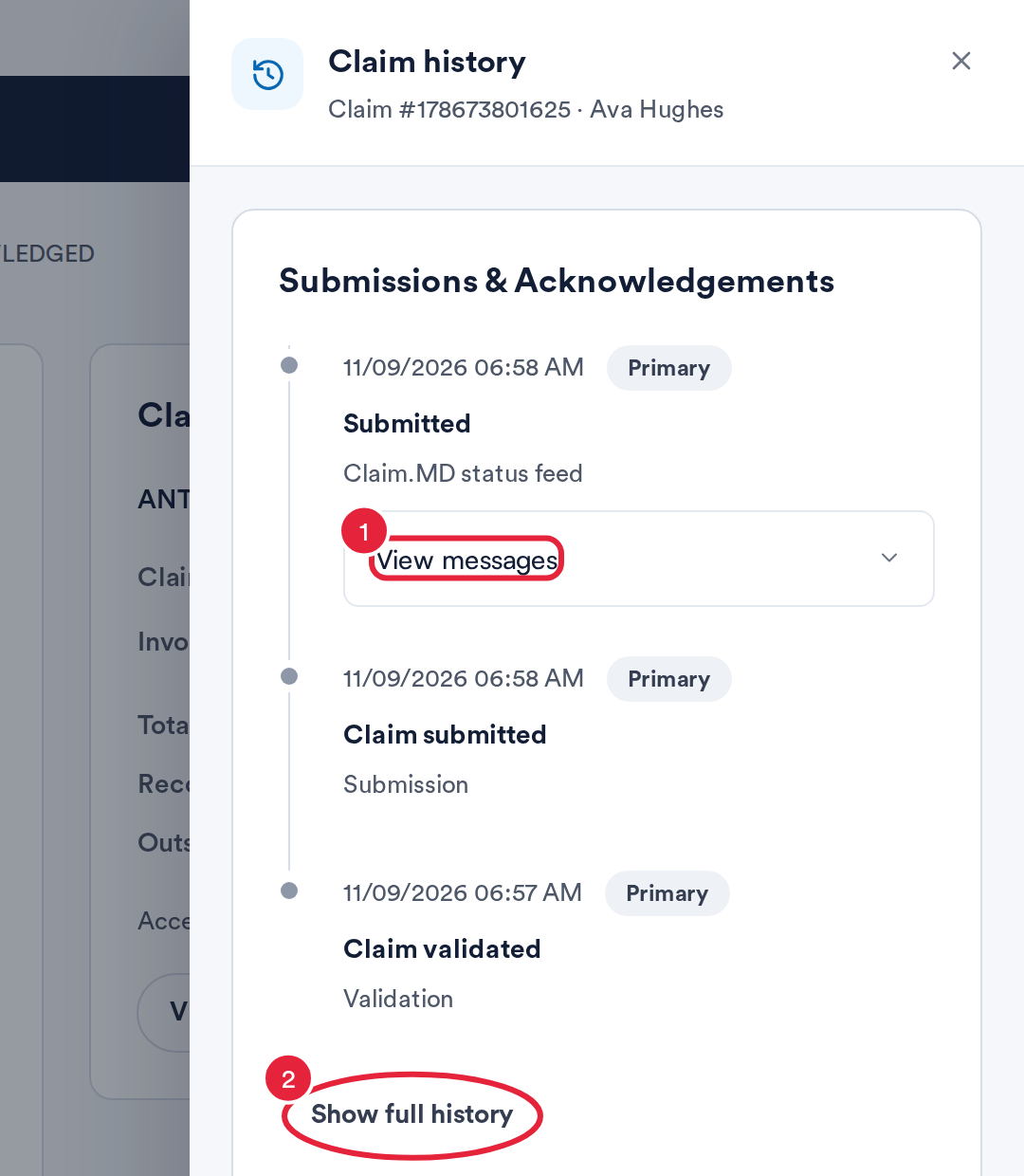
The claim history panel
Below the claim events, the panel also lists changes to the invoice itself (for example a changed date) with Show changes, so you can tell whether the invoice moved after the claim went out.
Step 6: Submit Several Claims at Once
- Tick the claims you want to send. The checkbox at the top of the column selects every sendable claim on the page.
- Click Submit selected in the bar that appears. Pabau validates each claim, sends the ones that pass as one batch, and reports how many went and how many need attention.
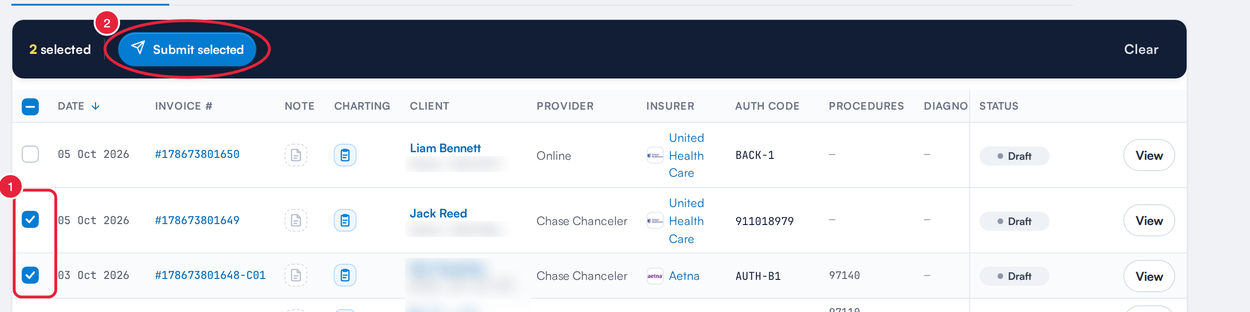
Batch send from the claims list
IMPORTANT: Batch send covers claims that have not been sent yet (Draft and Unsubmitted). A claim you have already sent and corrected is resubmitted from the claim screen, where your edits are kept. A batch takes up to 50 claims; select more and Pabau asks you to split them.
Step 7: When a Claim Stops Moving
Two worklist chips appear above the list only when they have something in them:
- Stalled lists submitted claims that have stopped moving. Either the payer has not acknowledged the claim since it was uploaded (check it in your Claim.MD account), or the payer acknowledged it but has sent no remittance since (chase the payer).
- Awaiting approval lists claims your Claim.MD account is holding for someone to approve in the Claim.MD portal. Pabau cannot release them. Approve them in Claim.MD, or turn off Require approval before transmit there.
Other claims that look stuck are usually one of these:
- Draft or Unsubmitted: it was never sent. It is waiting for you.
- On hold: Claim.MD is waiting for the document the claim declares. Open the claim and attach it, or send again to retry.
- Submitted for a long time: click Refresh first, because the payer's update may already be waiting at Claim.MD. If it is genuinely silent, the claim's history holds the Claim.MD reference to quote to support.
TIP: Claims from a payer that does not send electronic remittances will sit in Submitted until you record the payment yourself with Record payer payment on the claim. See How long does it take to process ERA and claims?
What's next?
- Insurance Guide Part 4: Submit and track insurance claims
- Understanding claim statuses on the Insurance claims list
- How to record a payer payment or denial from a paper EOB
- Submitting secondary claims in Pabau
- How to Use the Aged Debt Report
Questions? Reach us any time via the in-app chat. We're happy to help.
Was this guide helpful? Let us know by voting below - your feedback helps us write clearer articles.
For more guides, browse the related articles below or use the search bar at the top of the page. You can also watch our video learning series, the Pabau Academy, or visit the Support page for additional help.