
The Shopify integration keeps the stock levels in your Shopify store in step with Pabau. When retail products are sold at the Pabau point of sale, the connector pushes the products' new stock totals to your Shopify store, so the shelf quantity your online customers see always reflects what actually left the clinic.
This is a connector inside Pabau's Data Sync tool. If you're new to Data Sync, read How Data Sync works in Pabau first for the general concepts (triggers, mapping, the delivery log and retries). This guide covers everything specific to Shopify.
NOTE: The Shopify integration is being rolled out gradually. If you don't see it in your App Marketplace yet, contact support to have it enabled for your account. You need administrator access in Pabau to set it up, and permission to install apps on the Shopify store.
What the connector does
- Pushes each sold product's post-sale stock total to your Shopify store whenever a sale that includes retail products is completed at the point of sale.
- Writes the stock figure to the specific Shopify location you map — Shopify holds stock per location, so the connector always knows exactly which shelf it is updating.
- Matches Pabau products to Shopify variants automatically by SKU, and remembers the link once it's made.
- Records every change in Shopify's own adjustment history as an Inventory correction made by the Pabau app, so your Shopify audit trail stays complete.
NOTE: Services never move stock — only retail product lines on a sale are synced. Voided sales are skipped. Syncing in the other direction (Shopify sales reducing Pabau stock), product catalog import, gift cards and customer sync are planned for later phases and are not covered by this guide.
Before You Start
The connection uses Shopify's own sign-in (OAuth) — there are no API keys to copy. You'll need:
- Your store's permanent .myshopify.com domain (for example
my-clinic.myshopify.com) — not your custom storefront domain. You can see it in your Shopify admin URL. - A Shopify sign-in with permission to install apps on that store.
- Products that carry the same SKU in Pabau and Shopify — the SKU is how the two catalogs are matched.
Step 1: Connect Your Shopify Store
You can start from either of two places:
- Setup > App Marketplace — select the Shopify tile. It takes you straight into the Data Sync setup below.
- Data Hub > Data Sync — select Add connector, choose Shopify, and select Set up.
The setup asks for your store's .myshopify.com domain first — Shopify's approval page is specific to each store, so Pabau needs to know which store to send you to. Enter the domain, then select Connect Shopify. A Shopify window opens where you sign in and approve the access; once you approve, the window closes and Pabau creates the connection automatically, then opens it so you can review the location settings, triggers and field mapping described below.
TIP: If your browser blocks the pop-up window, allow pop-ups for Pabau and select Connect Shopify again.
Step 2: Choose Your Shopify Location
Shopify tracks stock per location, so the connector has to be told which Shopify location your Pabau stock represents. On the Settings tab:
- Single-location clinics — enter your Shopify location ID in the Shopify location field. You can find the ID in your Shopify admin under Settings > Locations (it's the number at the end of the location's URL).
- Multi-branch clinics — use the Location map to pair each Pabau branch with the Shopify location its stock should update.
IMPORTANT: A sale at a Pabau branch that has no mapped Shopify location is never guessed — its delivery fails in the log with a clear reason instead, so stock is never silently written to the wrong shop. If you see that failure, add the branch to the location map and re-send.
Step 3: Triggers
On the Triggers tab there is one event to control:
invoice.create→ Push stock levels to Shopify (on by default) — every completed point-of-sale sale that includes retail products sends those products' new stock totals to the mapped Shopify location.
Step 4: Field Mapping
On the Mapping tab, expand Products to see how Pabau product fields map to Shopify:
- SKU → SKU (required — see how matching works below)
- Product name → Title
- Retail price → Price
- Stock level → Inventory quantity — this is the row that drives the stock push; turning it off stops inventory syncing.
The group's direction control and the Data conflict resolution setting exist for the two-way phases of the connector; today the live leg is outbound (Pabau → Shopify), and Pabau is the source of truth by default.
How Products Are Matched
When a sale is pushed, the connector works out which Shopify variant each sold product corresponds to:
- A product that has already synced is always written to the same Shopify variant — the stored link is authoritative.
- Otherwise, if the product's SKU matches exactly one variant in your Shopify store, that variant is linked automatically and remembered for next time.
- If the SKU matches more than one variant, or no variant at all, nothing is written for that product — the connector never guesses.
If none of the sold products can be matched, the delivery fails with a message naming the products so you can link them (or give them matching SKUs) and re-send. If only some can be matched, the matched ones still sync.
What You See in Shopify
After a sale syncs, the mapped location's Available quantity for each sold product is set to Pabau's post-sale total. In the product's adjustment history in Shopify, the change appears as an Inventory correction made by the Pabau app — so you can always tell which changes came from the clinic and which were made in Shopify itself.
The connector is careful around concurrent edits: if nothing has changed it writes nothing at all, and if someone edits the Shopify quantity at the same moment a sale is syncing, Shopify rejects the stale write and Pabau automatically retries with fresh numbers.
Testing the Connection
Use Test connection on the Settings tab to confirm Pabau can reach your store — it runs a real, authenticated call against your Shopify Admin API.
NOTE: Send test event deliberately never changes stock in your store — a test write would move real inventory. A test event runs the pipeline and lands in the log as an explanatory no-op; to see stock actually move, complete a small real sale (you can refund it afterwards).
Reading the Delivery Log
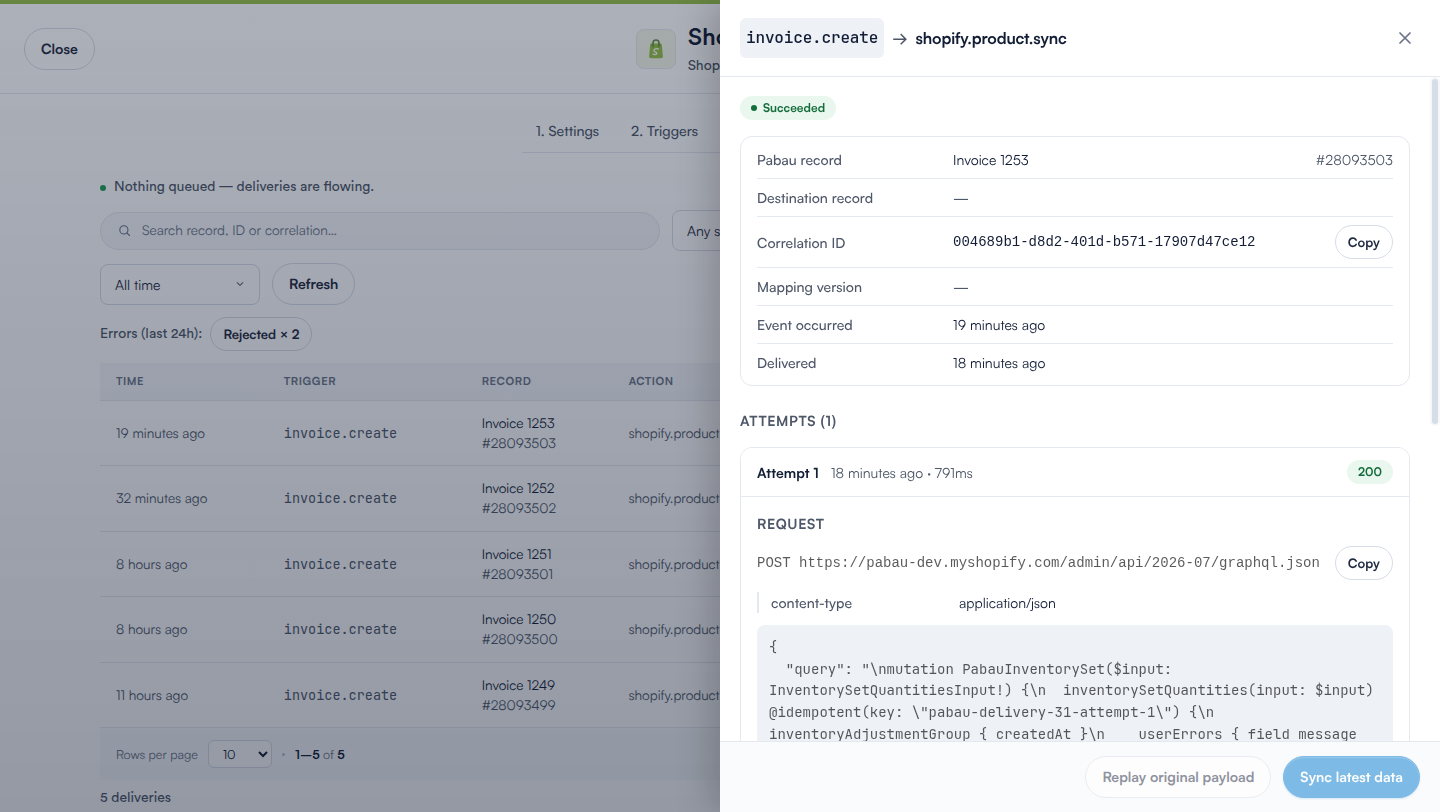
Select Logs on the connector to see every delivery — including the exact request Pabau sent, the response Shopify returned, and a correlation ID for support tickets. Failures follow the standard Data Sync rules: temporary problems (rate limits, network errors, Shopify server errors) retry automatically on a widening schedule, while permanent rejections show the reason so you can fix the data and re-send with Sync latest data. See How Data Sync works in Pabau for the full guide to statuses, retries and re-sending.
Privacy and Your Shopify Data
The Pabau app subscribes to Shopify's privacy webhooks, so a customer-data request or erasure raised through Shopify — and the removal of the app from your store — is handled automatically in line with GDPR. Erasure honoured in Pabau is never driven from Shopify: medical records are retained under Pabau's own data-retention rules.
Disconnecting
To stop the sync, open the connector's Settings tab and disconnect the Shopify store, or pause or delete the connector from its card in Data Hub > Data Sync. You can also uninstall the Pabau app from your Shopify admin — Pabau is notified and the connection stops. The delivery history is kept for audit.
Related articles
- How Data Sync works in Pabau