
This guide sets up a Samsung H60 to send its images to Pabau.
NOTE: Before you start, install and pair Pabau Imaging Link on a clinic computer, then open Equipment → Add equipment → A machine on the network. Keep the Address, Port and AE title from the card headed Give these to your X-ray engineer to hand. Steps 1 to 3 of Setting up your Ultrasound System walk you through this.
Step 1: Add Pabau as a Storage Destination
- Open Setup, then Connectivity, and go to the DICOM tab.
- Press Add and set DICOM Service Options to
STORAGE. - Under DICOM Server, fill in:
- Alias:
Pabau - AE Title: the AE title from Imaging Link, typed exactly, for example
PABAU-RECEPTION - IP Address: the Address from Imaging Link, for example
192.168.1.25 - Port No.: the Port from Imaging Link, usually
11112
Choose a Transfer Mode: Send after acquisition, Send on end exam or Send manually. Under Transfer Types, tick Include Multi Frame so clips are sent too.
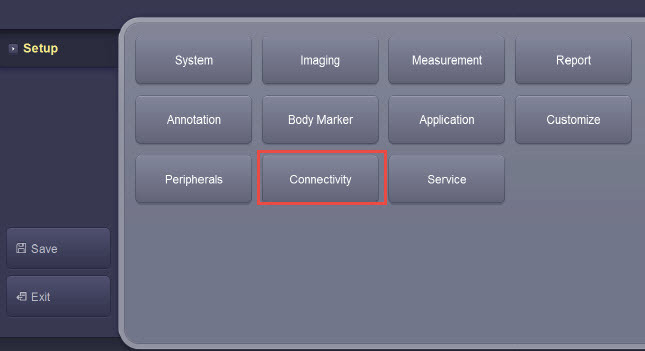
Setup → Connectivity
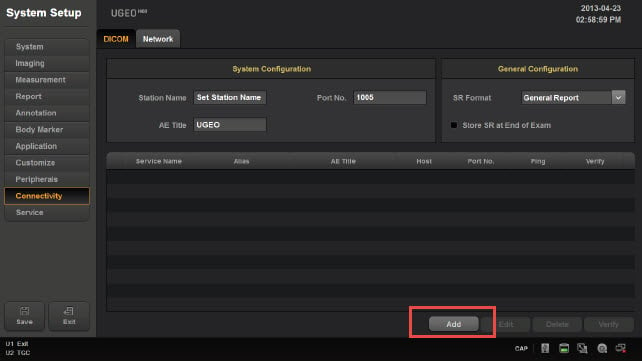
The DICOM tab: press Add
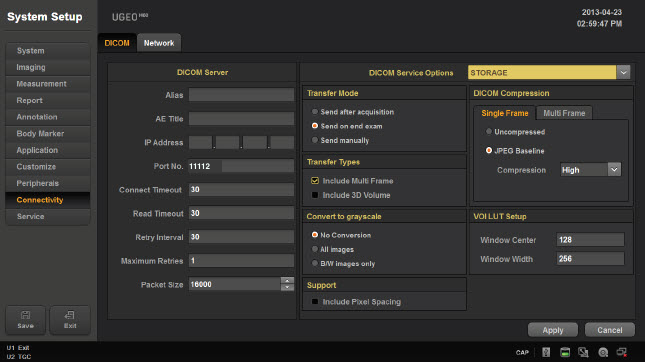
The new storage destination
Step 2: Set the Compression
Under DICOM Compression, set both the Single Frame and Multi Frame tabs to JPEG Baseline, then press Apply.
Step 3: Test the Connection and Approve the Machine
- On the machine, select the Pabau destination and press Verify. A good connection shows Success.
- In Imaging Link, A machine got in touch appears. Give the machine a name you will recognise, such as
Ultrasound Room 1, and click Yes, accept its images.
IMPORTANT: Until you click Yes, accept its images, the test passes but every image the machine sends is refused. If the test fails, see Imaging Link Port, AE Title & IP Address.
Step 4: Send a Test Image
Scan an image and press the S button you set up to store it. The image appears in Pabau under Imaging → Queue, ready to file to the patient with File to a patient.
TIP: To choose which button sends images to Pabau, or to send automatically when you end the exam, see P Buttons / S Buttons / Send Buttons / Acquire. On the H60, this is under Setup → Customize → Buttons (S1 to S3).