
An eligibility check asks the payer, in real time, whether the client's coverage is active and what it pays for. It takes a few seconds, runs from inside Pabau, and is the cheapest way to avoid a denial that was always going to happen.
NOTE: Insurance billing is available for practices in the United States. Claims go to payers electronically through the Claim.MD clearinghouse, using your own Claim.MD account.
NOTE: Eligibility checks need the payer's eligibility enrollment to be active. See Insurance Guide Part 1 for enrollment.
Step 1: Open the Eligibility Check
- Open any claim for the client from More → Claims and click Eligibility above the policy member ID. (You can also start a check from the client's insurance case; see Step 4.)
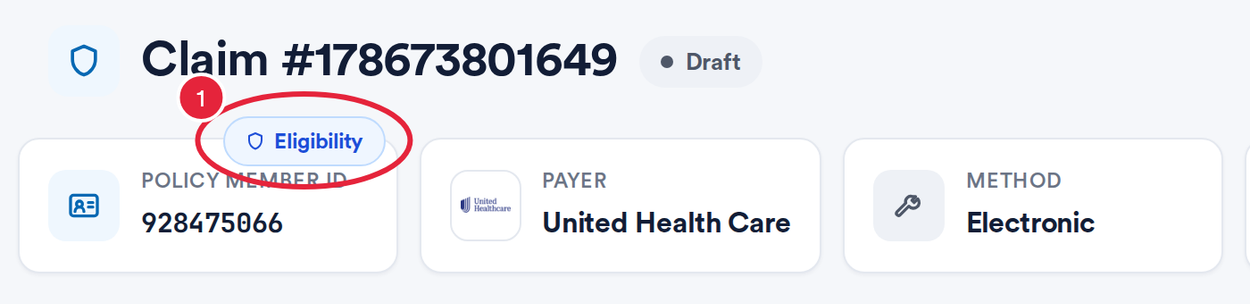
Eligibility sits on the claim header
Step 2: Set Up the Check
The Check eligibility window is pre-filled from the claim and the client's policy. Check each part, then submit:
- Under Services and procedures, leave Service type on Health Benefit Plan Coverage (Default) for the broadest answer, pick a narrower service type, or switch to Procedure code (CPT) and search for the code you are about to bill.
- Set the Service date.
- Under Provider, check as the Clinic billing profile or choose Staff member to check as one practitioner. View provider details shows the NPI and other identifiers that will be sent.
- Under Patient and insurer, confirm the insurer, payer ID, client, policyholder, Member / policy number and Date of birth. The member number must match the card exactly.
- Click Submit check. Pabau contacts the payer through Claim.MD and shows the report in a few seconds.
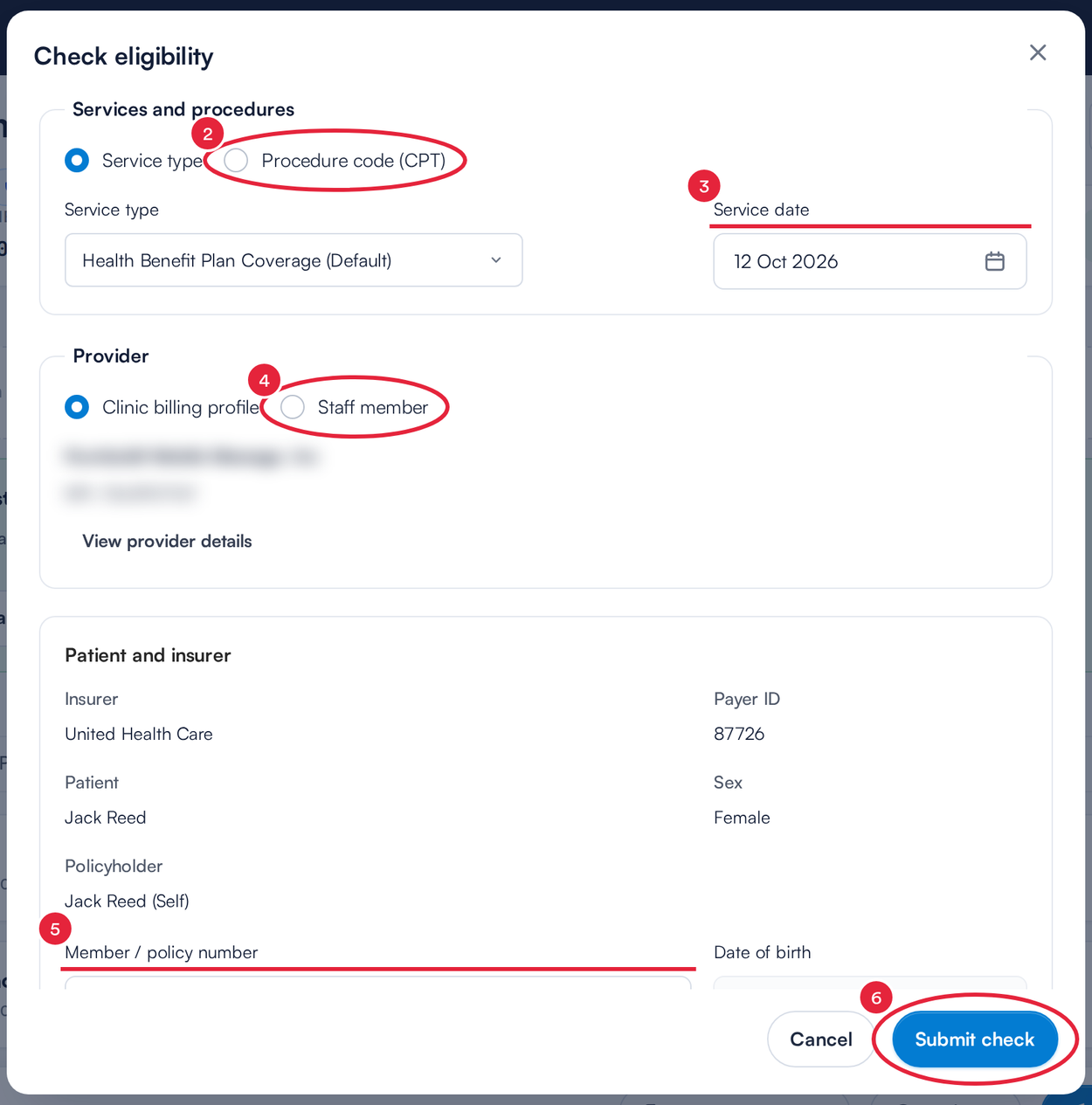
The Check eligibility window (provider details blurred)
TIP: Ask about the service you are about to bill. A general coverage check tells you the plan is active; a check for the specific service type or CPT code tells you what that visit will cost the client. CPT support varies by payer, and some payers only return benefits by service type.
NOTE: If the payer doesn't offer real-time eligibility through Claim.MD, or needs an eligibility enrollment first, Pabau says so before you submit. Staff-member checks need that practitioner's NPI under Setup → Claims → Claim.MD → Providers.
Step 3: Read the Report
The report opens with its report number, when it was run and the service it was run for. It is organised into three parts:
- Policy details: the plan (payer, plan name and number, group and dates) and the insured (name, member ID, date of birth, gender and address).
- Coverage: an Active coverage chip when the payer says the plan is live, with the plan name, insurance type and when the payer last updated it.
- Benefits: the cost-sharing detail, such as co-payment, co-insurance, deductible and out-of-pocket maximum, with the network, the amount or percentage (Unlimited where the payer sets no limit) and the period it applies to.
Use the chips to filter benefits by All levels, Individual or Family, and by All networks, In network or Out of network. Payers often return both an individual and a family deductible, so filtering is the quickest way to read the right number.
NOTE: If the payer returns no benefits for the exact service you asked about, the report says so. That does not mean the service isn't covered; review the other benefits returned or confirm with the payer.
Step 4: Check From the Client’s Case and See Past Reports
- On the client card, open the Insurance tab, click View on a case, then click Check Eligibility.
- Lower in the case, Eligibility Checks lists every saved check for the client across all their policies, with the date, payer and service. Click View to reread one without running another check, or New Check for today's answer.
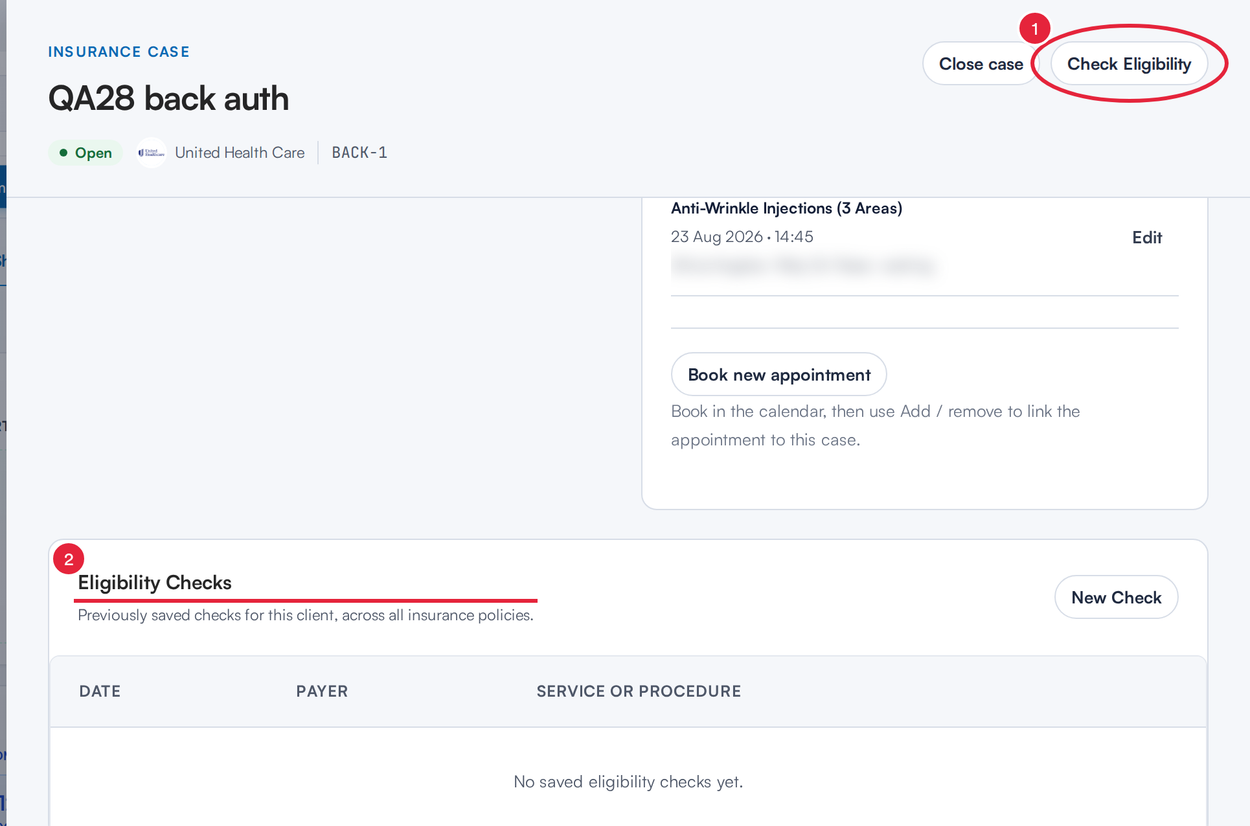
Every check is kept on the client’s case
Step 5: Watch for Coverage That Needs Re-checking
On the client's Insurance tab, a Coverage needs verification banner appears when the last check is old enough to repeat, or when the most recent check showed inactive coverage. Review policy on the banner opens the policy so you can check again. Catching a lapsed plan here costs a minute; catching it after the claim is processed costs a denial and a rebill.
What's Next?
- Insurance Guide Part 2: Client insurance setup
- Insurance Guide Part 4: Submit and track insurance claims
Questions? Reach us any time via the in-app chat. We're happy to help.
Was this guide helpful? Let us know by voting below - your feedback helps us write clearer articles.
For more guides, browse the related articles below or use the search bar at the top of the page. You can also watch our video learning series, the Pabau Academy, or visit the Support page for additional help.