Skip to content
  • There are no suggestions because the search field is empty.

Receiving Faxes and Saving to a Client's Chart

This article guides you through what happens when a fax arrives at your clinic's fax number in Engage — how to find it in the inbox, view and print it, and save it to a client's chart in Pabau. You need a fax number before you can receive faxes; we suggest reading our How to Set Up Fax in Engage (Buy a Fax Number) article if you haven't added one yet.

Step 1: Find the Fax in Your Inbox

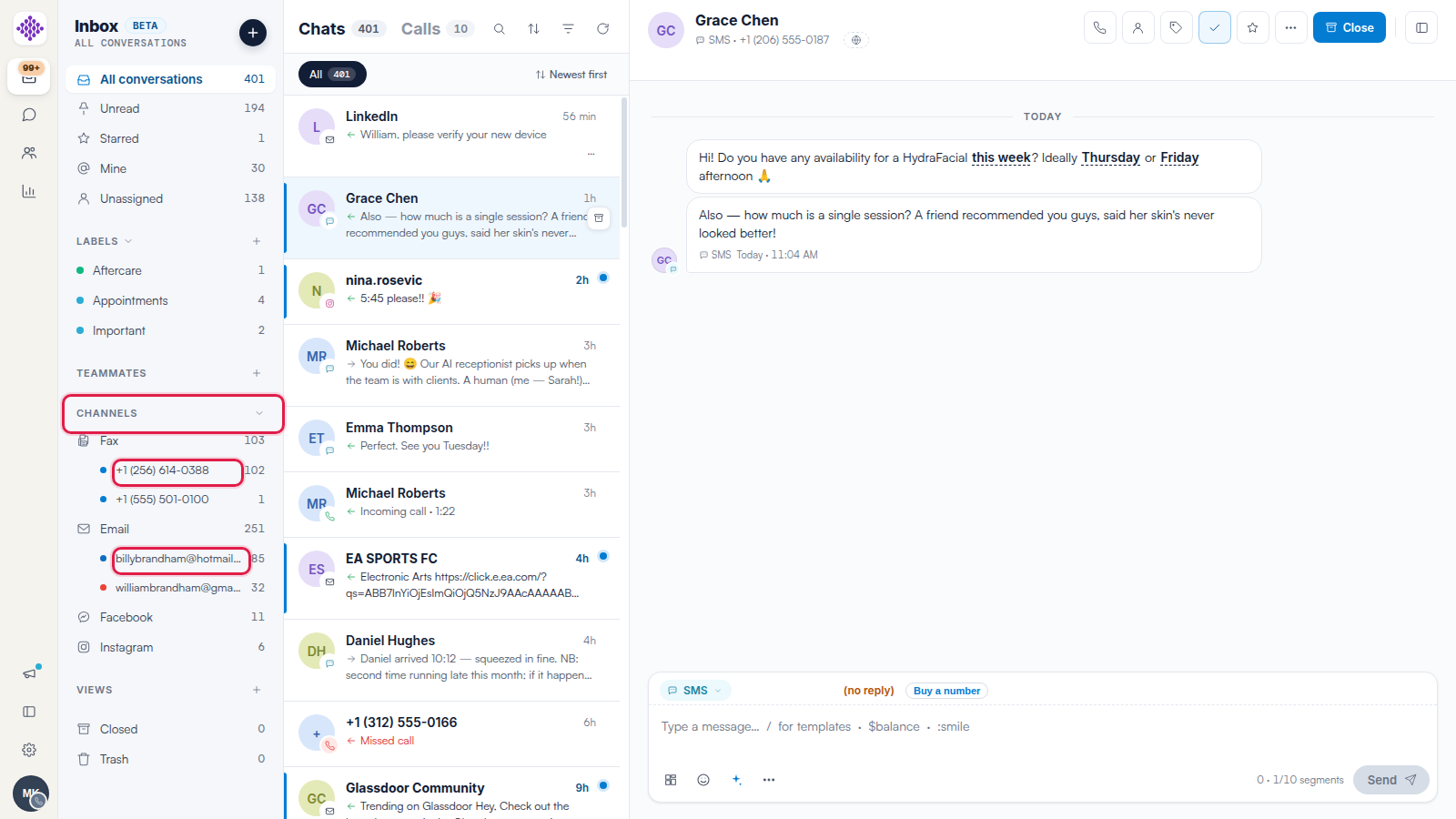
Incoming faxes appear in the Engage inbox automatically — there is nothing to set up or check manually. Engage looks for new faxes about every 30 seconds, and each fax arrives as its own conversation. To see only faxes, click Fax under Channels in the navigation rail. Unread counts, labels, and search all work on fax conversations, just like any other channel.

TIP: Every fax number you own also has its own inbox email address that faxes can be forwarded to — we suggest reading our Managing Fax Numbers and Usage in Engage article to find yours.

Step 2: View, Download, or Print the Fax

Open the fax conversation to see the full document. A green banner at the top confirms the fax was Received from the sender's number, along with the page count and the date it arrived. Below it, the toolbar shows Inbound fax and the number of pages, and a numbered thumbnail rail sits beside the fax preview — scroll the preview to read through the pages.

An inbound fax conversation in the Engage inbox, with the green Received from banner, page thumbnails beside the fax preview, and the Download, Print, and Save to chart buttons in the toolbar

Click Download to open the fax PDF in a new browser tab, where you can save it to your computer. Click Print to open the PDF in a new tab and print it with your browser's print command (Ctrl+P on Windows, Cmd+P on Mac).

NOTE: The Forward button is disabled — fax forwarding isn't available yet. Fax conversations also have no message composer; to fax the sender back, click New fax at the bottom of the conversation, which fills in their number for you. We suggest reading our How to Send a Fax from Engage article for the full sending walkthrough.

Step 3: Click Save to Chart

To file the fax against a client's record, click the blue Save to chart button in the toolbar. This button appears only on received faxes.

Step 4: Find the Client

A search window opens with the prompt "Attach fax to patient - type a name, phone, or card ID…". Start typing, and matching clients appear with their photo or initials, name, phone number, card ID, and date of birth. Click a result (or use the arrow keys and press Enter) to select it — a blue confirmation banner shows the selected client, with a Change button if you picked the wrong one.

The Save to chart search window with a client selected, showing the confirmation banner with a Change button, the fax reference and sender number, and the Cancel and Attach to chart buttons

Step 5: Attach the Fax to the Chart

Check the fax reference and sender number shown at the bottom of the window, then click Attach to chart. A green confirmation toast appears — "Attached to" the client's name — and the toolbar button changes to a green check with the client's name on it.

The fax viewer after attaching, with the toolbar button showing a green check and the client's name, and the green Attached to Alice Warren confirmation toast in the corner

TIP: You can save the same fax to more than one client. Click the green button with the client's name to reopen the search window and attach the fax to another client's chart as well.

Where the Fax Appears in Pabau

The fax is saved as a PDF document on the client's chart in Pabau, so your team can open it from the client's record like any other uploaded document.

Saved faxes do not appear on the client card's Communications timeline — we suggest reading our What Engage Logs to the Pabau Client Card article for what each channel records where.

NOTE: Fax conversations don't show the Link patient or Create new options you see on other channels, because faxes usually come from office fax lines rather than a client's personal number. Save to chart is the way to connect a received fax to a client.

We suggest reading our How to Send a Fax from Engage article for sending faxes, and our Managing Fax Numbers and Usage in Engage article for managing your numbers and tracking fax usage.

For more guides, refer to related articles below, select additional guides, or use the search bar at the top of the page. These guides will help you get the most out of your Pabau account.

Additionally, to help you fully utilize and understand your Pabau account, we recommend exploring additional guides and resources offered at the Pabau Academy.