
Once Pabau is set up as a DICOM destination on your ultrasound machine, choose how images get there. Either press a button during the scan (a P, S, Print or Acquire button), or have the machine send everything when you end the exam. This guide shows where that setting is on each machine.
NOTE: Set up the Pabau destination first, using the guide for your machine in Setting up your Ultrasound System. If your machine already sends automatically at the end of each exam, you don't need to set a button.
GE Voluson (E8, E10, Expert and Newer)
- Go to Utility → Setup → Connectivity and open Button Configuration.
- To send with a button: choose P1 to P6, then Overview. In the Dicom box, tick a Send to Destination line and choose Pabau.
- To send at the end of the exam: choose End Exam. In the Dicom box, tick Send Clipboard Content to Destination … on End Exam and choose Pabau.
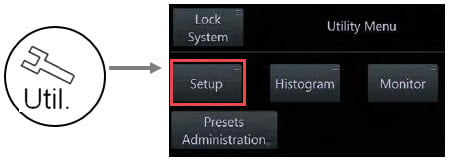
Util. → Setup
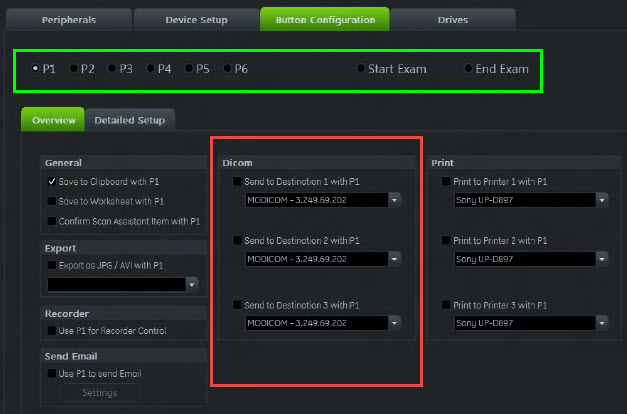
Button Configuration: choose P1 to P6, then the Dicom box
GE Voluson (2015 Models and Older)
- Go to Utility → System Setup → Connectivity and open Button Configuration.
- Choose P1 to P4 and set its destination to Pabau.
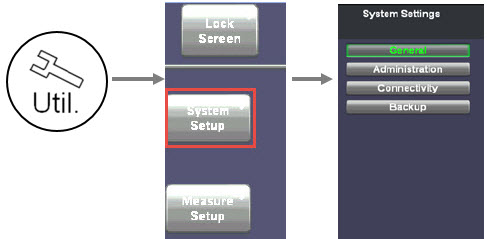
Util. → System Setup → Connectivity
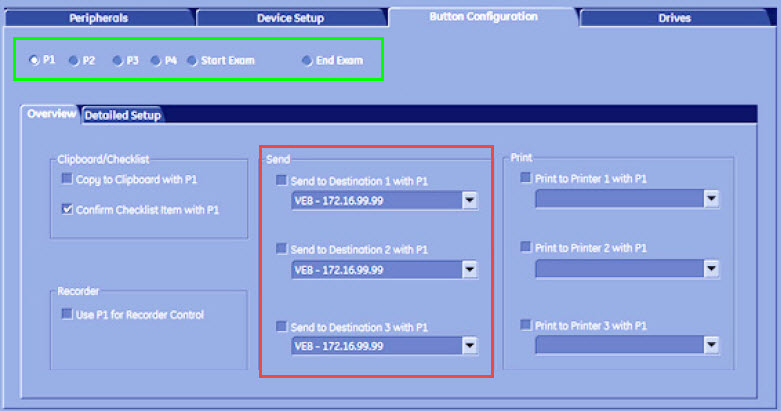
Button Configuration on older models
GE LOGIQ
- Press Utility, open Connectivity and then the Button tab.
- Under Physical Print Buttons, choose a free button such as Print3 or Print4, set its compression to
JPGand add Pabau as its destination. On newer models such as the LOGIQ E10, log in as ADM and move Pabau into the Printflow View with >>. - To send at the end of the exam instead, add Pabau to the Dataflow View on the Dataflow tab.
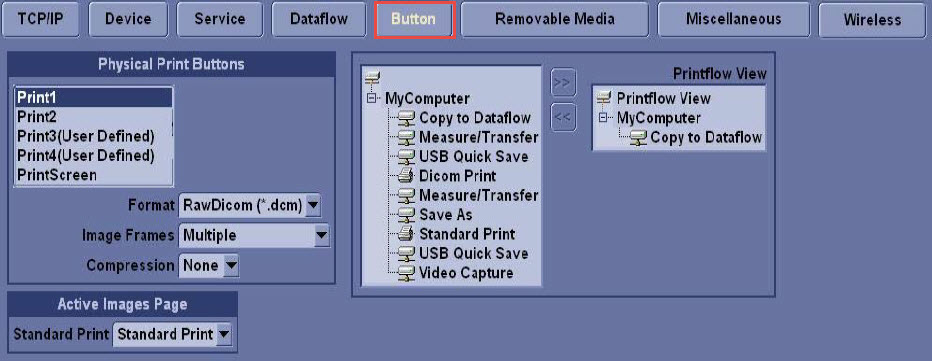
Button tab → Physical Print Buttons
Mindray
- To send at the end of the exam: go to F10 [Setup] → DICOM/HL7, select the Pabau storage service and press Default so the column shows
Y. - To send chosen images: open iStation, select the images, press Send To and choose Pabau.
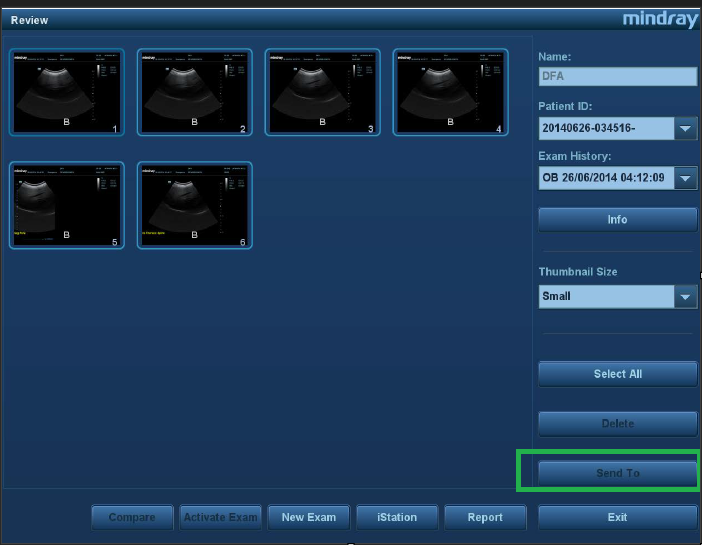
Review → Send To
Samsung H60 (S Buttons)
- Go to Setup → Customize → Buttons.
- Choose S1, S2 or S3, tick Store and choose whether the button stores a single image or a clip.
- Check the Transfer Mode of the Pabau destination (Setup → Connectivity → DICOM). With Send after acquisition, each stored image goes to Pabau straight away.
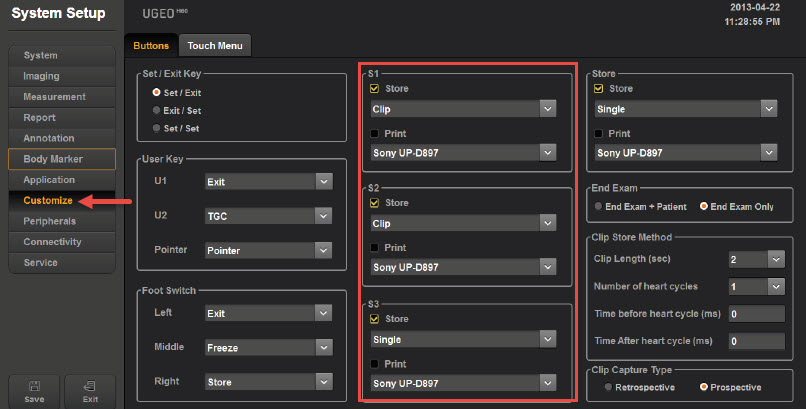
Customize → Buttons: S1 to S3
Samsung HS70A (P Buttons)
- Press the cog icon on the touch panel and choose User Defined Key.
- Open the tab for P1 to P4.
- From the Setting List, move Save and then Send across with >>. The button now saves the image and sends it to Pabau.
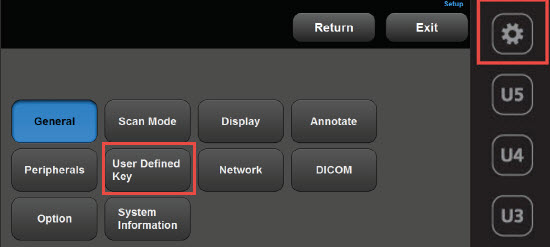
Setup → User Defined Key
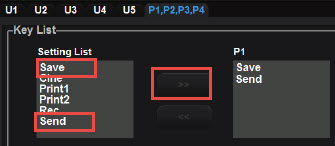
Move Save, then Send, across with >>
Samsung HM70A and WS80A (Send Button)
- With Batch or Send as you Go transfer, images are sent at the end of the exam or as you save them, and no button is needed.
- With Manual transfer, open SonoView (or the Exam List) and press Send on the patient information screen.
Philips Affiniti and EPIQ (Acquire Buttons)
- Go to Setup → Acquisition/Capture and open the Archive/Printer tab.
- Choose Acquire 1 or Acquire 2 and set Acquisition Type to Acquire Frame.
- Under Destination(s), tick Pabau.
If both Acquire buttons are taken, send chosen images from Review instead. See Sending Images Using a Philips Ultrasound System.
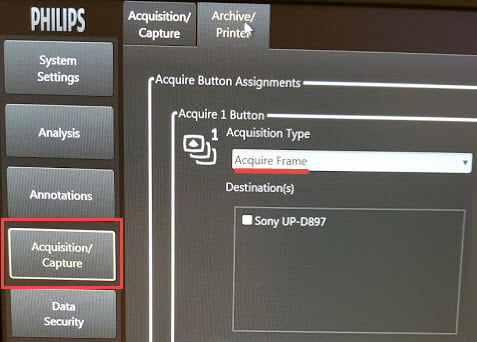
Acquisition/Capture: Acquire Frame and Destination(s)
Canon Aplio and Xario
Go to System Preset → Device Settings → Printer & Server Assign and assign Pabau to DICOM Server1 or another free server button.
TIP: Whichever way you send, the images arrive in Pabau under Imaging → Queue. Enter the patient's name, date of birth and ID on the machine before you scan, so they are easy to match when you file them.