
This guide covers Mindray console and portable systems, including the Resona, DC, TE and MX series.
NOTE: Before you start, install and pair Pabau Imaging Link on a clinic computer, then open Equipment → Add equipment → A machine on the network. Keep the Address, Port and AE title from the card headed Give these to your X-ray engineer to hand. Steps 1 to 3 of Setting up your Ultrasound System walk you through this.
Step 1: Add Pabau as a Server
- Press F10 [Setup] and open the DICOM/HL7 tab.
- Under the server settings, set Device to
Pabauand IP Address to the Address from Imaging Link. - Press Ping to check the machine can reach the Imaging Link computer, then press Add.
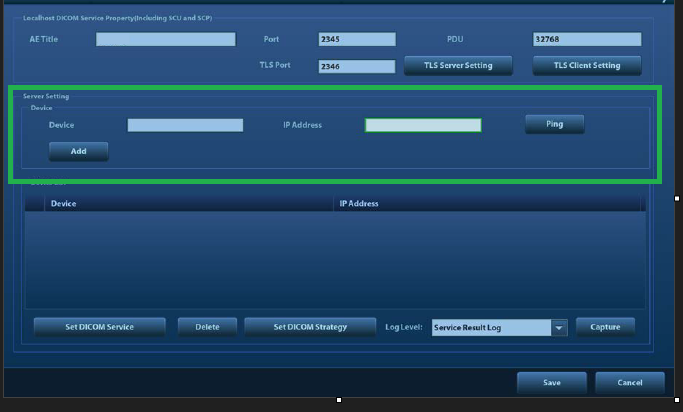
Server Setting: Device, IP Address, Ping and Add
Step 2: Add the Storage Service
- Select Pabau and press Set DICOM Service, then open the Storage tab.
- Set Service Name to
Pabau, AE Title to the AE title from Imaging Link and Port to the Port from Imaging Link. - Set Compression Mode to
JPEG, Compression Ratio toLossless, Color Mode toColor, tick Allow Multiframe and set Max Framerate to30. - Leave Encapsulated PDF and SR Storage Option off. Pabau receives the images; you write the report in Pabau.
- Press Add.
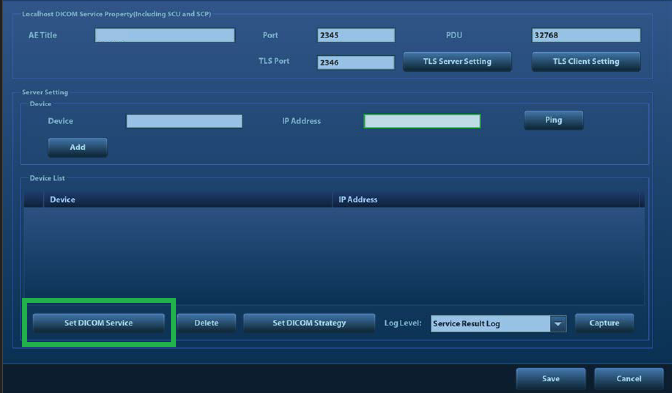
Set DICOM Service
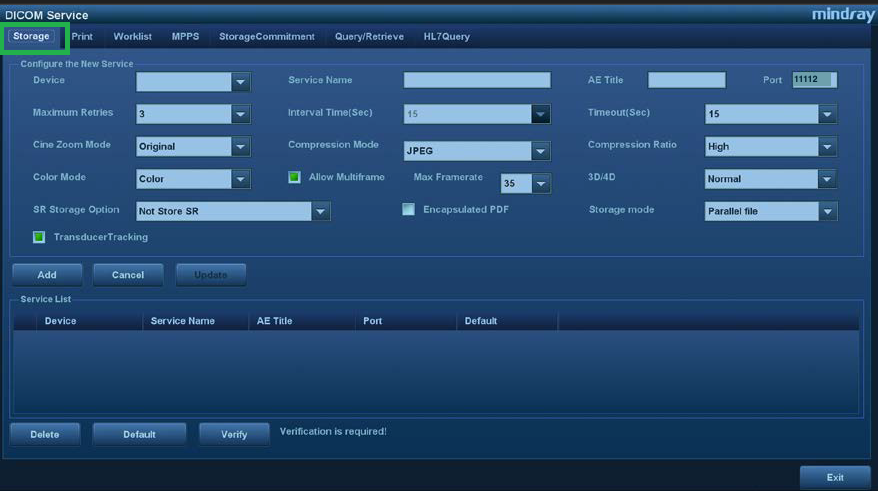
The Storage tab
Step 3: Test the Connection and Approve the Machine
- On the machine, select the Pabau destination and press Verify.
- In Imaging Link, A machine got in touch appears. Give the machine a name you will recognise, such as
Ultrasound Room 1, and click Yes, accept its images.
IMPORTANT: Until you click Yes, accept its images, the test passes but every image the machine sends is refused. If the test fails, see Imaging Link Port, AE Title & IP Address.
Step 4: Send Automatically at the End of the Exam (Optional)
Highlight the Pabau storage service and press Default so the column shows Y. Every image you capture is then sent to Pabau when you end the exam.
Step 5: Send a Test Image
End a test exam, or send by hand: open iStation, select the images and press Send To, then choose Pabau. The image appears in Pabau under Imaging → Queue, ready to file to the patient with File to a patient.
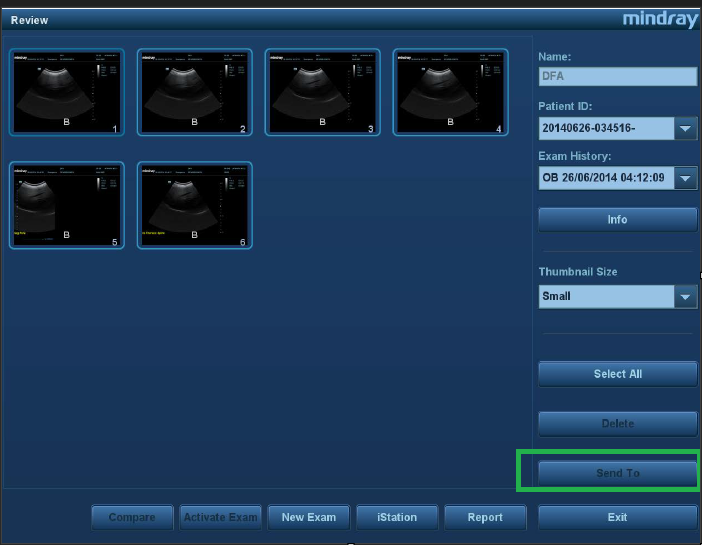
Review → Send To
NOTE: You don't need to set anything on the Worklist tab. Imaging Link receives images only.