
Medicare and DVA services are billed using MBS item numbers — the codes in the Medicare Benefits Schedule (for example item 23 for a standard consultation). Pabau ships the full MBS catalogue so you can search, browse and attach the right item to each service, and it’s then claimed automatically.
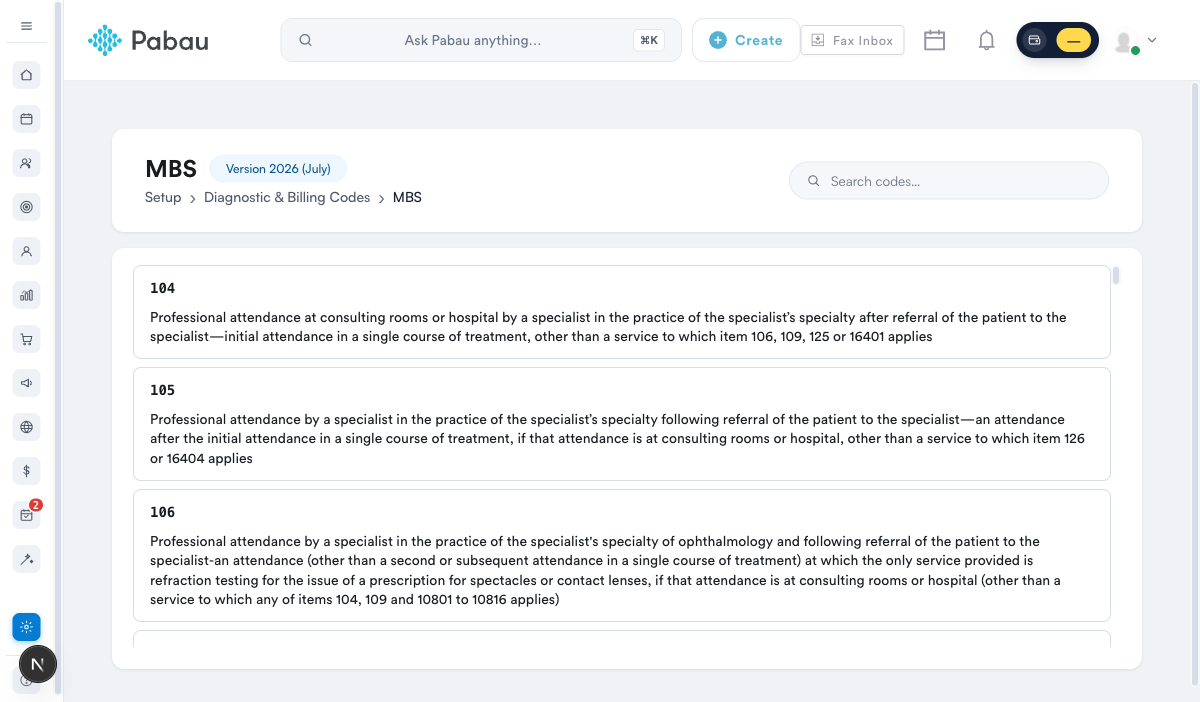
Step 1: Browse or search the MBS catalogue
Go to Setup → Diagnostic & Billing Codes and open the Australia tab, then the MBS tile. You can search by item number or by description to find the code you need.
Step 2: Attach an item to a service
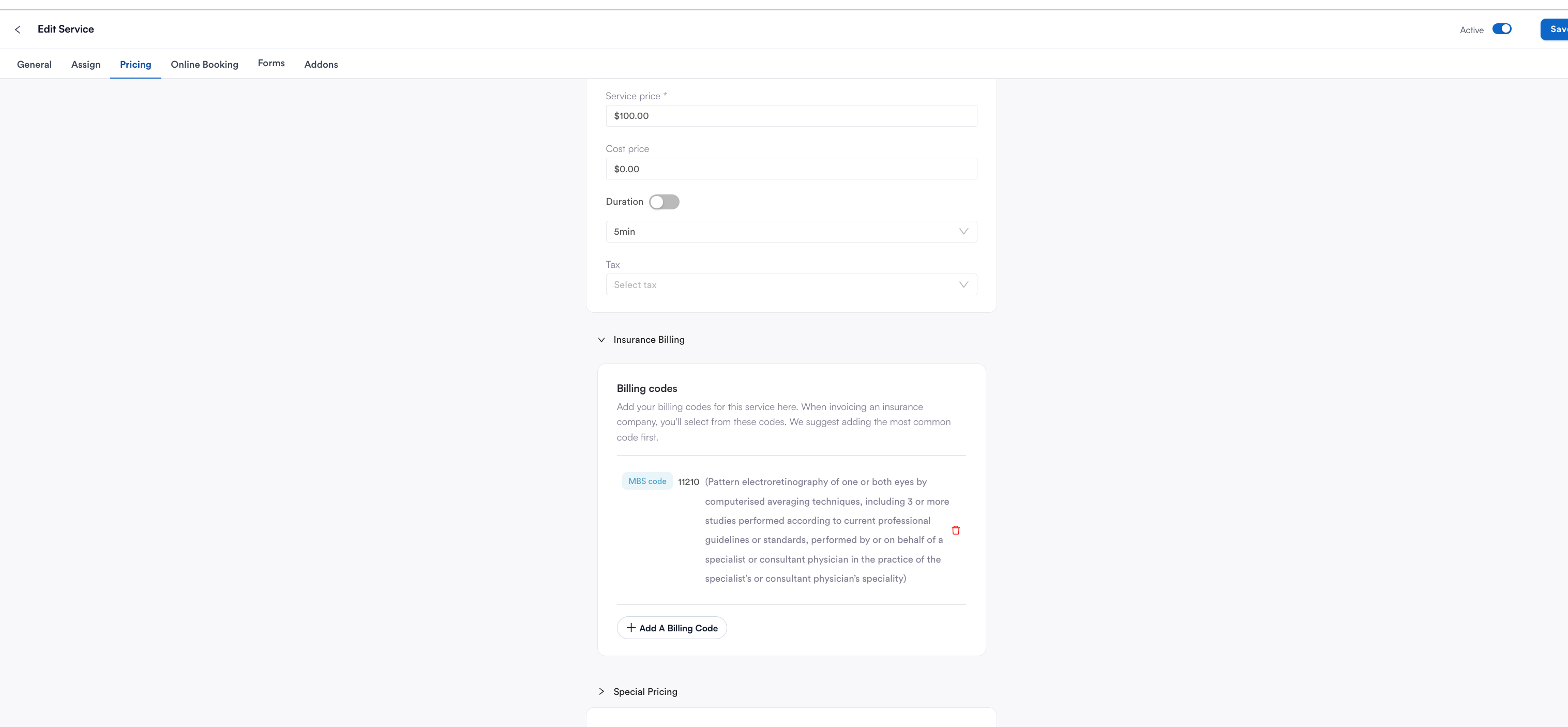
So it’s claimed without any re-typing, attach the item to the service that represents that visit:
- Go to Setup → Services and open the service.
- Open the Pricing tab and expand Insurance Billing.
- Click + Add a billing code, choose MBS code, search for the item and add it.
Step 3: It’s claimed automatically
When you invoice that service to Medicare or DVA, the MBS item number rides straight onto the claim — there’s nothing extra to enter at claim time.
NOTE: A service can only carry one billing code at a time. If a service is sometimes billed under different items, set the item you use most often, or create separate services for the different item numbers.
TIP: Private health (HealthPoint) claims may use the fund’s own item codes rather than MBS — Tyro’s window guides you through those at submission.