
Step 1: Access the Client Card
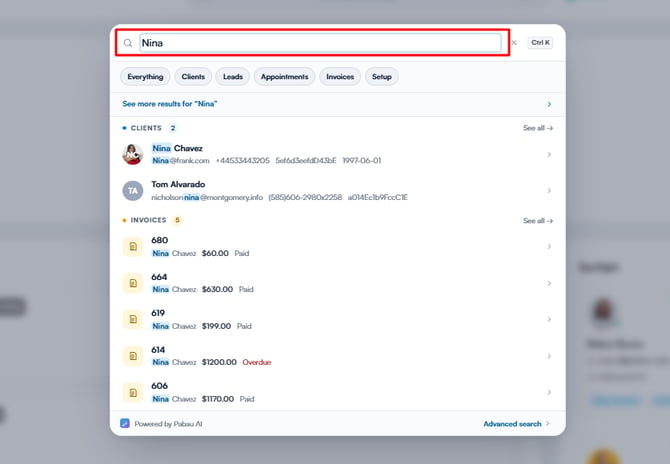
Start by logging into your Pabau account using your login credentials. Then, proceed to access the client card by either using the search bar at the top of the screen or locating your client from the Clients page.
Step 2: Navigate to the Create Button
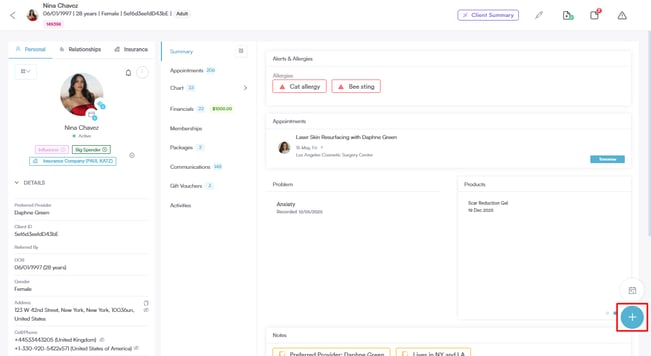
Once you access the client card, proceed to navigate to the bottom right corner of the screen and click on the Create button, represented as a blue plus sign. This will reveal the actions you can take.
Step 3: Write a Treatment Note
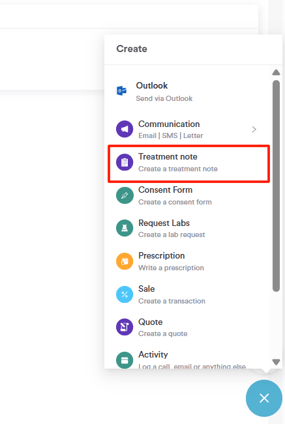
The option to write a treatment note will be listed on the Create menu; Click Treatment Note to proceed.
Step 4: Select Template
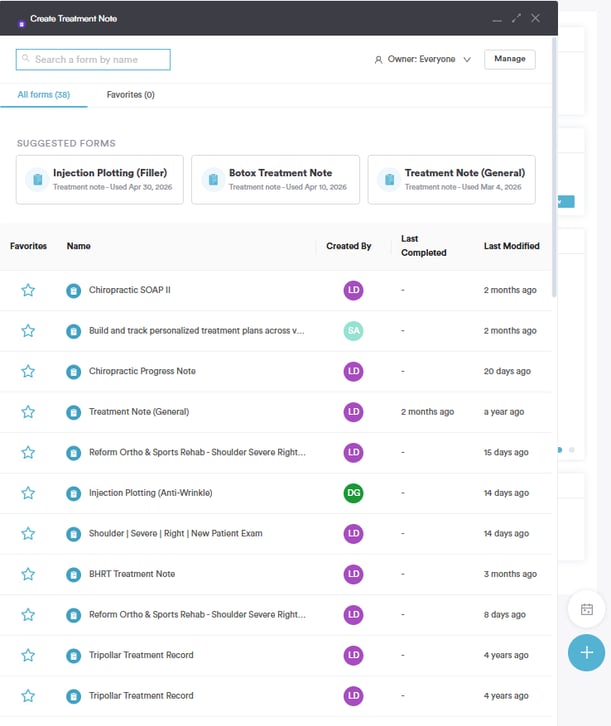
When clicking this option, all treatment note templates you've created in the system will be listed. Select your preferred template to continue.
Step 5: Complete Treatment Note
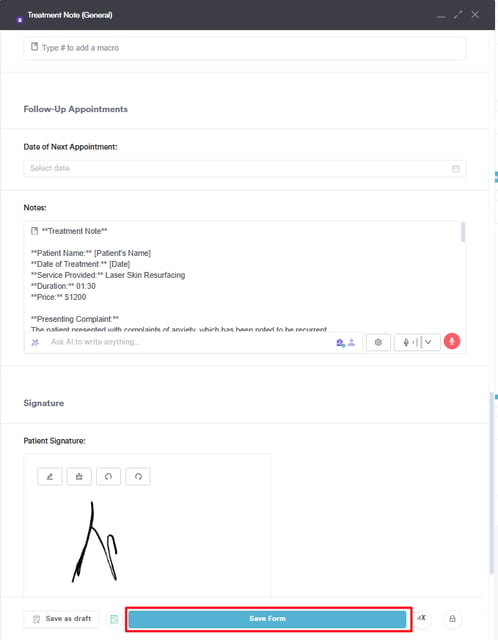
Now you can proceed to fill out all the necessary fields in the treatment note. Ensure to click the "Save Form" button at the bottom of the screen to save the treatment note to the client card.
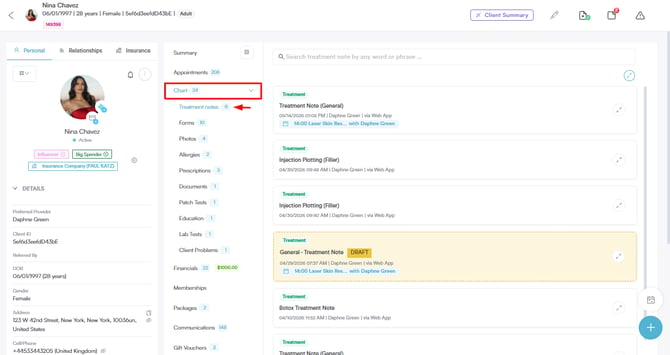
The treatment note will be stored under the Chart/EMR tab, on the "Treatment notes" sub-tab.
By following these steps, you can easily write a treatment note from the Client Card.
Was this guide helpful? Let us know by voting below - your feedback helps us write clearer articles.
For more guides, browse the related articles below or use the search bar at the top of the page. You can also watch our video learning series, the Pabau Academy, or visit the Support page for additional help.