
Treatment notes record what you did at each visit. This guide shows how to start a treatment note from the client card, fill it in and save it, and how to save one note and go straight on to the next. It also covers taking photos with your device's camera and issuing a prescription from inside the note.
Step 1: Access the Client Card
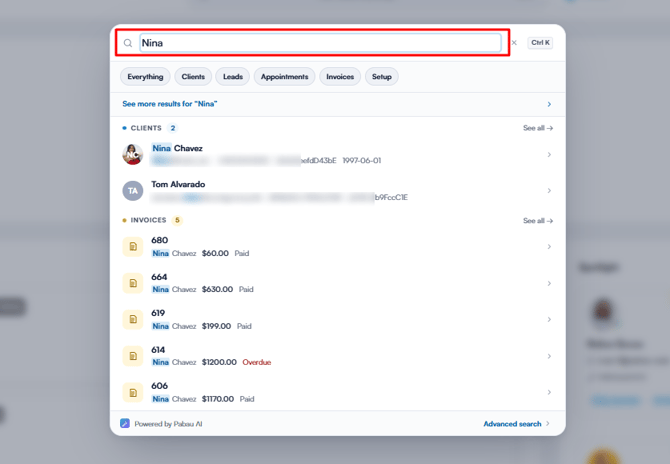
Start by logging into your Pabau account using your login credentials. Then, open the client card by either using the search bar at the top of the screen or locating your client from the Clients page.
Step 2: Navigate to the Create Button
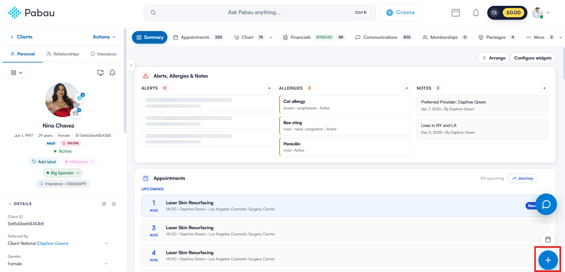
Once you access the client card, navigate to the bottom right corner of the screen and click the Create button, represented as a blue plus sign. This will reveal the actions you can take.
Step 3: Write a Treatment Note
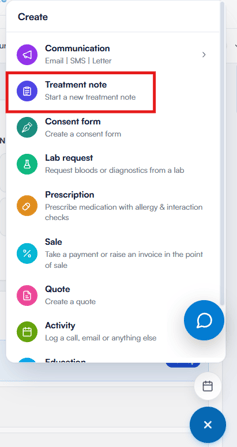
The option to write a treatment note is listed on the Create menu; click Treatment note to proceed.
Step 4: Select Template
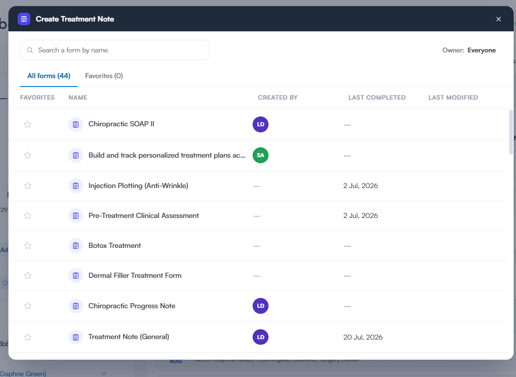
The Create Treatment Note window lists all the treatment note templates you’ve created in the system. Use the search bar to find a template by name, or open the Favorites tab to see the templates you’ve starred. Click your preferred template to continue.
Step 5: Complete and Save the Treatment Note
Now you can fill out all the necessary fields in the treatment note. You can also link the note to an appointment and change the treatment date from the note’s header. Then:
- To finish it later, click Save as draft.
- When you’re done, click Save Form to save the treatment note to the client card.
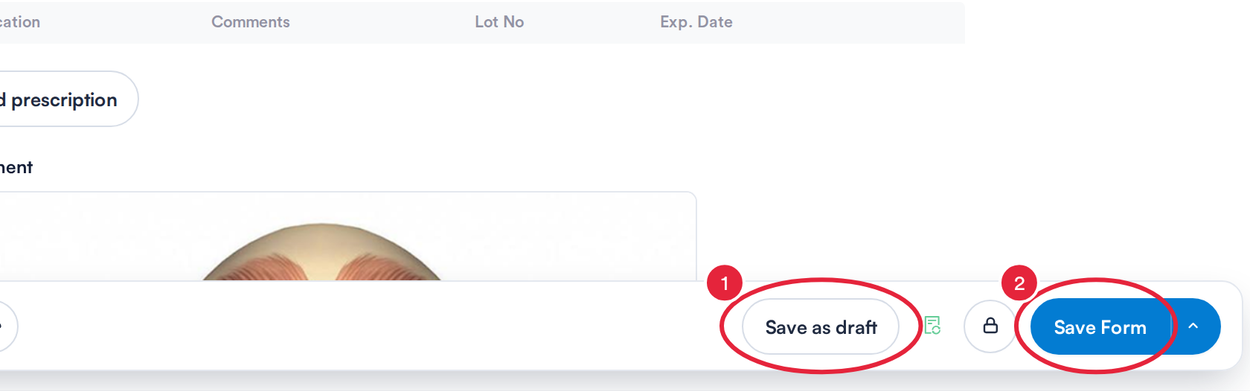
Save as a draft, or save the finished note
Step 6: Save and Open Another Treatment Note
If the visit needs more than one note, you can save this one and start the next in one go.
- Click the arrow on the right of Save Form.
- Under Save and open another treatment note, choose the template for the next note. Templates this client has had before are listed first. Pabau saves the current note and opens the new one straight away, linked to the same appointment.
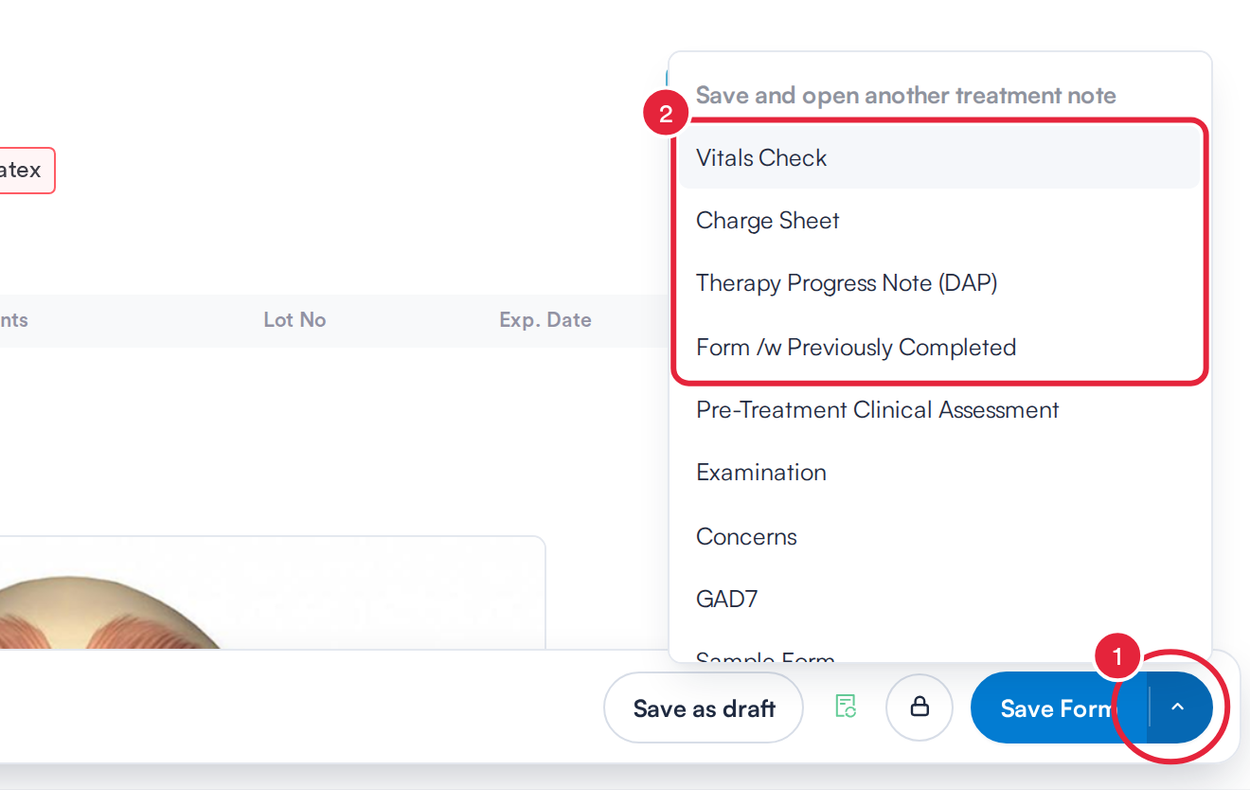
Pick the next template to save this note and open the next one
NOTE: If there are no other treatment note templates, the menu shows No other treatment notes available. Templates that need Care Plus are greyed out if your clinic doesn't have it, with the tooltip Care Plus is required for this form.
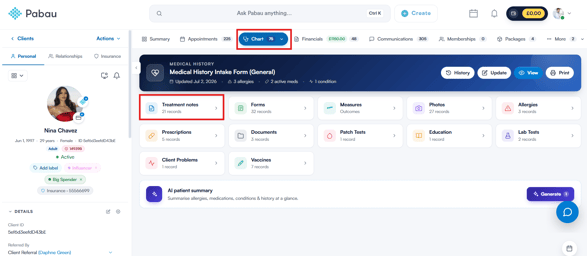
The treatment note will be stored in the EMR section of the client card (labelled Chart for US businesses), under Treatment notes.
Take a Photo With Your Device's Camera
On a photo or file upload field you can take a picture straight from the note, without saving it to your computer first.
- Click Take photo next to the field. (Choose file uploads a file you already have.)
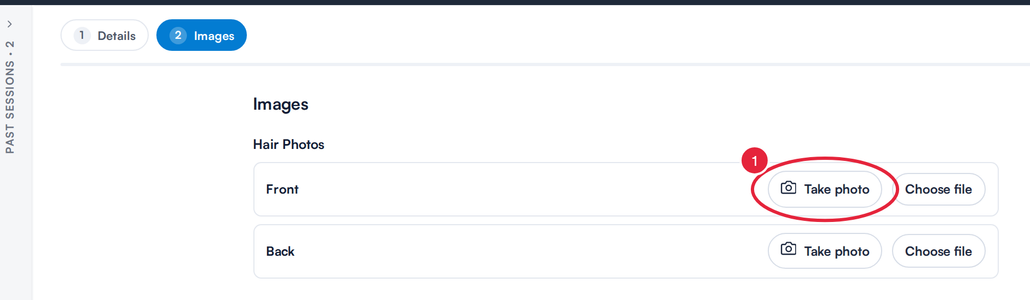
Take photo opens your device's camera
- The Take a photo window shows your camera. Click the round button to capture the picture. Your shot appears below the camera, where you can delete it and take another. To swap between your device's cameras, use the switch button in the corner of the preview.
- Click Use photo to add it to the field. It is named Camera photo followed by the date and time. Click Cancel to close the camera without adding anything.
TIP: The first time you use it, your browser asks for permission to use the camera. If you see Couldn't access the camera, allow camera access in your browser and make sure no other app is using the camera, then click Try again. The Take photo button only appears on devices and browsers that can use a camera.
Issue a Prescription From a Drugs Field
On a Drugs field you can issue a prescription without leaving the note.
- Click Add prescription under the drug list.
- In the Prescription window, choose a prescription template (if your clinic has only one, it opens straight away). Then fill in and issue the prescription as usual.
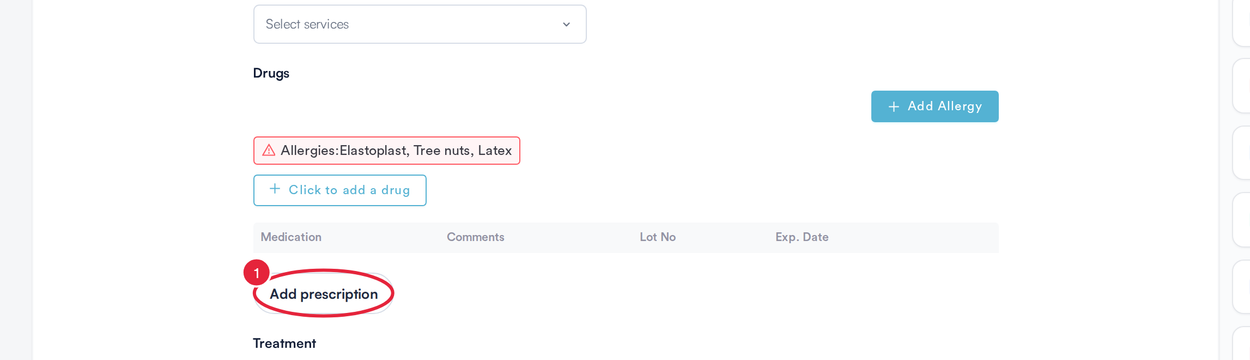
Add prescription issues a prescription from inside the note
Once it is issued, the prescribed medications are added to the field's drug list. If the note is linked to an appointment, the prescription is dated on the appointment day. If that date can't be loaded you'll see The appointment date could not be loaded. Retry before issuing the prescription. Click Retry before you continue.
What's next?
- How to Copy Data from a Previous Treatment Note (New Client Card)
- How to Save Treatment Notes as Drafts
- How to Set Privacy on a Treatment Note (New Client Card)
- How to Create and Manage Macros on Treatment Forms
Was this guide helpful? Let us know by voting below - your feedback helps us write clearer articles.
For more guides, browse the related articles below or use the search bar at the top of the page. You can also watch our video learning series, the Pabau Academy, or visit the Support page for additional help.