
Step 1: Navigate to the Client Card
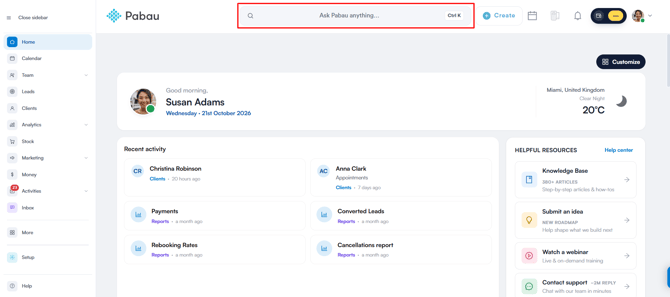
Start by logging into your Pabau account and proceed to access the client card of the desired client by utilizing the search bar located at the top of the screen.
Step 2: Access Financials
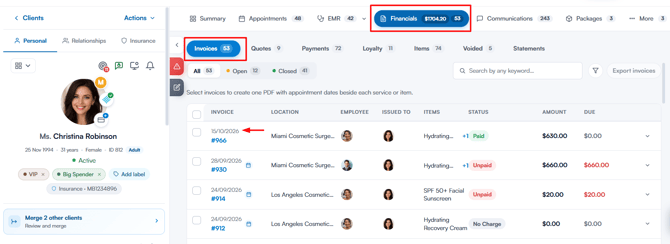
Open the Financials tab, then under Invoices, click on the invoice number of the invoice you wish to void.
Step 3: Edit the invoice
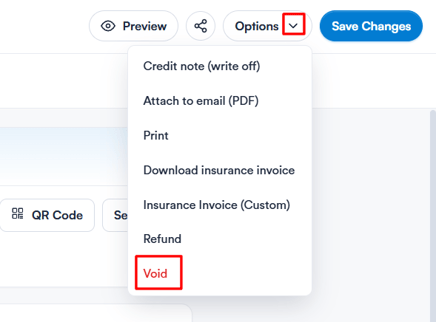
In the Edit invoice modal, click the the Options button in the top right corner to reveal the Void option. Click on it.
Step 4: Void invoice
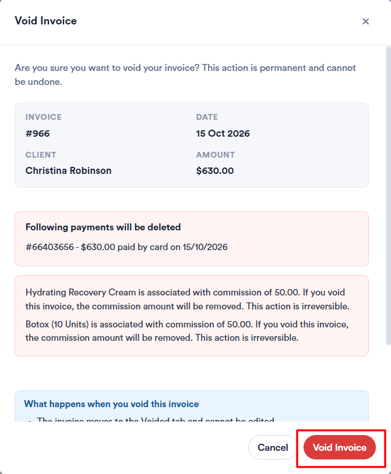
Once you access the prompt, simply click "Void Invoice" to confirm. Following this step, the invoice will be successfully voided.
NOTE: Please note that payments processed via Stripe cannot be voided. Voiding would break the link between the payment entry in Pabau and the Stripe payment entry. Instead, please refund the payment.
How do I correct a split card payment that was recorded as Card (other) plus an account top-up?
An invoice can take more than one payment, so a client paying with two cards does not need a workaround: open the invoice's Payments tab and add one payment per card, entering that card's share as the amount. If one card was recorded as Card (other) on the invoice and the other was added to the client's account as a top-up instead, choose one of the fixes below.
Option 1 – keep the top-up and use it on the invoice (works in every case). On the invoice's Payments tab, add a payment with the Account method for the outstanding amount. The invoice is then paid in full, and the top-up stays on the client's record as the payment from the second card.
Option 2 – replace the top-up with a second card payment on the invoice. Use this only if the top-up was recorded manually (for example as Cash or Card (other)), not charged through a card terminal or card payment in Pabau.
- If the invoice already has an Account payment drawing on that top-up, void that payment first on the invoice's Payments tab. This puts the money back on the client's account balance.
- On the client card, go to Financials → Payments, find the top-up (marked On account), open its menu and click Void.
- Open the invoice again and add a Card (other) payment for the second card's amount.
IMPORTANT: A top-up that has already been used to pay an invoice cannot be voided. Pabau shows "This account payment has already been used against an invoice. Refund the unused amount instead." Void the Account payment on the invoice first (step 1), then void the top-up.
NOTE: Voiding only changes Pabau's records. It never sends money back to a card. If the top-up was charged through a card terminal or as a card payment in Pabau, do not void it: use Option 1. Voiding needs the Can void sales permission.
Was this guide helpful? Let us know by voting below - your feedback helps us write clearer articles.
For more guides, browse the related articles below or use the search bar at the top of the page. You can also watch our video learning series, the Pabau Academy, or visit the Support page for additional help.