
In Pabau, managing financial records accurately sometimes requires correcting entries. Two common actions, voiding a payment and voiding an invoice, serve different purposes and have distinct outcomes.
- Voiding a Payment addresses an issue with the money received or recorded, while the invoice (the bill) might still be correct and due.
- Voiding an Invoice addresses an issue with the bill itself, meaning the charges are incorrect or no longer apply.
Step 1: Navigate to the Client Card
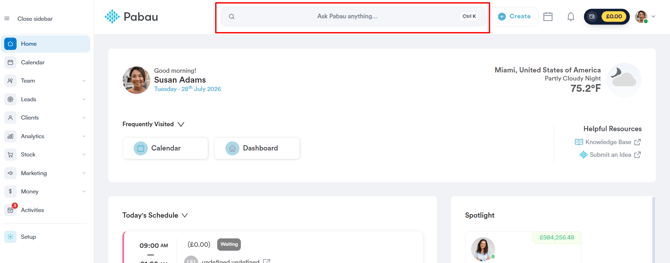
Start by logging in to your Pabau account and open the client card of the desired client by using the search bar located at the top of the screen.
Step 2: Access the Financials Tab
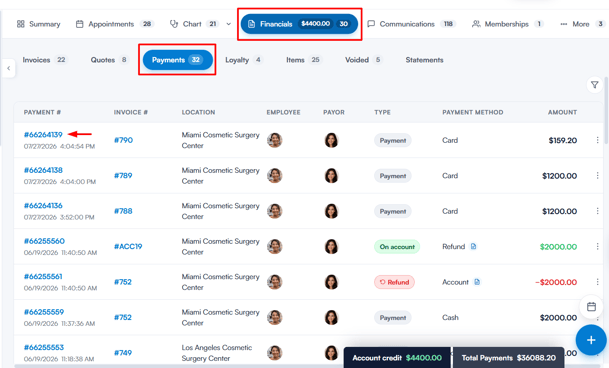
In the client card, select the Financials tab, then open the Payments sub-tab. This displays a list of all recorded payments.
From this list, find the payment you want to void and click its payment number to see more details about it and the invoice it’s connected to.
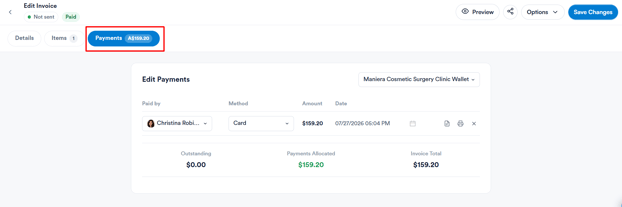
When you click a payment number:
- The full invoice associated with that payment will open.
- The view opens on the invoice’s Payments tab, showing the details of the transaction you selected.
- You’re not limited to this view — you can switch to the invoice’s other tabs (Details and Items) to access all of its information, just as if you had opened the invoice directly by its own number.
Step 3: Void the Payment
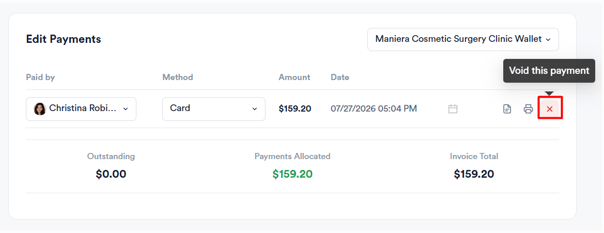
To void the payment, click the X icon at the end of the payment’s row in the invoice’s Payments tab.
NOTE: Payments processed via Card Terminals cannot be voided. Please refund the payment instead. For more information on refunding a payment, please see this article.
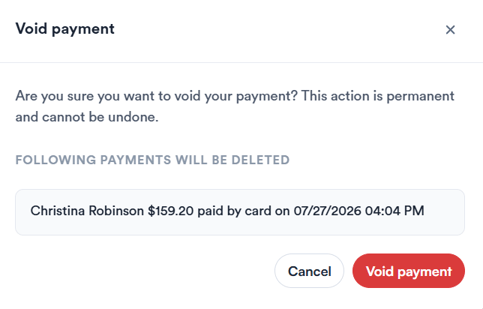
A Void payment confirmation window will appear, listing the payment that will be deleted. This action is permanent and cannot be undone. To finalise, click the Void payment button.
The payment has been successfully voided, and the related invoice balance will now reflect this change.
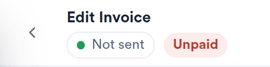
- If the voided payment was the only payment, the invoice will revert to an Unpaid status.
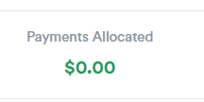
- If it was a partial payment, the outstanding balance of the invoice will increase by the amount of the voided payment.
TIP: You can also void a payment without opening the invoice — in Financials > Payments, click the three dots at the end of the payment’s row and select Void.
By following these steps, you can void payments on your Pabau account.
Was this guide helpful? Let us know by voting below - your feedback helps us write clearer articles.
For more guides, browse the related articles below or use the search bar at the top of the page. You can also watch our video learning series, the Pabau Academy, or visit the Support page for additional help.