
This article covers the new Client Card, available to selected clinics from August 2026. If your Client Card looks different, see the How to Void a Credit Note (Classic) guide instead.
Voiding a credit note in Pabau allows you to reverse its impact on an invoice, restoring the original balance and correcting any unintended adjustments or refunds.
Step 1: Navigate to the Client Card
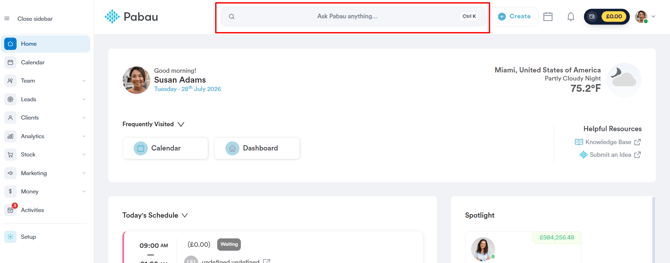
Start by logging in to your Pabau account using your login credentials. Then, proceed to navigate to the search bar at the top of the screen. Type in your client’s name, and their profile will appear in the search results.
Step 2: Switch to the Financials Tab
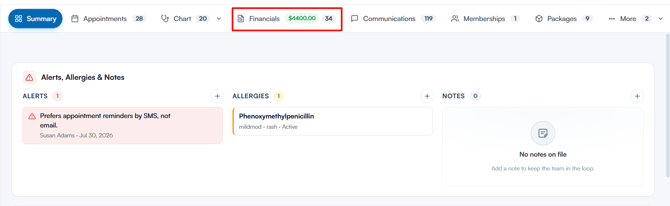
In the client card, switch to the Financials tab at the top to view all invoices, payments, and quotes associated with the client.
Step 3: Open the Credit Note
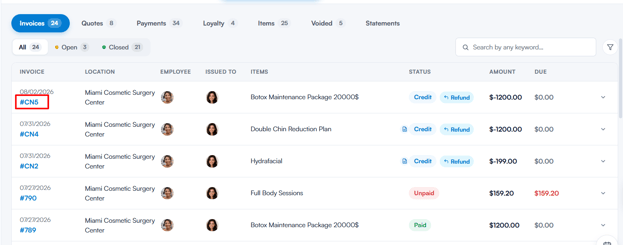
In the Invoices sub-tab, click on the number of the credit note you want to void. Credit note numbers begin with "#CN".
Step 4: Void the Credit Note
Once you access the credit note details, navigate to the top-right corner of the screen and click the "Options" button to reveal the available actions. Click on the "Void" option to void the credit note.
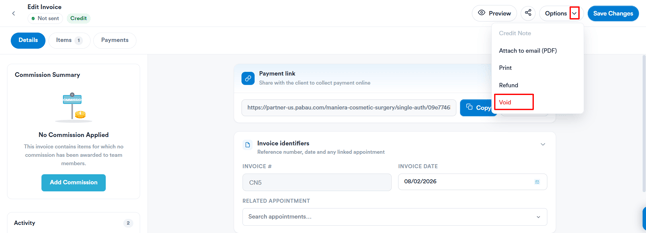
NOTE: Voiding requires the “Can void sales” permission. If the Void option is greyed out, ask an administrator to update your permissions.
A confirmation window titled Void Credit Note summarises the credit note (number, date, client, and amount), lists any linked payments that will be deleted, and explains what happens when you void — this action is permanent and cannot be undone. Click the "Void Credit Note" button to finalise.
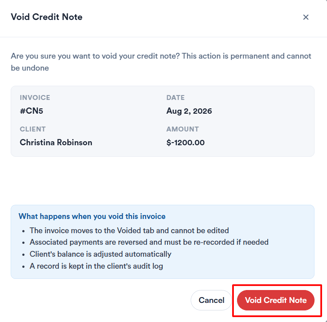
Once the credit note is voided, the credit is reversed and the original invoice reverts to its previous balance. The voided credit note is removed from the Invoices list and can be found under the Voided sub-tab of the Financials section.
Was this guide helpful? Let us know by voting below - your feedback helps us write clearer articles.
For more guides, browse the related articles below or use the search bar at the top of the page. You can also watch our video learning series, the Pabau Academy, or visit the Support page for additional help.