
If an inventory count was completed by mistake, at the wrong location or with the wrong quantities, you can void it. Voiding reverses the stock changes that count made, removes the count's entries from the inventory movement log and deletes the count, so you can count again from a clean start.
IMPORTANT: Voiding a count cannot be undone. The count and its counted lines are permanently removed.
NOTE: You need the Can perform inventory count permission to void a count. Only completed counts can be voided. A count that is still in progress (status Started) hasn't changed your stock yet, so its menu offers Cancel instead.
Step 1: Find the Completed Count
- Click Stock in the sidebar and open the Inventory tab. Find the count you want to reverse. Its status is Complete.
- Click the ⋯ at the end of its row and choose Void count.
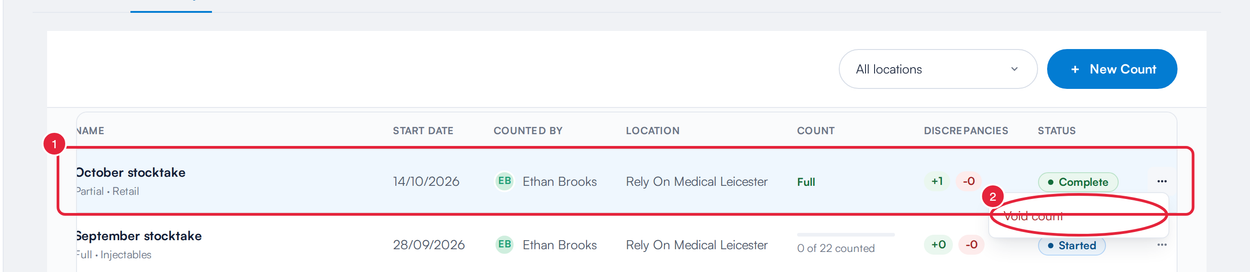
Void count is in the menu of a completed count
Step 2: Confirm the Void
The confirmation names the count and lists everything voiding will revert:
- Stock levels are adjusted back: each product is adjusted by the exact difference this count applied.
- Movement logs are removed: the Stock Count entries the count wrote to the inventory movement log are deleted.
- The count is deleted: the count and its counted lines are permanently removed.
- Click Void count to go ahead.
- Or click Keep count to close the window without changing anything.
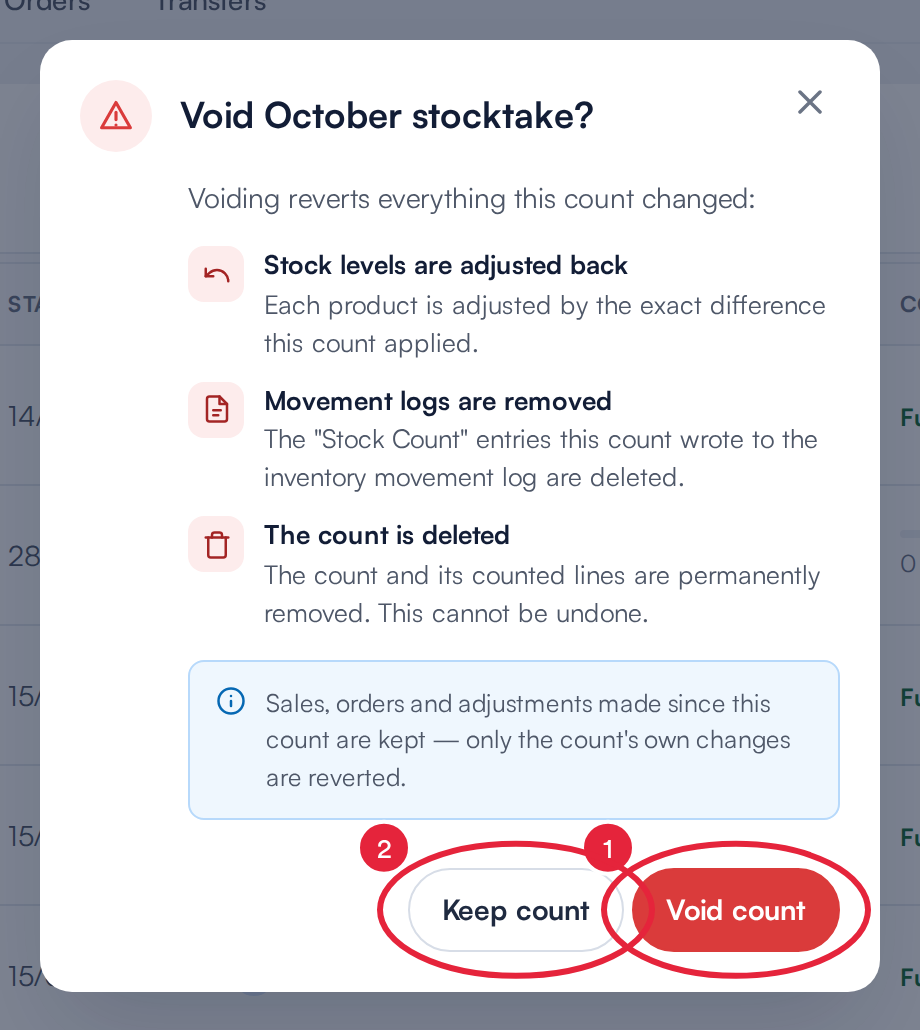
Check what will be reverted, then confirm
NOTE: Only the count's own changes are reverted. Sales, orders and adjustments made since the count are kept. For example, if a count raised a product from 13 to 14 and you have sold one since, voiding takes it from 13 to 12.
Step 3: Check the Result
You'll see a Count voided message, and the count disappears from the Inventory tab. Your stock levels and the inventory movement log no longer include it.

The count has been voided
TIP: If the window shows Voiding failed, nothing further was changed. Click Void count again: products that were already reverted won't be reverted twice.
What's next?
- How to Start a New Inventory Count
- How to Use Inventory Movement Report
- How to Generate a Stock Report
Was this guide helpful? Let us know by voting below - your feedback helps us write clearer articles.
For more guides, browse the related articles below or use the search bar at the top of the page. You can also watch our video learning series, the Pabau Academy, or visit the Support page for additional help.