
The change log keeps a record of every saved version of a client’s medical history, showing who made each change and when, along with exactly which answers changed at that point in time. This makes it easy to track updates to a client’s medical history over time.
Step 1: Navigate to the Client Card
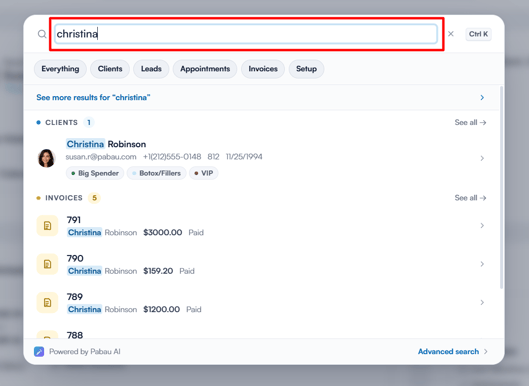
Start by logging in to your Pabau account using your login credentials. Then navigate to the search bar at the top of the page and type at least three letters of the client’s name — Pabau will filter the results as you type.
Step 2: Open the EMR Tab
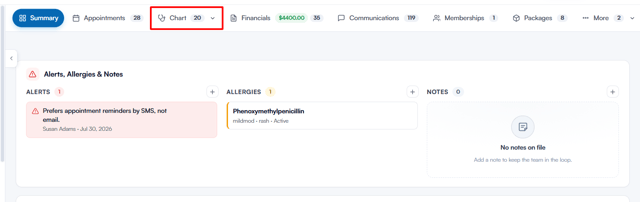
From the client’s card, click EMR in the navigation at the top (this tab is labelled Chart for US accounts).
Step 3: View the Change Log
On the Medical History banner at the top of the EMR overview, click History to open the Medical history — change log. The History button appears once a medical history has been recorded for the client.
Every saved version of the client’s medical history is listed under Versions on the left. Each version is numbered (v1, v2 and so on) and shows the date and time, who made the change, and how it was recorded — for example Intake form, Client self-completed, Edited in clinic or No changes confirmed. The most recent version is labelled CURRENT.
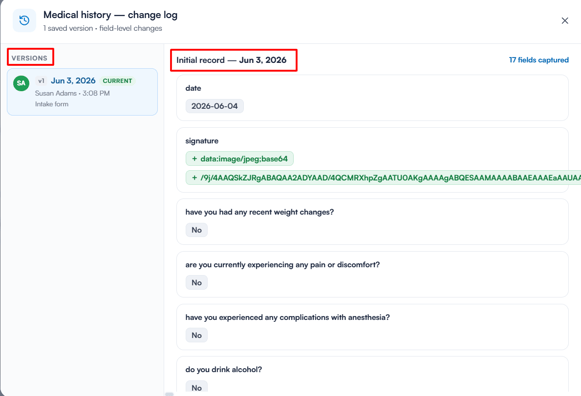
Selecting a version shows what changed compared with the previous version: the changed answers are listed first, with a count in the top-right corner (e.g. “3 fields changed”), and the rest of the answers appear below under Unchanged. The very first version instead shows the full set of captured fields (e.g. “17 fields captured”) — each intake question with the client’s recorded answer. If a version was saved without any edits, you’ll see “No changes were made in this version.”
With the change log, you can always trace back exactly what was recorded and when, keeping the client’s medical history accurate and accountable.
Was this guide helpful? Let us know by voting below — your feedback helps us write clearer articles.
For more guides, browse the related articles below or use the search bar at the top of the page. You can also watch our video learning series, the Pabau Academy, or visit the Support page for additional help.