
NOTE: Secure Messaging needs Pabau Engage with the Secure Chat channel, and the new Client Portal, which is being rolled out to clinics gradually. If you don't see it in your account yet, or you'd like to add Engage, message us via the in-app chat.
With Secure Messaging, clients who are signed in to your Client Portal can message your clinic from the Secure chat button. Your team answers in the Engage inbox. The client card keeps every conversation on the client's record, shows how much the client uses the chat, and lets you stop one client from using it.
Step 1: Open the Secure Messaging Panel
- Open the client card and click the Secure Messaging icon (a speech bubble with a padlock) in the row of icons at the top of the client's details.
- Check the status. Allowed means This client can start a chat from their Client Portal. Blocked means the chat button is hidden for this client.
- See how many messages the client has sent and when they sent the last one (Last one, with the date and time).
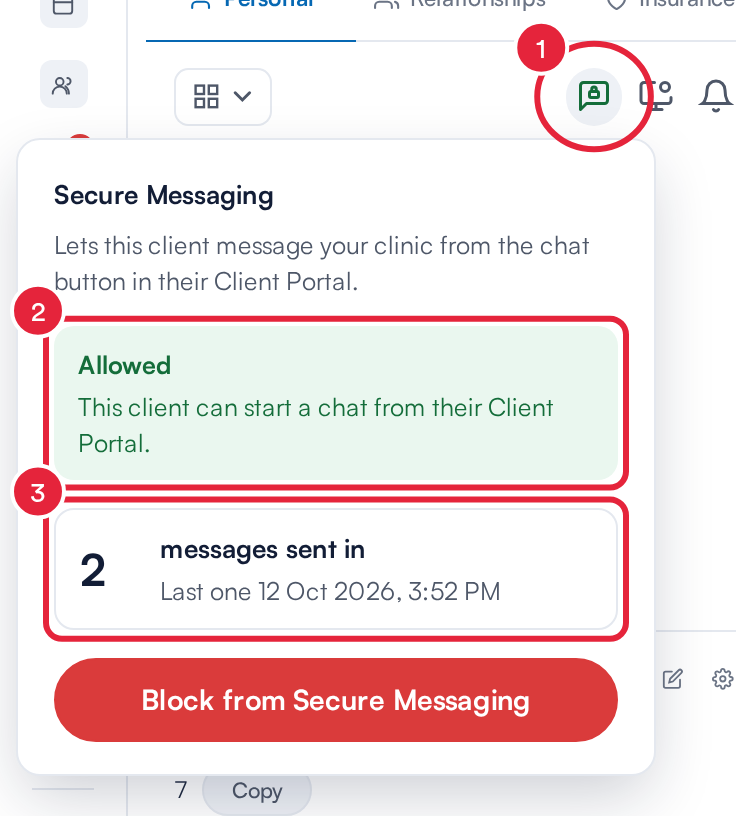
The Secure Messaging panel
NOTE: If the panel says Secure Chat is switched off for your clinic in Engage, so no client sees the chat button., switch the Secure Chat channel on in Engage before anything else.
Step 2: Block the Client from Secure Messaging
If one client shouldn't use the chat, click Block from Secure Messaging. The confirmation Client blocked from Secure Messaging appears, the status changes to Blocked (This client can't use Secure Messaging. The chat button is hidden in their Client Portal.) and the icon turns red, so anyone opening the card can see it at a glance.
To undo it, open the panel again and click Unblock Secure Messaging. The confirmation reads Client can use Secure Messaging again.
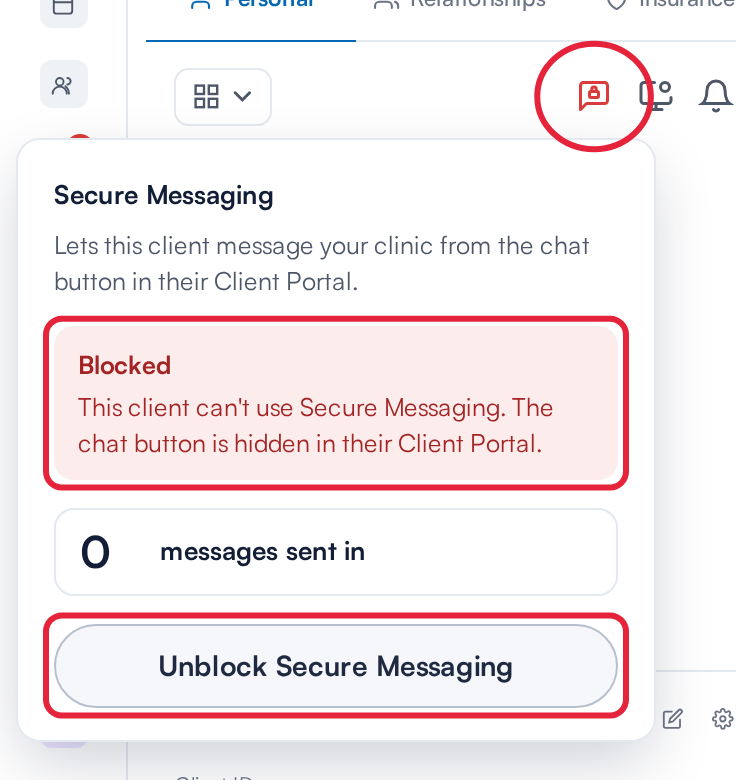
A client blocked from Secure Messaging, with Unblock Secure Messaging
IMPORTANT: Blocking and unblocking need the Can edit clients permission. Without it, the button is greyed out. Blocking only hides the chat button: the client can still sign in to their portal, and their earlier conversations stay on their record.
Step 3: Read the Client's Conversations
- Open the Communications tab of the client card and click Secure chat. Each conversation shows when it started, how many messages it holds and the latest message.
- Click the arrow at the right of a conversation to expand it.
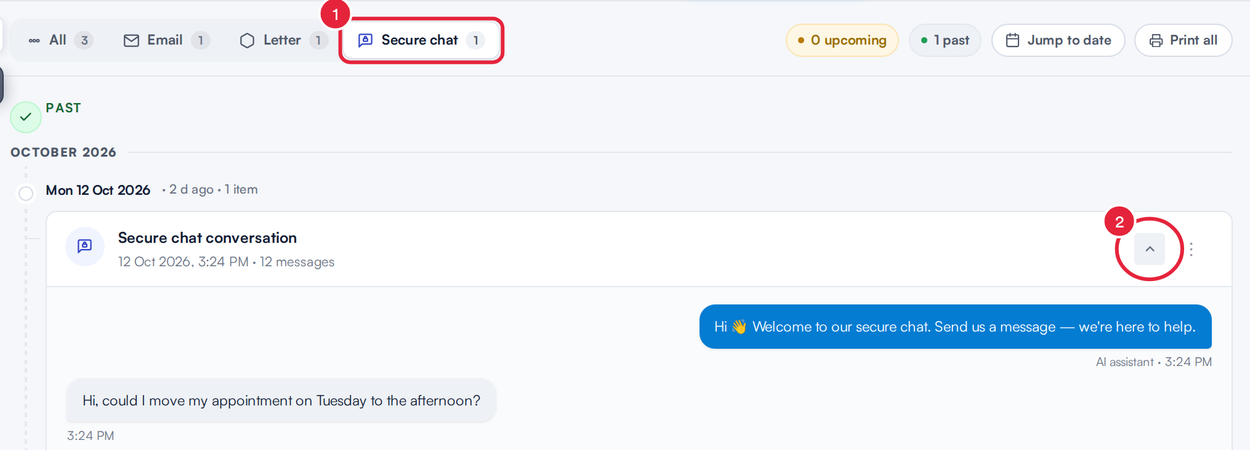
The Secure chat filter (1) and a conversation expanded (2)
The expanded conversation shows the client's messages, your team's replies with the name of whoever sent them, replies from the AI assistant, and a line each time a team member took over or handed back to the assistant. Some messages appear as cards, for example Document uploaded, Lab results uploaded, Prescription request or Times offered.
TIP: The client card shows the conversation for your records. To reply, open the conversation in your Engage inbox.
NOTE: The Secure chat filter appears when your clinic has the Secure Chat channel switched on, or when the client has earlier secure messages.
What's next?
- Getting Started with the Engage Inbox
- Understanding the Communications Page on the Client Card (New Client Card)
- How to Set Up the New Client Portal
Was this guide helpful? Let us know by voting below - your feedback helps us write clearer articles.
For more guides, browse the related articles below or use the search bar at the top of the page. You can also watch our video learning series, the Pabau Academy, or visit the Support page for additional help.