
When your clinics are connected in a Multi-Account organisation, a client who visits more than one of your clinics usually has a record at each. The New Client Card tells you when that's the case, and lets you look at the client's appointments, invoices and clinical records from your other clinics without switching accounts. Everything from the other clinic is read-only, so nothing you do here changes that clinic's records.
NOTE: You'll only see this when your account is part of a Multi-Account organisation and data mirroring is switched on for the accounts involved. To set this up, see How to Set Up Multi-Account and Connect Your Pabau Accounts.
Step 1: Open the Client's Card
Go to Clients and open the client.
- Make sure the Summary section is selected. If the client also has a record at one of your other clinics, a card at the top reads <first name> is a connected account and offers to show you their appointments and invoices from your other clinics.
- Click View account, or the connected account link.
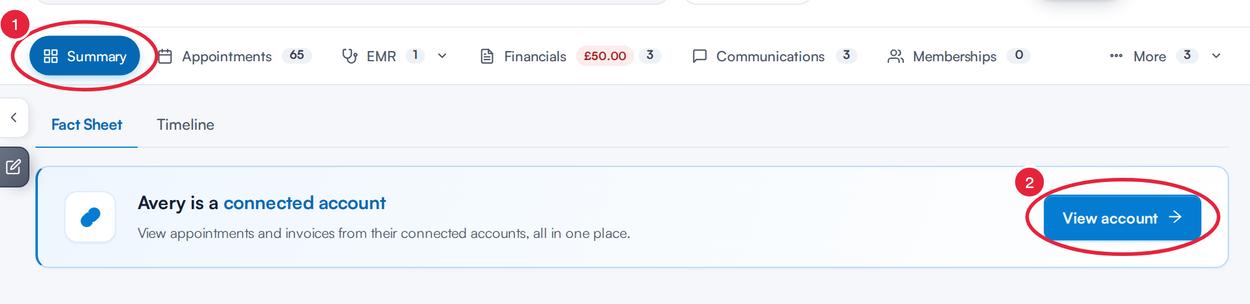
The connected account card sits at the top of Summary
Pabau shows the card when another clinic in your organisation has an active client record with the same email address and the same last name or mobile number. The client you're viewing needs an email address and a last name for Pabau to look. The same match also adds a green label with the other clinic's name under the client's name on the Personal tab; see How to See Clients Synced Across Your Clinics (New Client Card).
Step 2: Choose the Clinic
The Connected account data panel opens on the right, showing the client's name and email address as recorded at the other clinic.
- If the client is registered at more than one of your other clinics, pick the clinic from the list at the top of the panel.
- The Read-only access banner reminds you that the record belongs to a connected account: you can view its details, but you can't make changes.
- Click a section to open it, for example Appointments (see Step 3).
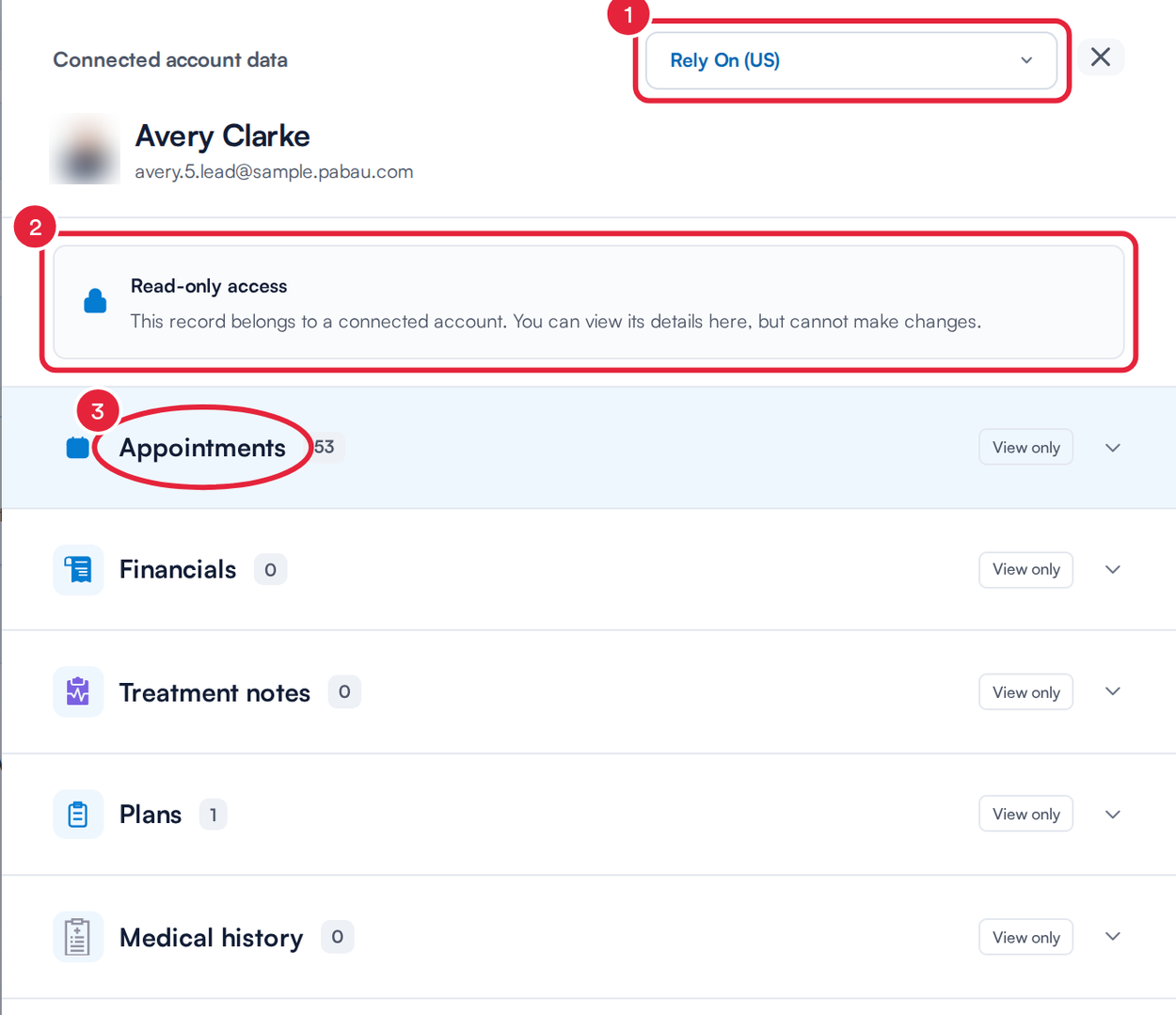
Pick the clinic, then open a section
Step 3: Open a Section
The panel lists the client's records at that clinic in sections: Appointments, Financials, Treatment notes, Plans, Medical history, Photos, Allergies, Lab tests, Prescriptions and Documents. The number beside each name is how many records it holds, and every section is marked View only. Click a section to open it.
- Appointments: the client's visits at that clinic. Use Upcoming, Past or All to filter them. Times are shown in that clinic's time zone, and the note at the bottom of the list says which one.
- Financials: the client's invoices at that clinic. Filter them with All invoices, Open or Closed.
- Treatment notes, Medical history, Prescriptions and the other record sections: click View record to read an entry, or Open file to see a photo or document. Private clinical forms are not shared between accounts.
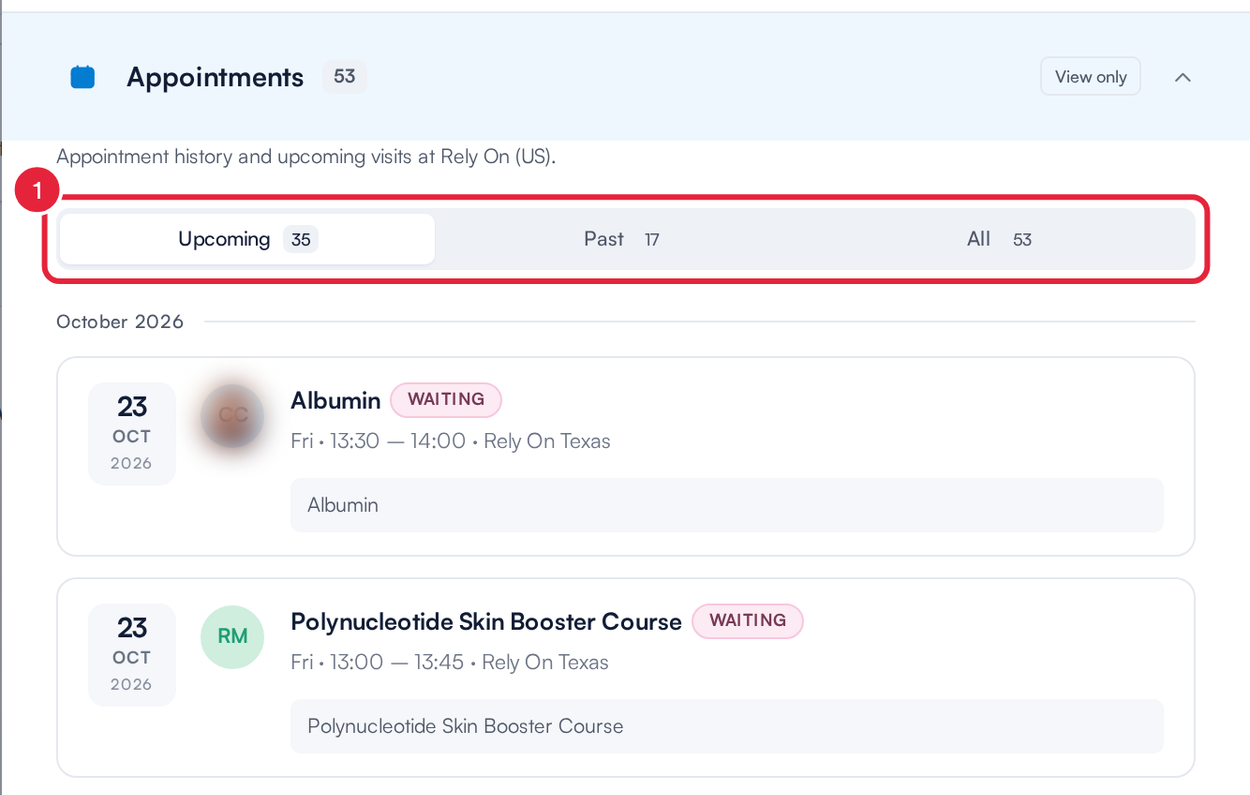
Appointments at the other clinic, filtered to upcoming visits
Long lists show a page at a time: use Previous and Next at the bottom. When you've finished, close the panel to return to the client card.
Who Can See What
Each section follows your own permissions in your own account. For example, if you can't see financial details on client cards in your clinic, you won't see the other clinic's invoices either. A section you don't have access to shows a message that the records are unavailable. The same message appears if the other clinic can't be reached at that moment, so try again later before you check your permissions.
TIP: If a section says More than one client matches in this account, the other clinic holds two or more records with the same details. Merge them in that clinic first; see How to Merge Client Records (New Client Card).
What's next?
- How to See Clients Synced Across Your Clinics (New Client Card)
- How to Merge Client Records (New Client Card)
- Organization Reports (Multi-Account)
Was this guide helpful? Let us know by voting below - your feedback helps us write clearer articles.
For more guides, browse the related articles below or use the search bar at the top of the page. You can also watch our video learning series, the Pabau Academy, or visit the Support page for additional help.