
The Room Utilization Report gives you a clear picture of how your clinic's rooms are being used at any given time. It tracks the percentage of time each room is occupied versus available, helping you spot underused spaces, identify your busiest periods, and make more informed decisions about scheduling, pricing, and resource allocation.
Whether you manage a single treatment room or multiple spaces across a busy clinic, this report helps you get the most out of every room.
Step 1: Navigate to the Room Utilization Report
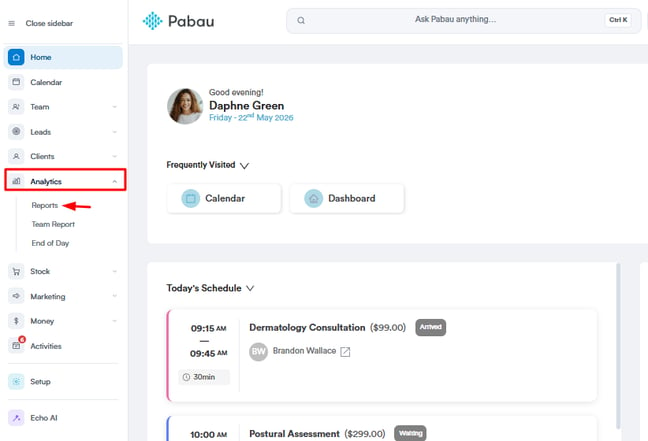
Log into your Pabau account and navigate to Analytics in the left sidebar menu. Then, click the 'Reports' sub-tab to access all available reports in Pabau.
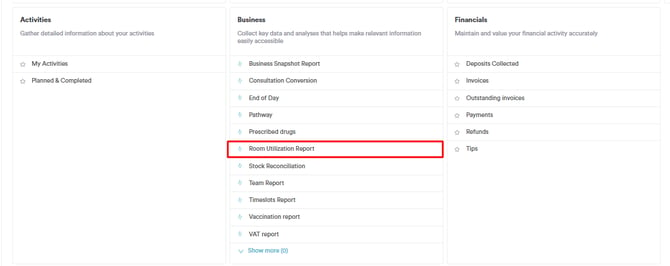
From the reports list, locate and select Room Utilization Report under the Business section.
Step 2: Set Your Date Range
At the top left corner of the report, use the date range filter to select the time period you want to analyze. You can filter by a specific day, week, month, or set a fully custom date range to track trends over a longer period.
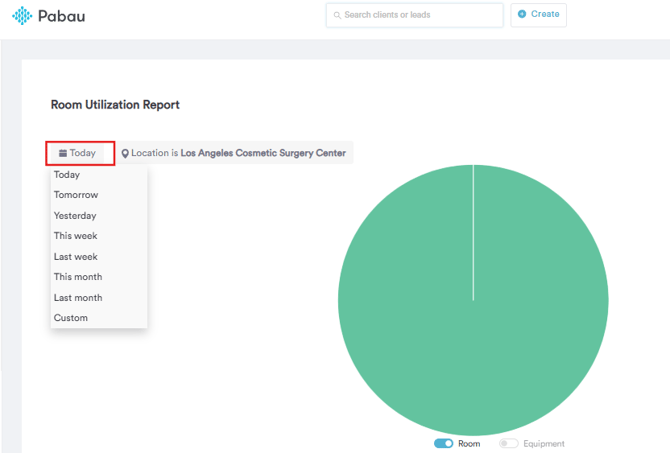
Choosing the right date range is key to getting meaningful insights — for example, comparing the same month across different years to identify seasonal patterns, or reviewing a single week to assess daily room demand.
Step 3: Apply Location Filters (Optional)
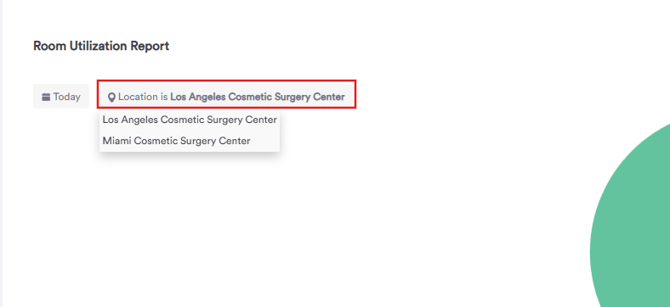
You can further refine the report using the available filters, such as filtering by specific locations if your clinic operates across multiple sites. This allows you to focus the report on exactly the rooms or time periods most relevant to you.
Step 4: Review Room Occupancy Rates
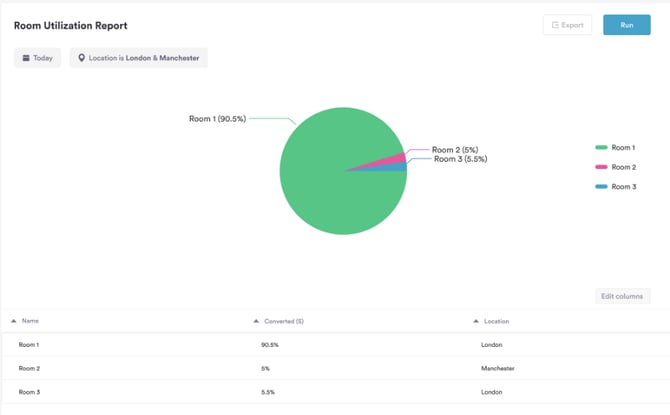
The core of the report is the Occupancy Rate — showing the proportion of booked versus available time for each room within your selected date range. A higher occupancy rate means a room is being used efficiently. A lower rate may indicate that a room is underbooked or that scheduling adjustments could help fill gaps.
Step 5: Compare Rooms
If your clinic has multiple rooms, the report allows you to compare utilization across all of them side by side. This makes it easy to spot which rooms are consistently busy and which are underperforming — so you can take action, whether that means reassigning services, adjusting availability, or rethinking room allocation entirely.

Step 6: Export the Report (Optional)
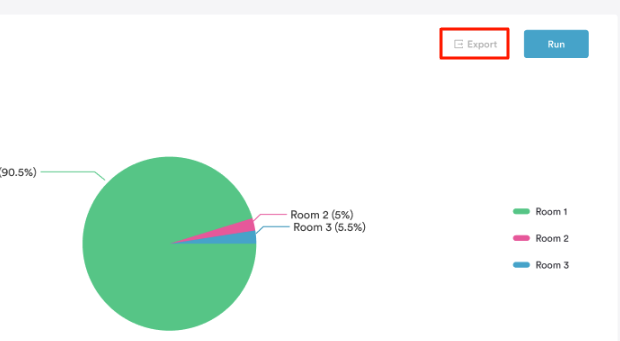
Once you have reviewed the data, you can export the report for further analysis or sharing with your team. Use the export option in the top-right corner of the report to download the data in your preferred format.
By following these steps, you can easily generate the room utilization report.
For more guides, refer to related articles below, select additional guides, or use the search bar at the top of the page. These guides will help you get the most out of your Pabau account.
Additionally, to help you fully utilize and understand your Pabau account, we recommend exploring additional guides and resources offered at the Pabau Academy. It offers in-depth video tutorials and lessons, offering a holistic learning experience that can equip you with the essential skills for achieving success with Pabau.