
The Home Dashboard transforms your Pabau landing page into a smart daily command centre. From a personalised greeting to live weather, today's appointments, and your highest-value clients — everything you need to start your day is visible in one place, without clicking through multiple menus.

The Header
The first thing you'll see when you log in is a personalized header that adapts to you and your location.
Greeting The opening text changes automatically based on the time of day at your primary business location:
- Early morning (5 AM – 8 AM) and Late morning (9 AM – 12 PM)
- Early afternoon (12 PM – 3 PM) and Late afternoon (3 PM – 6 PM)
- Early evening (5 PM – 7 PM) and Late evening (7 PM – 9 PM)
- Night (9 PM – 5 AM)
Your Name and Date The header displays your name and the current date so you're always oriented the moment you arrive.
Live Weather The dashboard pulls live weather data based on the city of your primary business location. Temperatures are displayed in:
- °F for businesses based in the United States, Bahamas, Cayman Islands, or Liberia
- °C for all other countries
Helpful Resources Two quick-access links are available directly in the header, both opening in a new tab:
- Knowledge Base — links to the Pabau Help Centre for guides and support articles
- Suggest Ideas — links to the Pabau Community where you can share feedback and ideas
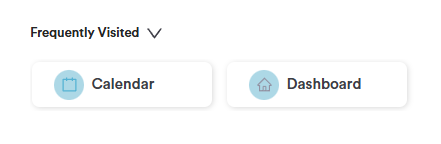
Frequently Visited
Below the header you'll find a Frequently Visited section, giving you quick access to the areas of Pabau you use most. This keeps your most important destinations front and center without having to navigate through menus.
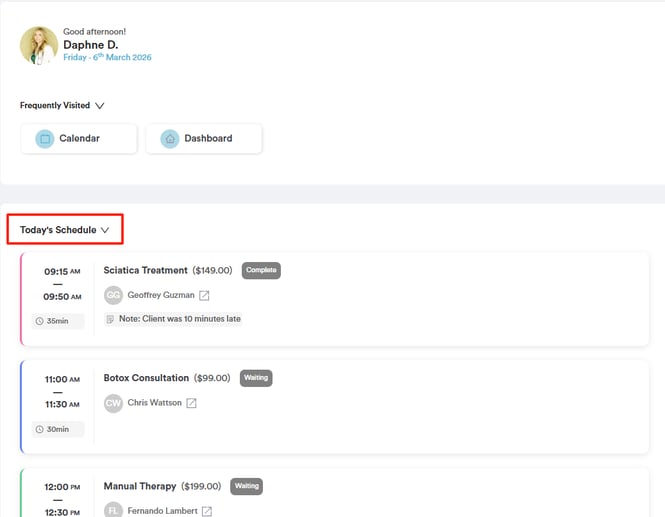
Today's Schedule
The Today's Schedule widget shows your appointments for the current day — personalised to you as the logged-in user. If you have no appointments today, this section will be hidden automatically.
For each appointment, you'll see:
- From / To — the start and end time of the appointment
- Duration — how long the appointment is
- Service — the name of the service being provided
- Amount — the value of the service linked to the appointment
- Client — the client's name, which you can click to open their client card directly
- Note — any notes attached to the appointment
- Status — the current appointment status, color-coded for quick identification
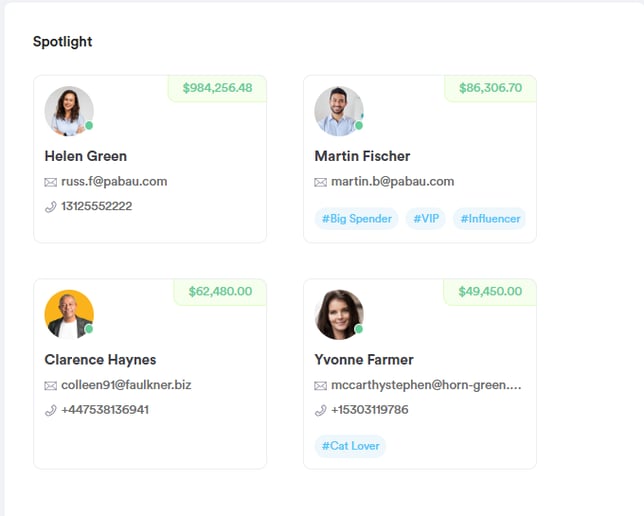
Client Spotlight
The Client Spotlight section highlights your top 4 highest-spending clients, ordered by total sales from highest to lowest. Each client entry displays their name and associated labels. Clicking a client's name takes you directly to their profile on the client card.
NOTE: The monetary spend amount is only visible to admin staff members. Non-admin users will see client names and labels only.
Community Banner
At the bottom of the dashboard, a community banner invites you to share your thoughts and ideas. Clicking the link takes you directly to the Pabau Community at app.pabau.com/community, where you can suggest features, give feedback, and connect with other Pabau users.

For more guides, refer to related articles below, select additional guides, or use the search bar at the top of the page. These guides will help you get the most out of your Pabau account.
Additionally, to help you fully utilize and understand your Pabau account, we recommend exploring additional guides and resources offered at the Pabau Academy. It offers in-depth video tutorials and lessons, offering a holistic learning experience that can equip you with the essential skills for achieving success with Pabau.