
This feature is part of the new client card version and is currently available to select users only, starting August 2026. A wider rollout to all accounts is coming soon.
Step 1: Navigate to the Client Card
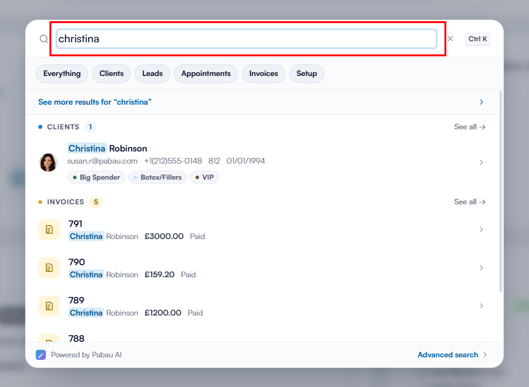
Start by logging in to your Pabau account using your login credentials. Then navigate to the search bar at the top of the page and type at least three letters of the client’s name. Pabau will filter the results as you type — click the client to open their card.
Step 2: Click the Create Button
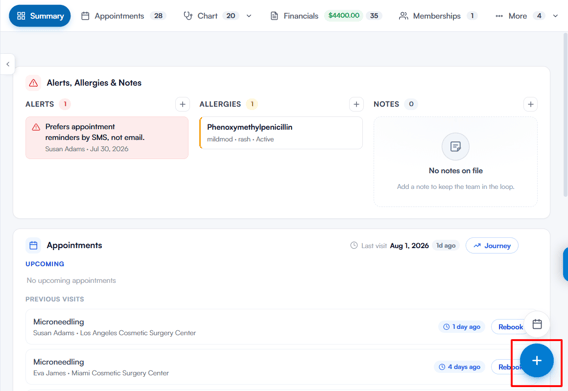
In the bottom-right corner of the client card, click the blue + button. A menu titled Create will open.
Step 3: Select an Action
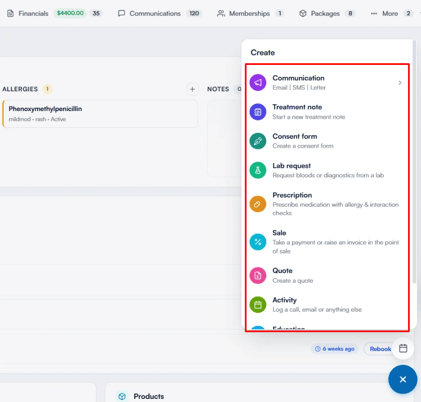
Choose from the following options:
- Communication — opens a submenu where you can send an Email or SMS, or compose a Letter, directly from the client’s card.
- Treatment note — start a new treatment note to document the client’s visit or procedure.
- Consent form — create a consent form for the client to review and sign.
- Lab request — request bloods or diagnostics from a lab on behalf of the client.
- Prescription — prescribe medication for the client, with built-in allergy and interaction checks.
- Sale — take a payment or raise an invoice for the client through the point of sale.
- Quote — create a quote for services or products to share with the client.
- Activity — log a call, email, or any other interaction with the client for record-keeping.
- Education — send aftercare, precare, or other educational material to the client.
- Dictation — record a voice clip and save it to the client’s record.
NOTE: Available options may vary depending on your practice’s setup and your permissions. Options that can’t be used right now appear dimmed — hover over one to see why. For example, Email is unavailable when the client has no email address on file.
TIP: The smaller calendar button just above the Create button opens the calendar with this client pre-selected, so you can book their next appointment in a couple of clicks.
By following the steps above, you can quickly access the most common client actions — from documentation and prescriptions to sales and communications — all without leaving the client card.
Was this guide helpful? Let us know by voting below - your feedback helps us write clearer articles.
For more guides, browse the related articles below or use the search bar at the top of the page. You can also watch our video learning series, the Pabau Academy, or visit the Support page for additional help.