
Step 1: Navigate to Analytics
Start by logging into your Pabau account using your login credentials. Then, navigate to the left sidebar menu, where you can find the Analytics tab. Click to expand it, and it will reveal Reports.
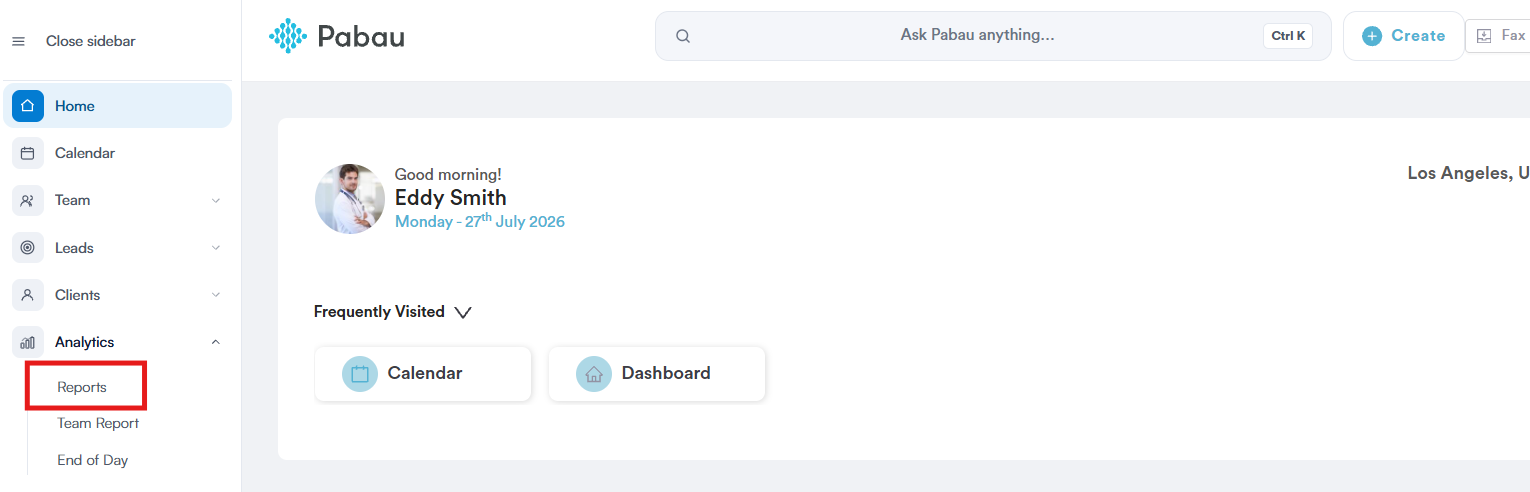
Step 2: Open the Clients Without Upcoming Appointments Report
Under the Clients section, you will find the Clients without upcoming appointments pre-created report. Click on the report name to continue.
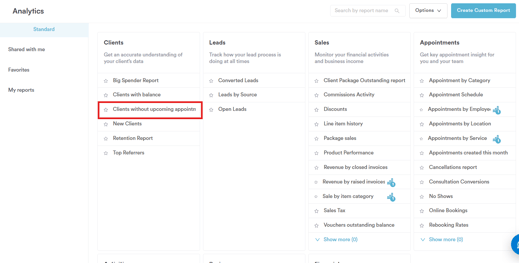
Step 3: Review the Default Filter
The Clients without upcoming appointments report opens with 1 filter applied:
- Client where Next appointment (days) is less or equal to 0 — restricts the report to clients with no future appointment booked, since a value of 0 or less means there's nothing scheduled ahead
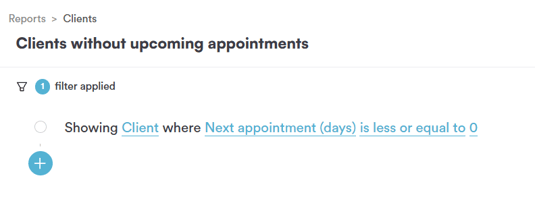
Each part of the filter — object, field, operator, and value — can be clicked and changed independently, which is what the rest of this article walks through.
Step 4: Change the Object
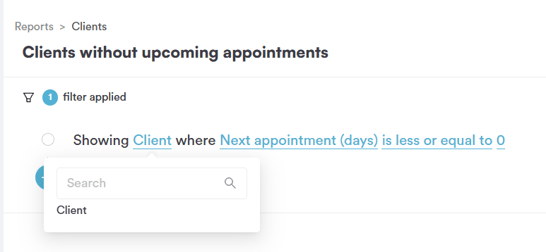
Clicking on the object opens a dropdown of everything you can build a filter around:
- Client — the person the report is built around; this is the only object available for this report, since every filter here relates to client-level data
Step 5: Change the Field
Clicking on the field opens a scrollable list, since a client record carries a lot of detail. This is where you choose exactly what aspect of the client you want to filter on.
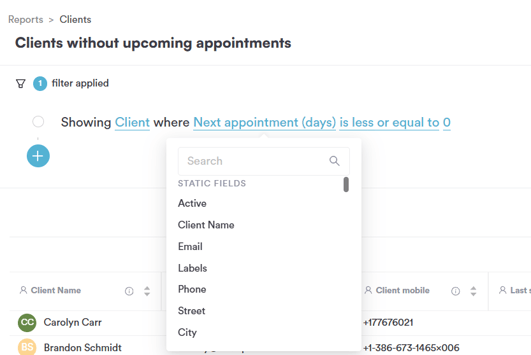
The static fields available for the Client object include:
- Active — whether the client record is active
- Client Name — the client's full name
- Email — the client's email address
- Labels — any labels applied to the client
- Phone — the client's phone number
- Street — the client's street address
- City — the client's city
- Postcode — the client's postcode
- Country — the client's country
- Total activities — the total number of activities logged against the client
- Client created date — when the client record was created
- Client source — where the client originated from
- Salutation — the client's title
- Gender — the client's recorded gender
- Date of Birth — the client's date of birth
- Client mobile — the client's mobile number
- Client Price List — the price list applied to the client
- Membership Number — the client's membership number, if applicable
- Insurer Name — the client's recorded insurer
- Client ID — the unique identifier for the client
- First Name / Last Name — the client's first and last name
- Average client spend — the client's average spend per visit or period
- Last visit (days) — how many days since the client's last visit
- Last appointment (date) — the date of the client's most recent appointment
- Last saw — the team member who last saw the client
- Age (years) — the client's age
- Total appointments — the total number of appointments the client has had
- Total no shows — the number of appointments the client has missed
- Review score — the client's recorded review score
- Next appointment (date) — the date of the client's next scheduled appointment
- Next appointment (days) — days until the client's next appointment, which is what powers the default filter
- Total cancelled appointments — the number of appointments the client has cancelled
- Total completed appointments — the number of appointments the client has completed
- Last appointment with — the team member for the client's last appointment
- Last appointment service — the service booked at the client's last appointment
- Next appointment service — the service booked for the client's next appointment
- Appointment Frequency — how often the client typically books
- Favourite Member — the team member the client sees most often
- First visit — the date of the client's first visit
- Est. Next Booking — the estimated date of the client's next booking
- Letters Opt In / Email Opt In / SMS Opt In / Phone Opt In — the client's marketing consent preferences by channel
- Client Balance — the client's current account balance
- Balance (O/S) — the client's outstanding balance
- Service Sales — total sales value from services
- Retail Sales — total sales value from retail/products
- Package Sales — total sales value from packages
- Retail (%) — the percentage of the client's spend that is retail
- Birth Month — the month of the client's birthday
- Total forms — the number of forms completed by the client
- History last completed — when the client's history/intake was last completed
- Preferred Location — the client's preferred clinic/site
- Total photos — the number of photos recorded against the client
- Primary Service Category — the main category of service the client books
- Clients Referred — the number of clients this client has referred
- Connect registered — whether the client is registered on the Pabau Connect app
- Pabau Score — the client's recorded Pabau score
- Total Sales — the client's total sales value
- Client Created by — the user who created the client record
- County — the client's county
- Membership Name — the name of the client's membership
- Membership Amount — the value of the client's membership payments
- Membership Expiration Date — when the client's membership expires
- Membership Status — the current status of the client's membership
- Client Location — the clinic/site the client is associated with
- Client System ID — the internal system identifier for the client
- Medical Conditions — any medical conditions recorded for the client
- Allergies — any allergies recorded for the client
- Membership Start Date — when the client's membership began
- Membership Payment Interval — how often membership payments are taken
- Relationship — the client's recorded relationship status or link
Below the static fields sits a Custom Fields section, listing any additional fields your account has configured, such as:
- GP Address
- GP Email
- GP Name
- How many dozes they have
- Lot Number
- Next of Kin
- Next of kin contact number
- Next of kin name
- Next of kin relationship
- Preferred Provider
- Treatment Interest
Picking a field here decides what the operator and value in the next steps will actually test.
Step 6: Change the Operator (Number-Style Fields)
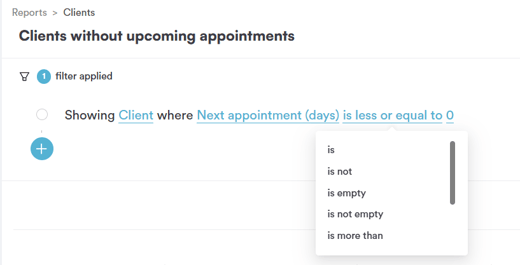
For a field like Next appointment (days), which is a number, the operator list is:
- is — only include clients with an exact number of days until their next appointment
- is not — exclude clients with an exact number of days until their next appointment
- is empty — only include clients with no next appointment recorded
- is not empty — only include clients that do have a next appointment recorded
- is more than — only include clients above the number entered
- is less than — only include clients below the number entered
- is more or equal to — includes the number itself plus everything above it
- is less or equal to — includes the number itself plus everything below it, which is how the default filter isolates clients with nothing booked ahead
Step 7: Choose the Value
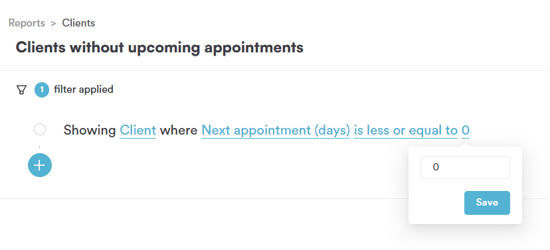
Clicking on the value for Next appointment (days) opens a field where you can type in the number to compare against, followed by a Save button — for the default filter, this is set to 0, so only clients with no future appointment are included.
Step 8: Review the Data
Once your filter is set the way you want, the report updates automatically, listing every client who matches your rule, along with columns like Client Name, Email, Client mobile, and Last saw.
By following these steps, you can easily generate and customize the Clients without upcoming appointments report.
Was this guide helpful? Let us know by voting below - your feedback helps us write clearer articles.
For more guides, browse the related articles below or use the search bar at the top of the page. You can also watch our video learning series, the Pabau Academy, or visit the Support page for additional help.