
The AI Patient Summary is an AI-generated clinical overview that pulls together a client’s key medical information — including safety flags, medications, conditions, history highlights, and suggested next steps — into one concise summary. It’s designed to give practitioners a quick, at-a-glance snapshot before a consultation, without needing to scroll through the client’s full record.
NOTE: Before you start:
- Each AI Patient Summary you generate uses 1 credit. If you have no credits left, top up before generating a new one.
- With Care Plus enabled, generating summaries is free and uses no credits.
- Care Plus is a premium add-on that removes credit limits on AI features and unlocks other tools. See the Care Plus guide for what's included and how to switch it on.
- A summary needs enough to read: the client must have at least 3 treatment notes or at least 3 forms on file.
- AI results are generated from the records on file and should be verified before any clinical decision.
Step 1: Navigate to the Client Card
Start by logging in to your Pabau account. Then use the search bar at the top of the page and type at least three letters of the client’s name — Pabau filters the results as you type.
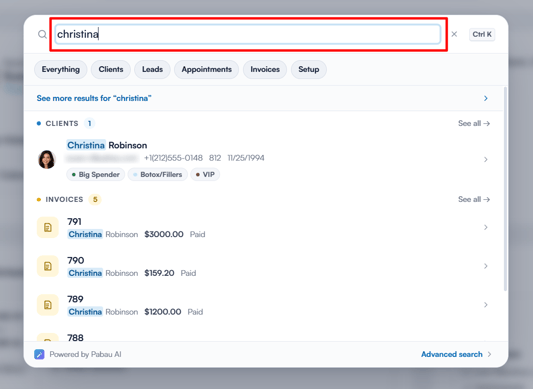
Search for the client by name
Step 2: Open the EMR Section
From the client’s Summary page, click EMR in the top navigation (labelled Chart on US accounts).
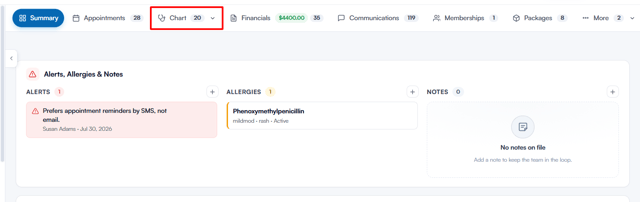
The EMR (or Chart) tab on the client card
Step 3: Generate the AI Patient Summary
Scroll down below the record cards to find the AI patient summary panel. The first time you use it for a client, click Generate — the button shows the 1-credit cost — and Pabau will read the record and build the summary. Once a summary exists, it appears automatically whenever you return to this page.
If the Generate button is greyed out, check the cards above the panel:
- The Treatment notes and Forms cards show how many records the client has. The summary unlocks once either of them reaches 3.
- Until then, Generate stays greyed out and the panel reads Available once the client has at least 3 forms on file. Three treatment notes unlock it too.
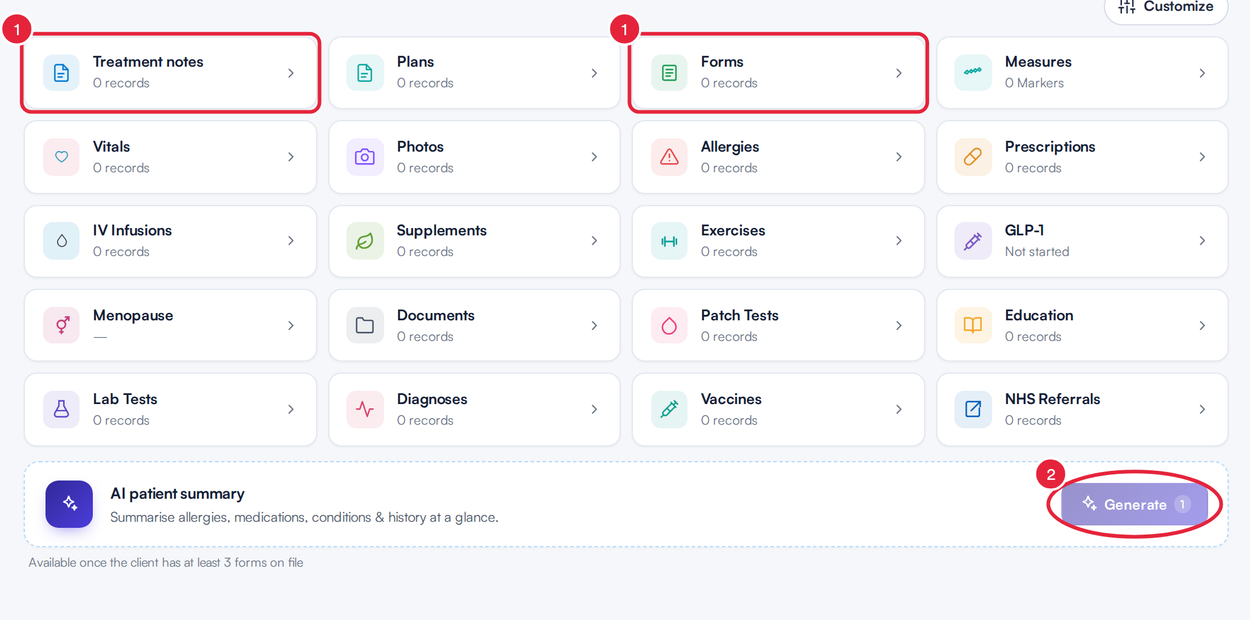
The summary stays locked until the client has 3 treatment notes or 3 forms
If you have no credits left, the button is greyed out for that reason instead and the panel reads You have no credits. Top up to generate a summary.
Step 4: Review the Summary
The summary displays a concise clinical overview generated from the client’s records, including:
- A brief patient overview headline
- Safety flags – any allergies or safety-related notes to be aware of before treatment
- Medications and Conditions – recorded medications and known conditions
- History highlights – notable points from the client’s medical history
- Suggested next steps – AI-generated recommendations based on upcoming appointments, active packages, and treatment history
- Recent photos – thumbnails of the client’s most recent photos on file
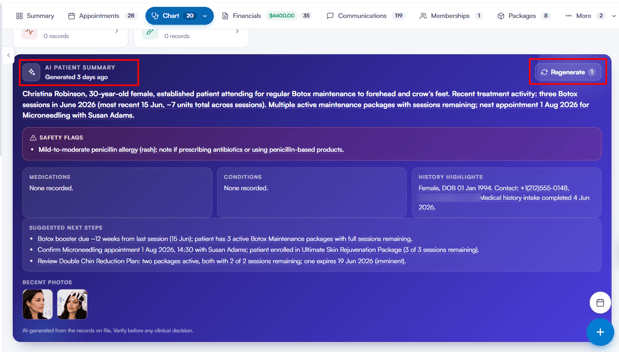
A generated AI patient summary with Regenerate in the top-right corner
Pabau reads the whole chart to build the summary: allergies, staff notes, medications, conditions and problems, the medical history form, treatment notes, injection charts, packages, upcoming appointments, lab results, measures, photos, documents, patch tests, education shared with the client and vaccines.
Statements with a dotted underline are cited — hover over them to see exactly which records they came from, such as the medical history form, a specific treatment note, a document or a vaccine.
The summary also shows when it was last generated (e.g. “Generated 3 days ago”), and includes a reminder that it is AI-generated from the records on file and should be verified before any clinical decision.
To refresh the summary with the latest information, click Regenerate in the top-right corner of the panel. Regenerating uses 1 credit; if you have no credits available, the button is disabled until you top up.
With the AI Patient Summary, you can quickly review a client’s key clinical information before every consultation.
What's next?
- Pabau Features Requiring Credits
- How to Manually Purchase Credits
- How to Track Outcome Measures in the Client Card
Was this guide helpful? Let us know by voting below - your feedback helps us write clearer articles.
For more guides, browse the related articles below or use the search bar at the top of the page. You can also watch our video learning series, the Pabau Academy, or visit the Support page for additional help.