
The Aged Debt report shows every outstanding balance owed to your clinic, by clients and by insurance payers, aged by how old each unpaid invoice is. It is the quickest way to see who owes you money, how long they have owed it and which debts to chase first, and it is especially handy for keeping on top of unpaid insurance claims.
Step 1: Open the Aged Debt Report
Go to Reports, search for Aged Debt (listed under Sales) and open it. The report loads showing balances as of today.
Step 2: Read the Ageing Buckets
Each debtor appears on one row, with their outstanding balance spread across six ageing buckets by invoice date, followed by their total:
- The buckets: ≤ 30, 31 – 60, 61 – 90, 91 – 150, 151 – 300 and 300+ days. The i beside each heading shows the exact invoice dates that bucket covers.
- Total Debt: everything the debtor owes. A totals row at the bottom sums every column.
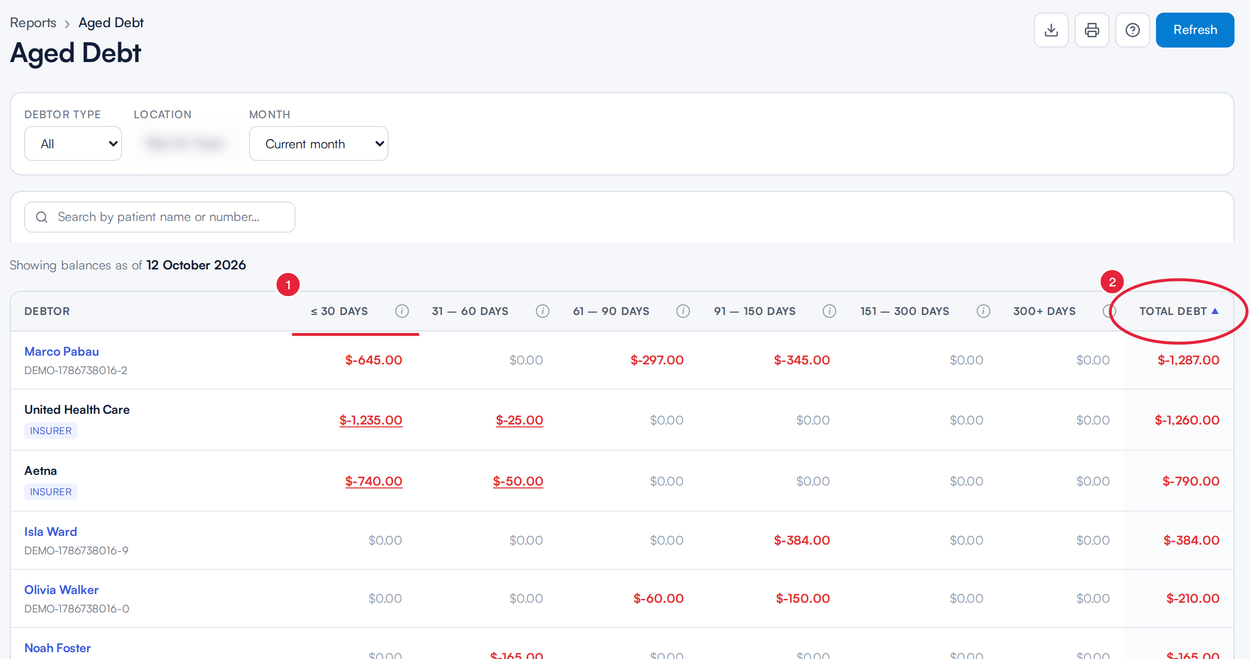
Balances aged by invoice date
Reading the numbers:
- A figure in red is money the debtor owes you: an outstanding invoice.
- A black positive figure is money the debtor holds on account (a credit).
NOTE: A Total Debt of zero shown in black (rather than greyed out) means the debtor's account credit exactly offsets their outstanding invoices. That is money sitting on the account that hasn't been applied to the open invoice, and worth tidying up.
Step 3: Focus on Insurance Debt
- Set Debtor type to Insurance. Balances regroup per insurance payer, each row tagged Insurer, instead of per client.
- Location scopes the report to one clinic. It defaults to your own primary location; where you have access to more than one, switch it to All locations to see every location you can view.
- Pick a Month to age the invoices as of the end of that month: the debt position exactly as it stood then.
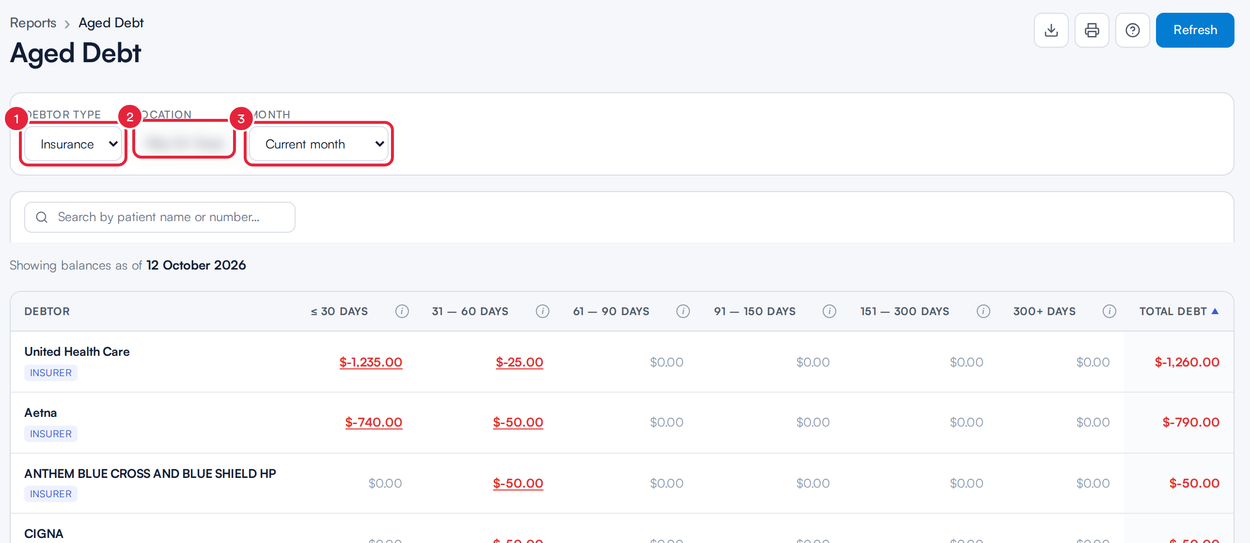
One row per insurer (location blurred)
Step 4: Drill Through to the Claims
On an insurer row, every amount is a link. Click one and More → Claims opens in a new tab, already filtered for you:
- The All claims tile adds up to the figure you clicked.
- The date range is set to that bucket's invoice-date window.
- The insurer's tab is selected.
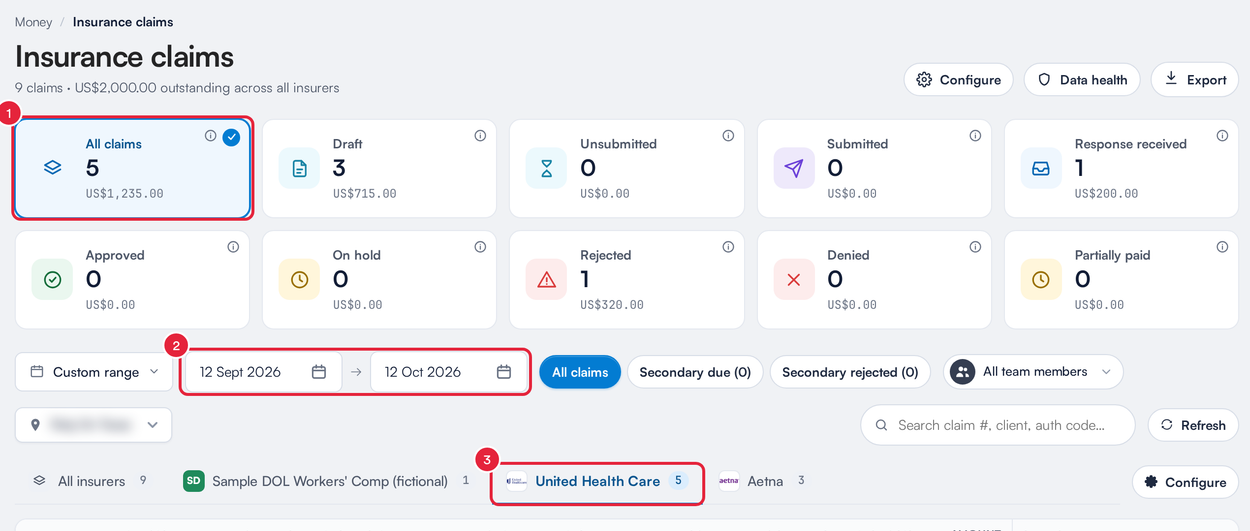
The claims behind one figure
From there, work through each claim: refresh its status, correct and resend a rejection, or chase the payer. The full claims workflow is covered in Insurance Guide Part 4: Submit and track insurance claims.
TIP: Clicking a client's name on a client row opens their quick-view card, so you can check their balance and contact details without leaving the report.
Step 5: Search, Sort, Export and Print
- Search by client name or number to jump straight to a debtor.
- Sort by clicking any column heading. Sorting by 300+ Days brings your oldest unpaid debts to the top.
- Export (the download button) saves the entire filtered report as a CSV, every debtor rather than just the rows on screen, which makes a quick month-end review of insurer balances.
- Print produces a landscape copy that keeps all six buckets on the page, and Refresh runs the report again with the current filters.
What's Next?
- Getting started with insurance billing
- Tracking electronic claim submissions
- How long does it take to process ERA and claims?
Questions? Reach us any time via the in-app chat. We're happy to help.
Was this guide helpful? Let us know by voting below - your feedback helps us write clearer articles.
For more guides, browse the related articles below or use the search bar at the top of the page. You can also watch our video learning series, the Pabau Academy, or visit the Support page for additional help.